

Google Stitch is one of the most talked-about AI design tools of 2025, and for good reason. Built by Google Labs and powered by the Gemini 2.5 model family, it promises to turn a plain text prompt into a complete, exportable UI design in under two minutes. If you have been curious about whether Google Stitch actually delivers on that promise, or whether it is worth your time, this review covers everything you need to know before you open the tool.
Table of Contents
What Is Google Stitch?
Google Stitch began as Galileo AI, a startup that Google acquired in 2025 and later rebranded, keeping its original prompt-to-UI experience while integrating it into Google’s AI ecosystem. The tool is now available through Google Labs at stitch.withgoogle.com and requires nothing more than a Google account to access.
Google Stitch is an AI-powered UI design tool built on Gemini that generates complete design systems, interactive prototypes, and exportable code from a text prompt or image. It launched at Google I/O 2025 as part of Google Labs and is currently free to use.
What makes it different from older design tools is the starting point. Traditional tools like Figma or Adobe XD require you to place every element manually on a canvas. Google Stitch removes that blank-canvas problem entirely. You describe what you want in plain English, and the tool builds the structure, layout, and visual theme for you.
Built on Google’s Gemini 2.5 models, Stitch replaced its earlier Galileo AI foundation. It supports HTML/CSS export and Figma integration, streamlining the UI/UX design process for developers and designers alike.
It is worth being clear about what Google Stitch is not. It is not a replacement for Figma or professional design systems. It is a fast ideation tool that gets you from a rough idea to a structured, shareable prototype in minutes. The output gives you a solid starting point, not a finished product ready for handoff.
One real user who tested the tool noted that it made one thing very clear: the tool is not about designing the final UI for you. It is about getting you out of the blank-canvas problem faster.
That framing matters a lot. If you approach Google Stitch expecting a production-ready design, you will be disappointed. If you approach it as a rapid ideation layer before your real design work begins, it consistently delivers value.
How Google Stitch Works?
Understanding how Google Stitch processes your input helps you write better prompts and get better results. The tool does not simply generate an image of a screen. It builds a structured UI with defined layout components, color tokens, and spacing rules.
Stitch parses intent, identifies layout primitives, and begins rendering the first draft. Gemini 2.5’s layout intelligence analyzes element relationships, builds hierarchical component trees, and maps design tokens such as colors, typography, and spacing to a responsive grid.
The tool offers two distinct modes, and choosing the right one matters depending on your goal.
Standard Mode vs Experimental Mode
Users can choose between two AI models: Gemini 2.5 Flash in Standard mode for fast, lightweight design generation, with up to 350 generations per month, and Gemini 2.5 Pro in Experimental mode for higher-quality, detailed designs, with up to 200 generations per month.
Standard mode is best for quick ideation. It is faster, allows Figma export, and suits situations where you want to explore many directions quickly. Experimental mode produces more detailed and refined layouts but is slower and, critically, does not support Figma export. That limitation matters if Figma is part of your existing workflow.
In Experimental Mode, where you can reference and build from images, Figma export is not supported. That limitation makes the workflow less useful, even if the generated design looks close to what you want.
Input Flexibility
Google Stitch accepts three types of input. You can describe your UI in plain text, upload a hand-drawn sketch or wireframe, or paste a screenshot of an existing interface for Stitch to interpret. With an option to refine your design with image inputs, an interactive chat, theme selectors, and a paste to Figma function, Stitch lets you truly hone in on your creative designs and development needs.
The New AI-Native Canvas
The new Stitch canvas is built to amplify creativity throughout the design process, where you often diverge and converge before landing on something great. It allows you to bring your ideas regardless of the shape they take images, text, or even code directly to the canvas as context.
The canvas also introduces a Design Agent, which reasons across the full project history, and an Agent Manager that lets you run multiple design directions in parallel without losing track of earlier decisions. These features significantly improve the tool’s usefulness for longer projects beyond a single screen.
Step-by-Step Guide to Using Google Stitch
Here is how to go from nothing to a usable UI prototype using Google Stitch. Each step is explained clearly enough for someone who has never used a design tool before.
Step 1: Create a Google Account and Visit the Tool
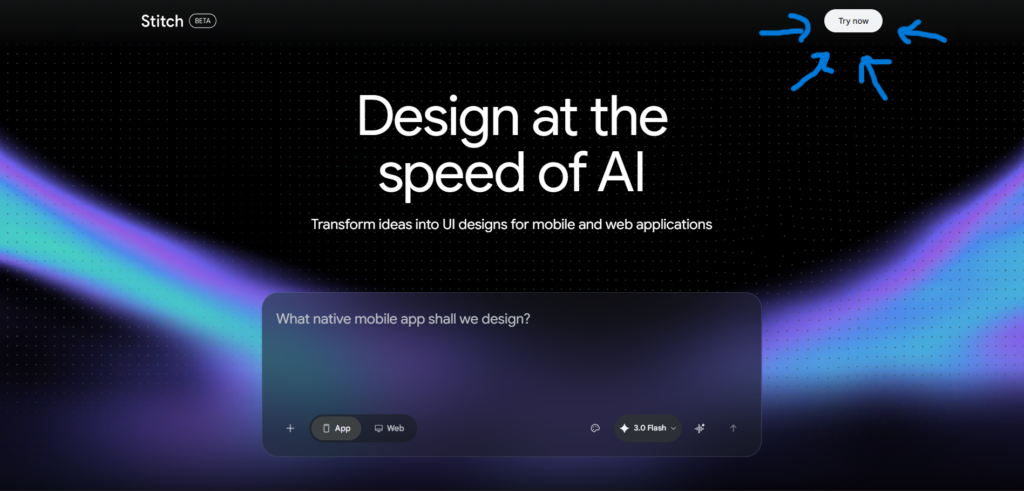
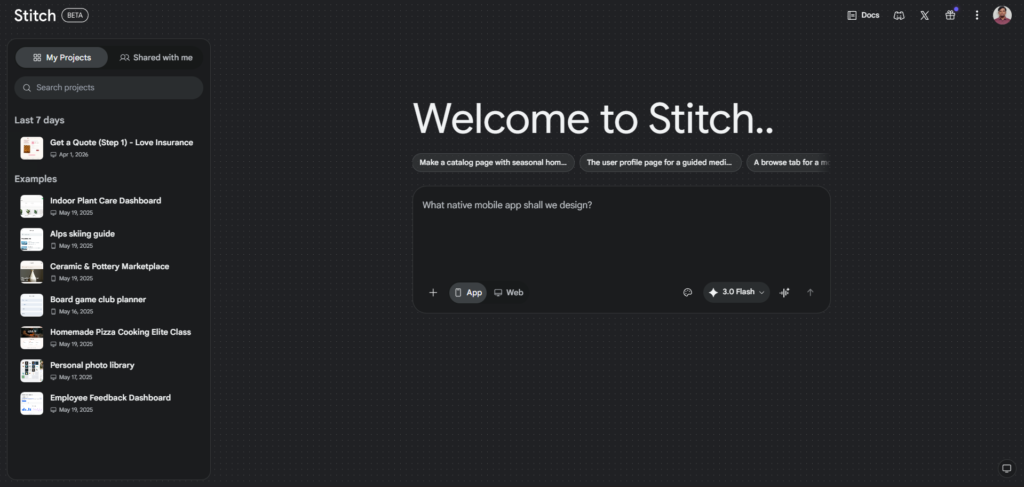
Go to stitch.withgoogle.com and sign in with your Google account. Getting started with Google Stitch is fast since it is a fully web-based tool, requiring only a Google account to use, with no installations or setup required. Once signed in, you will see your workspace with your usage limits displayed on the left sidebar.
Step 2: Choose Your Mode
Before typing your prompt, select either Standard mode or Experimental mode from the dropdown menu. If you are exploring an idea for the first time and want to see multiple options quickly, use Standard mode. If you are refining a concept and plan to iterate carefully, Experimental mode gives more detailed results.
Think of Standard mode as a sketch pad and Experimental mode as a detailed draft. Use the one that matches what stage of thinking you are in.
Step 3: Write a Specific Prompt
This step matters more than any other. The quality of your output depends directly on how clearly you describe your interface. The quality scales with how specific your prompt is. Vague inputs produce generic outputs, and detailed prompts produce usable starting points. Good prompts include context about the product type, visual preferences, and specific UI patterns.
For example, instead of writing “make me a fitness app”, write “a mobile fitness app with a dark background, teal accent colors, a home screen showing today’s workout summary, a progress chart, and a bottom navigation bar with Home, Workouts, and Profile tabs.”
Step 4: Generate and Review the Output
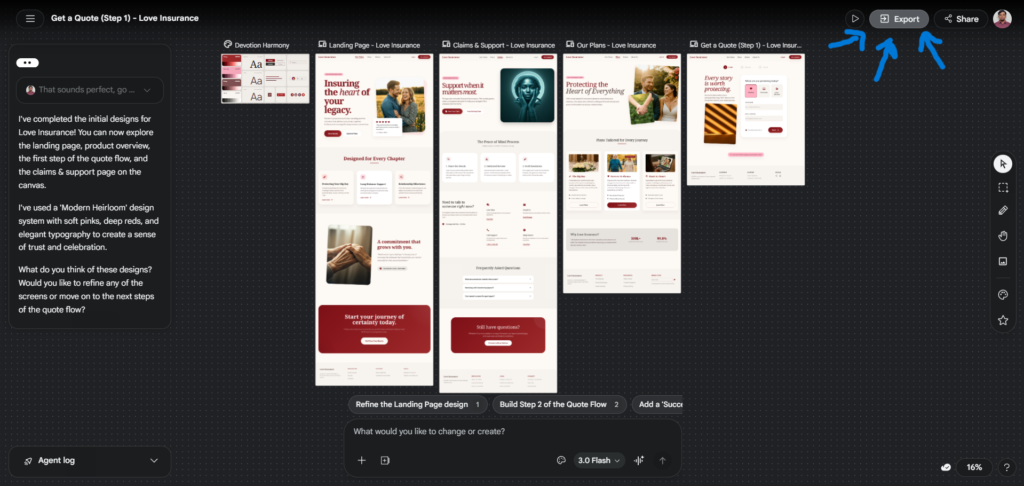
Click Generate and wait. The tool provides an estimate of how much time it will take to generate the design, typically around 90 seconds for a mobile app prompt, and this estimate is accurate. Once generated, you will see the layout on screen. Review it for the key elements you requested. Check spacing, color application, and whether the components match your description.
Pay attention to the styling including dark theme, spacing, and font. Differences from your prompt are common due to current limitations of AI-generated UI design, but they are easily fixable through prompt tweaking or refining the layout in Figma after exporting.
Step 5: Refine Using Follow-Up Prompts
You do not need to regenerate from scratch if the output is close but not perfect. Use the interactive chat to send follow-up instructions. You can ask Stitch to adjust specific elements, change colors, rearrange sections, or add screens.
Be specific with your refinements too. “Move the navigation bar to the bottom” or “change the background to dark gray and follow WCAG 2.1 contrast guidelines” will produce better results than “make it look nicer.”
Step 6: Export to Figma or Download Code
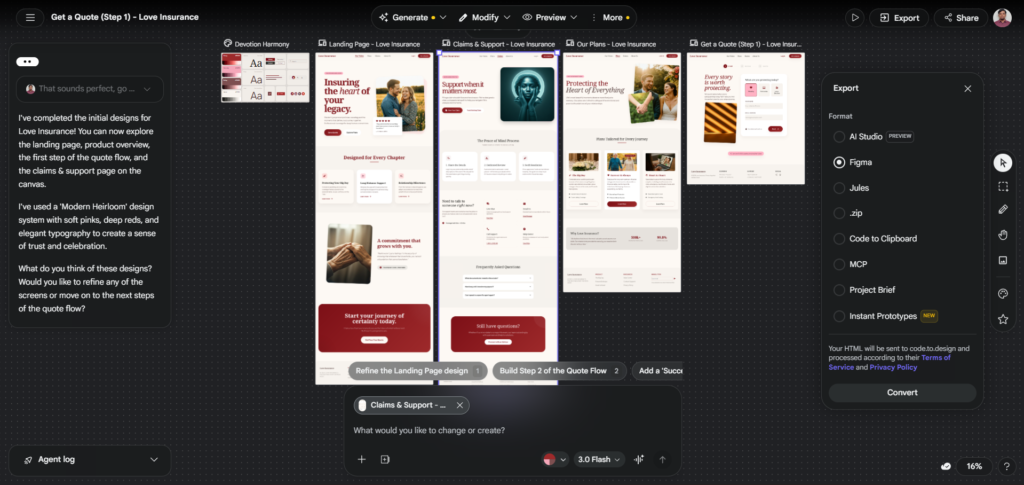
Once satisfied with your design, Stitch provides options to paste the design to Figma for further refinement, collaboration, and integration into existing design systems. It also exports clean front-end code based on your design.
Note that the code export produces HTML and TailwindCSS. The tool does not allow you to choose a tech stack, so the code you get will be HTML and TailwindCSS, which may not be relevant if you are working with a different framework like SwiftUI. Keep this in mind if your development environment requires a different output format.
Key Benefits of Google Stitch
It Removes the Blank Canvas Problem Completely
The hardest part of any creative project is starting. Most design tools give you an empty canvas and expect you to know exactly what goes where. Google Stitch eliminates that problem entirely. You describe your idea in plain language and the tool produces a structured, visual layout that you can immediately react to and refine. This is especially valuable for people who know what they want to build but lack the design vocabulary to translate that into a Figma file.
For non-designers like product managers, startup founders, and developers, this alone makes the tool worth trying. Instead of spending two hours placing components on a blank screen, you spend two minutes writing a description and five minutes refining the result.
It Accelerates Early-Stage Design Collaboration
One of the most practical uses of Google Stitch is team alignment. When everyone on a project has a different mental image of what a screen should look like, conversations become circular and slow. Stitch makes it easier for product managers, designers, and developers to get on the same page. Whether you are kicking off a sprint or mapping out a new feature, it helps everyone see the same thing, fast.
Generating a quick visual during a planning meeting changes the conversation from abstract to concrete. Even an imperfect AI-generated screen gives the team something to point at, argue about, and improve. That is worth a lot in any product development cycle.
The Generation Limits Are Genuinely Generous for the Price
Stitch includes features that cost $15 to $60 per month on competing platforms. Multi-screen generation, voice-driven design, design system imports, and React code export are all included at zero cost. For individuals and small teams on tight budgets, the free tier is more than adequate for regular use.
With 350 Standard mode generations and 200 Experimental mode generations each month, most users will not hit the ceiling during normal ideation workflows. The limits become noticeable only if you are using Stitch as your primary design tool at high volume, which is not what the tool is built for.
It Connects Directly to Google’s Development Ecosystem
Stitch integrates directly with Google AI Studio, Google’s development environment for building Gemini-powered applications. Once a design is generated, you can export it straight into AI Studio, where it can be connected to live Gemini logic and tested as a functional prototype.
For teams already using Google Cloud, Gemini API, or AI Studio, this integration shortens the journey from design concept to working prototype significantly. Instead of designing in one tool, handing off to a developer, and waiting for a working build, you can move from a prompt to a clickable, AI-powered interface within the same ecosystem.
Google Stitch vs Alternatives: Comparison Table
| Tool | Standout Feature | Design Quality | Code Ownership | Monthly Cost |
|---|---|---|---|---|
| Google Stitch | Gemini-powered prompt-to-UI with voice canvas | Mid-fidelity, good for early ideation | You own outputs; HTML + TailwindCSS export | Free (Google Labs) |
| Figma | Industry-standard collaborative design canvas | High-fidelity, production-ready | Full ownership; Figma native format | Free (limited); Pro at $15/editor/month |
| Framer | Design and publish websites without code | High-fidelity, web-ready | Full ownership; exports clean code | Free (limited); paid from $10/site/month |
| Uizard | Fast MVP screen generation for non-designers | Mid-fidelity, good for wireframes | Full ownership; export to Figma or HTML | Free (limited); paid from $19/month |
| v0 by Vercel | Prompt-to-React components for developers | Developer-grade, component-level | Full ownership; React and Tailwind output | Free (limited); paid from $20/month |
Each tool occupies a different part of the workflow. Google Stitch is strongest at the ideation stage before any serious design work begins. Figma takes over once you need pixel-level precision. Framer suits teams that want to publish quickly without a developer. v0 by Vercel serves developers who want functional React components rather than visual mockups.
Who Is Google Stitch Really For?
Startup Founders Without a Design Background
If you are building a product and cannot afford a designer yet, Google Stitch gives you a fast way to visualize your idea. Startups and smaller companies leverage Stitch to jumpstart web and mobile app development by quickly producing UI code that can be iterated on, reducing initial development time and cost. You can take the generated output to a freelance developer or use the HTML/TailwindCSS code directly as a rough starting point. It is not a finished product, but it is far better than describing your idea in words alone.
Product Managers and Business Analysts
If your job involves bridging the gap between business requirements and design teams, Google Stitch is a practical communication tool. You can generate a rough screen during a meeting to illustrate a feature, gather immediate feedback, and refine the concept before it ever reaches a designer. This cuts down on the back-and-forth that typically adds days to sprint planning cycles.
Junior Designers Learning the Field
For someone who is new to UI design, Google Stitch offers a low-pressure way to explore design patterns and visual structures. Generating multiple variations of the same screen and studying what works and what does not is a faster learning method than reading design theory alone. Design studios use it to quickly generate wireframes and first drafts before moving to detailed toolkits like Figma or Adobe XD.
Frontend Developers Who Need a Visual Starting Point
Many developers know exactly what they want to build functionally but struggle with visual layout decisions. Google Stitch gives developers a working HTML and TailwindCSS output that they can take into their existing codebase and adapt. It will not match every tech stack, but for web projects using common frameworks, it removes the “what should this screen look like” problem and lets you focus on logic instead.
Frequently Asked Questions
Is Google Stitch completely free to use?
Google Stitch is completely free right now. As a Google Labs experiment, there are no paid tiers, no credit card requirements, and no hidden fees. You just sign in with a Google account and start designing. You receive 350 Standard mode generations and 200 Experimental mode generations per month, both resetting monthly. Industry analysts expect paid plans to arrive once the tool exits Google Labs, likely by late 2026, so the current free access window is the most generous it may ever be.
What is the difference between Standard mode and Experimental mode in Google Stitch?
Standard mode uses Gemini 2.5 Flash and is optimized for speed. It allows up to 350 generations per month and supports Figma export. Experimental mode uses Gemini 2.5 Pro, which produces more detailed and refined designs, but it is slower, allows fewer generations per month, and does not support Figma export. Standard mode focuses on speed and is best for quick drafts and fast idea exploration, while Experimental mode is slower but produces more detailed, refined designs and supports image-based prompts. Choose based on whether you need speed or quality for that particular session.
Can Google Stitch replace Figma?
No, and it is not designed to. Google Stitch is a starting point tool. It helps you generate a UI structure quickly, but it lacks the component-level precision, design system management, and collaborative features that Figma provides. Stitch still has quite a few shortcomings that make it more of a sparring partner than an actual replacement for designers. The most practical workflow is to generate a concept in Stitch, export it to Figma, and then refine it properly using Figma’s full feature set. Think of them as complementary rather than competing tools.
What kind of code does Google Stitch export?
Google Stitch exports HTML and TailwindCSS. The tool does not allow you to choose a tech stack, so the code you get will be HTML and TailwindCSS, which may not be relevant if you are working with frameworks like SwiftUI or React Native. For standard web projects this is usable, but for native mobile development or projects on different stacks, you will need to manually convert the output. The Figma export option in Standard mode is often a better route for teams who need to hand off designs to developers using other technologies.
What are the main limitations of Google Stitch?
Several real limitations are worth knowing before you commit time to the tool. Stitch’s outputs often default to a limited set of layout structures, meaning many designs end up looking alike with only minor variations. Its limitation to static, non-responsive layouts means you have to manually adapt components and adjust breakpoints for different screen sizes. Additionally, complex multi-screen flows remain difficult, monthly generation limits cap heavy use, and the image upload feature for wireframe interpretation is not as reliable as described. It works best for simple screens and early ideation, not for complete product design workflows.
How do I get better results from Google Stitch prompts?
The single most impactful thing you can do is be specific. Vague prompts produce generic layouts. Include the product type, the target platform, the color palette or brand style, the specific screens you need, and the components each screen should contain. The better you articulate your intention, the more relevant output the AI will generate for you. After your first generation, use follow-up prompts in the chat to adjust individual elements rather than regenerating from scratch. Voice commands are also available for quick real-time tweaks if typing detailed instructions feels slow. Starting broad and narrowing down through iteration consistently produces better results than trying to perfect your prompt before clicking generate.
Final Thoughts
Google Stitch is a genuinely useful tool when you use it for what it is good at. It is fast, free, and removes the friction of starting a design from nothing. For founders, product managers, junior designers, and developers who need a visual starting point quickly, it delivers real value. The Gemini-powered AI interprets natural language well enough to produce structured, coherent layouts from a reasonably detailed prompt.
The limitations are real too. Output consistency varies, complex flows still require significant manual work, the Figma export restriction in Experimental mode is an awkward constraint, and the generated code is locked to HTML and TailwindCSS with no option to choose a different stack. If you are a professional designer expecting production-ready output, you will need to supplement Stitch with Stitch and Claude Duo and proper design workflows.
For anyone who wants to explore how AI is changing the creative process, it is worth reading more about Stitch vs Figma to understand the technology behind Stitch. And if you are building a broader AI-powered workflow, check out our guide to Google Stitch for daily productivity to see how Stitch fits alongside other tools you might already be using.
The clearest next step is to open stitch.withgoogle.com, spend ten minutes writing a detailed prompt for something you are actually working on, and judge it by the output you get. No tutorial replaces that first-hand experience.
External Resources:













[…] Stitch AI Review Reveals 11 Honest Reasons It’s Worth Using in 2026 […]
[…] Stitch AI Review Reveals 11 Honest Reasons It’s Worth Using in 2026 […]
[…] Stitch AI Review Reveals 11 Honest Reasons It’s Worth Using in 2026 […]
[…] 1. 8 Strong Reasons Google Stitch Is Becoming a Serious Problem for Designers2. Claude + Stitch: 7 Shocking Ways This Duo Became Every Designer’s Worst Nightmare3. Stitch AI Review Reveals 11 Honest Reasons It’s Worth Using in 2026 […]
[…] you want a grounded, no-fluff breakdown of the tool itself before committing to this workflow, our Stitch AI Review: 11 Honest Reasons It’s Worth Using in 2026 covers every angle you need to […]