The Leonardo AI Canvas is where the platform stops being a prompt box and starts being a production tool. If you have been generating images and simply accepting whatever comes out, regenerating from scratch every time something is slightly off, this guide will change how you work.
These 8 editing tricks cover everything from fixing specific problems in a near-perfect image to extending compositions, removing unwanted elements, and sketching ideas live. Every technique here is practical, beginner-friendly, and grounded in how the Canvas actually behaves in 2026.
Table of Contents
What Is the Leonardo AI Canvas and Why Does It Matter?
The Leonardo AI Canvas is a built-in image editing environment that lets you make targeted changes to any generated or uploaded image without leaving the platform. It includes two core modes: the AI Canvas for detailed editing work, and the Real-Time Canvas for live sketch-to-image generation.
Most AI image tools operate on a one-directional workflow. You enter a prompt, receive an image, and if that image has a problem, your only option is to modify the prompt and regenerate the entire thing from scratch. This wastes tokens and time, and often the new generation introduces different problems while solving the original one.
The Leonardo AI Canvas breaks this cycle. When an image is 90 percent of what you need but has one element that is wrong, you fix only that element. When an image would work perfectly for a landscape format but was generated in portrait, you extend the canvas outward rather than starting over. When a character’s face looks slightly off from the reference, you mask just the face and regenerate it in context.
The AI Canvas supports subject swapping, background extension, and localised regeneration on a specific region without regenerating the whole image. Real-Time Canvas turns the editor into a sketch-to-image tool where you draw and the model generates an image matching your shape and composition as you go. This combination is one of the genuinely distinctive features in the AI image generation category in 2026.
How to Access the Canvas?
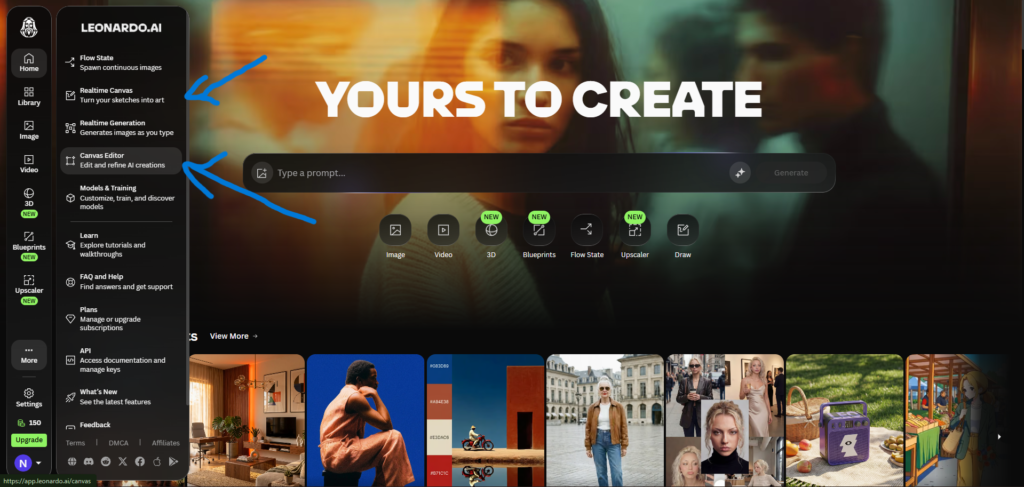
There are two ways to open the Leonardo AI Canvas. The first is from the image generation feed. After any generation, hover over an image and click the square Canvas Editor icon that appears. The image loads directly into the Canvas with your original generation preserved.
The second way is to navigate directly to Canvas Editor in the left sidebar. From there, you can upload any image from your computer or start with a blank canvas. This is the right approach when editing images from outside the platform, such as client-provided assets or images generated in another tool.
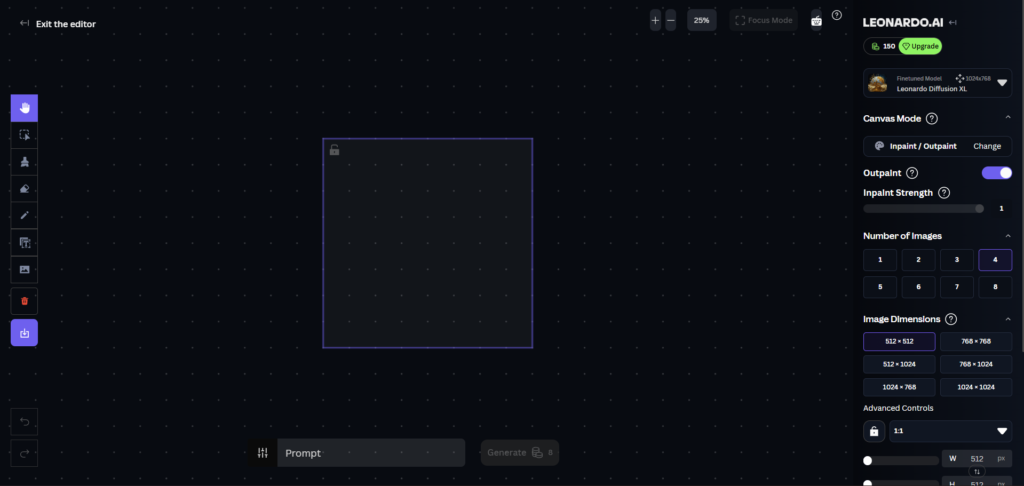
Once inside the Canvas, the interface has two main areas. The left toolbar contains your editing tools: Select (which defines the purple generation box), Draw Mask (which marks the area you want to regenerate), Erase (which removes pixels), and Upload (which brings in a new base image). The right control panel contains your generation settings: Model, Canvas Mode, Inpaint Strength, Image Dimensions, Number of Images, and Guidance Scale.
Trick 1: Inpainting to Fix Specific Problems
Inpainting is the Canvas’s most used feature and the most practical time-saver in the platform. The process of generating over an area of an image is called inpainting. The AI model takes in the target masked area and considers the surrounding context when generating images.
The workflow is straightforward. Use the Select tool to place the purple generation box over the area you want to change. Use the Draw Mask tool to paint over the specific element you want to replace. Type a prompt describing what you want in that masked area. Set Canvas Mode to Inpaint/Outpaint with the Outpaint toggle off. Click Generate.
A practical example most creators encounter: AI-generated hands with incorrect finger counts. Draw a small mask over the hand only, keeping the rest of the image unmasked. Type “hand with five fingers, natural pose.” Generate. The model regenerates only the masked area and blends it seamlessly with the surrounding image. You review the 4 generated options and accept the best one.
Use the same model you used to create the original image where possible. If you are using Leonardo Diffusion XL, select that in the right panel before generating. Using a different model than the one that generated the original image introduces style inconsistencies in the inpainted area.
Trick 2: Adjusting Inpaint Strength for Better Control
The Inpaint Strength slider is one of the most misunderstood settings in the Canvas, and getting it right makes a significant difference in output quality.
Inpaint Strength controls how much the model considers the underlying image when generating the replacement. A low strength value (0.1 to 0.3) keeps the new generation very close to the original, making only subtle changes. A high strength value (0.7 to 0.9) gives the model more freedom to generate something substantially different in the masked area.
The Inpaint strength will alter how adherent to the underlying image the new version is. If you are not getting any notable results from input, the underlying image might be too strong. In this case, it might be necessary to use the erase tool.
The practical rule of thumb: start with a mid-range value around 0.5 and adjust based on results. If the inpainted area looks too similar to the original and your prompt is not being followed, increase strength. If the inpainted area looks too different from the surrounding image and the blend is jarring, decrease strength. For fine corrections like fixing a small detail or changing a colour, lower strength values (0.3 to 0.5) usually produce cleaner results.
Trick 3: Outpainting to Extend Your Image
Outpainting lets you extend an image beyond its original boundaries in any direction. The AI generates new content that continues the composition, matching the style, lighting, colour palette, and atmosphere of the original image.
Common use cases for outpainting include: converting a portrait-format image to landscape for a blog header or YouTube thumbnail, extending a scene to show more of the environment, adding background space around a product shot, and creating panoramic compositions from a single starting image.
To outpaint, select Inpainting/Outpainting from the Canvas mode area of the right-hand toolbar. Use the generation box to highlight an area beyond the edge of the base image while keeping enough of the original in for style comprehension.
To extend an image to the right, position the generation box so it overlaps the right edge of your image and extends beyond it into empty canvas space. Make sure the Outpaint toggle is on in the right panel, as this optimises the generation settings for outpainting rather than inpainting. Type a prompt describing what the extended area should contain. Generate and review.
Trick 4: The 60/40 Rule for Seamless Outpainting
This is the single most useful practical tip for getting clean outpainting results, and it comes directly from Leonardo’s official documentation.
When outpainting, use the generation box to highlight an area beyond the edge of the base image while keeping enough of the original in for style comprehension. Around a 60/40 ratio is a good approach, meaning roughly 60 percent of the generation box should overlap the existing image and 40 percent should extend into the new area.
When too much of the generation box is in the empty new area and too little overlaps the original image, the model has insufficient context to understand the composition style, lighting direction, and colour treatment. The result is a new section that looks disconnected from the original. The 60/40 overlap gives the model enough visual context to match the extension to the original with much higher consistency.
For large outpainting extensions, work in multiple smaller steps rather than trying to extend a large distance in one generation. Extend 30 to 40 percent of the image width at a time, accept the result, then use that as the new base for the next extension. Each step maintains the 60/40 ratio and the cumulative result is far more coherent than a single large outpaint.
Trick 5: Using the Erase Tool Before Inpainting
There are situations where inpainting alone does not produce the changes you want, even at high strength settings. The reason is usually that the original pixels in the masked area are influencing the generation too strongly. The Erase tool solves this.
If you are not getting notable results from inpainting and the underlying image is too strong, use the erase tool for better clarity before attempting to inpaint. Additionally, upscaled images can be tricky to edit, so it is worth using an original version of the image and upscaling after editing rather than trying to inpaint an already upscaled image.
The workflow is: use the Erase tool to remove the pixels in the area you want to change, leaving blank canvas space. Then apply your Draw Mask over that now-empty area. When you generate, the model fills the area based on your prompt and the surrounding context without the interference of the original pixels. This produces more dramatic changes than inpainting alone and is particularly useful for removing large elements, changing complex backgrounds, or replacing a significant portion of an image.
Trick 6: Real-Time Canvas for Sketch-to-Image
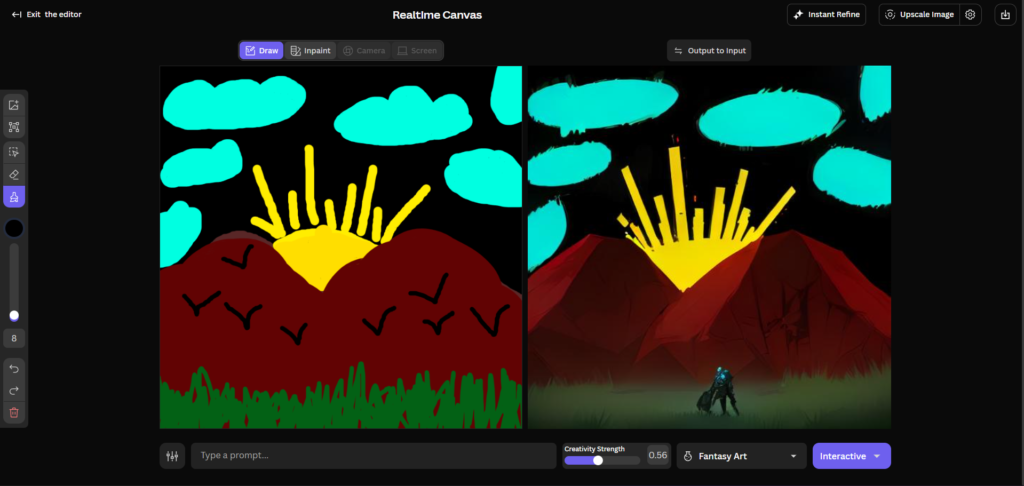
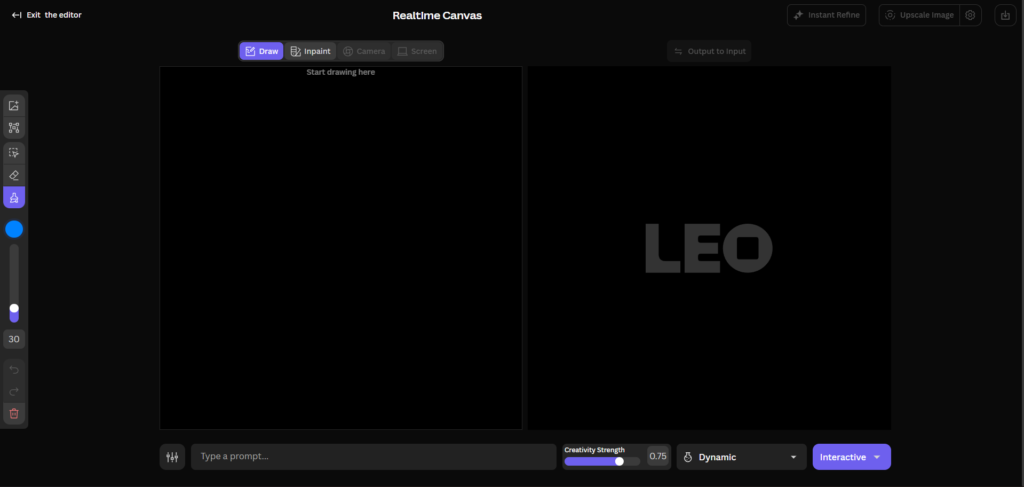
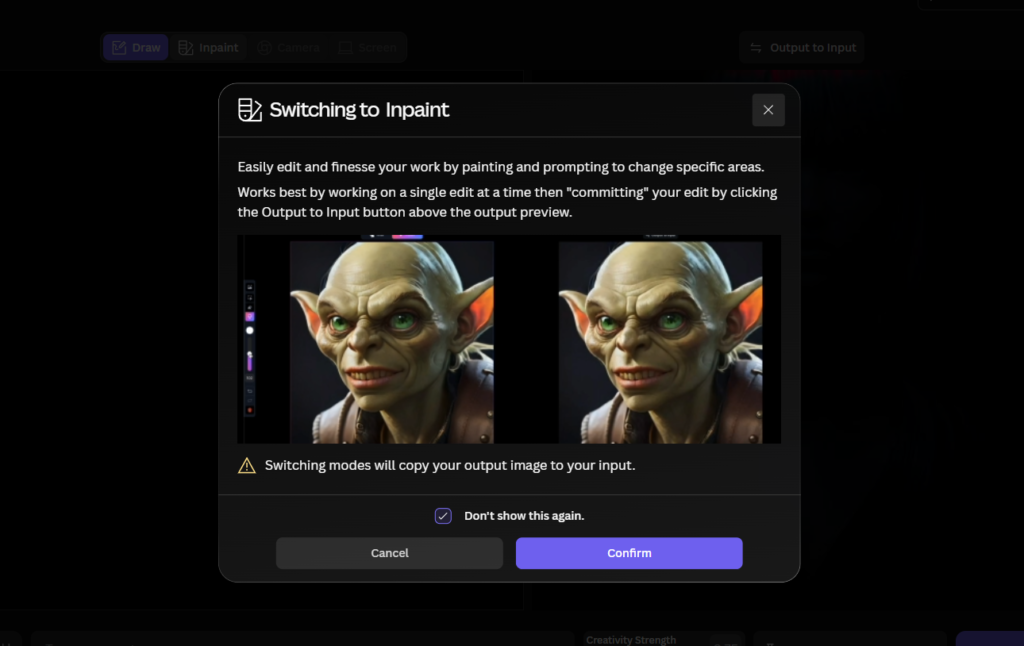
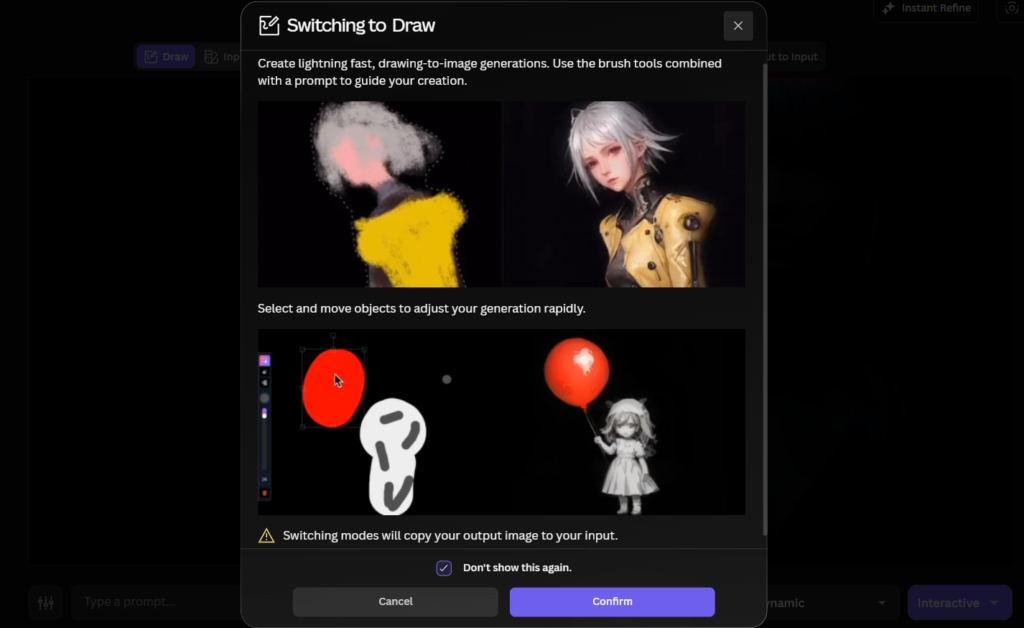
The Real-Time Canvas is a separate mode from the main AI Canvas and works on a fundamentally different principle. Instead of editing a finished image, you sketch rough shapes and watch the AI interpret and render them in near real-time as you draw.
Real-Time Canvas is Leonardo’s implementation of Image-to-Image transformation technology designed to convert drawings into artworks nearly instantaneously. It offers two modes: Real-Time Mode where the canvas updates as you sketch each brushstroke, and Interactive Mode where the canvas waits for your drawing action to complete before instantly transforming your sketch into detailed artwork.
To access it, click Real-Time Canvas in the left sidebar rather than Canvas Editor. Select a model and enter a style prompt before you start drawing. Your brushstrokes do not need to be precise. Rough shapes, simple colour fills, and basic compositional blocking are enough to guide the model. The AI interprets your intent rather than literally reproducing your drawing.
The Real-Time Canvas is one of Leonardo AI’s most unique features and one that no other mainstream AI image platform currently offers. It generates images continuously as you type, updating in near real-time with each change to your prompt. This transforms the creative process from a generate-and-wait workflow into something much closer to live painting.
The Real-Time Canvas is most useful for exploring compositions before committing to a full generation, testing whether a rough layout idea works before spending tokens on a detailed generation, and for creators who prefer to start with a visual rough rather than a text description.
Trick 7: Consistent Face Fixing Using the Canvas
Inconsistent or poorly rendered faces are one of the most common problems in AI-generated images, and the Canvas provides a reliable workflow for fixing them without regenerating the entire image.
To fix a face using the Canvas, use the Select tool to place the generation box over the face area. Use the Draw Mask to mark only the face region. Set Canvas Mode to Inpaint/Outpaint with the Outpaint toggle off. Use a very minimal prompt to guide the results. Press Generate and choose your preferred result by clicking Accept.
A minimal prompt means describing only what you need: “realistic female face, natural expression, same lighting.” Avoid overly detailed prompts for face inpainting, as they can override the surrounding context and produce a face that looks compositionally correct but tonally mismatched with the rest of the image.
For the Inpaint Strength on face corrections, start at 0.4 to 0.6. Lower values preserve more of the original face structure, which is useful when the problem is minor (slightly off expression, small symmetry issue). Higher values give the model more freedom, which is useful when the face needs significant correction.
Trick 8: When to Use Canvas vs Regenerating From Scratch
Not every image problem is worth solving with the Canvas. Sometimes regenerating from scratch with a refined prompt is faster, cheaper in tokens, and produces a better result. Knowing when to use each approach saves time and token budget.
Use the Canvas when: the image is 80 to 90 percent correct and only one or two specific elements are wrong. When the overall composition, lighting, and style are working and you only need to fix a hand, change a background element, add detail to a specific area, or extend the frame. The Canvas is also the right tool when the problem is something the prompt cannot easily fix, like an incorrectly rendered physical detail that a text description cannot reliably target.
Regenerate from scratch when: the image has fundamental problems with composition, lighting, or style. When the overall direction is wrong rather than a specific element. When you are still in the early exploration phase and have not yet found a base image worth refining. Regenerating is also faster for very simple images where inpainting would cost a similar number of tokens to a fresh generation.
The token economics favour the Canvas for complex, detailed images where a single good generation took significant tokens to produce. Fixing one element through inpainting typically costs fewer tokens than regenerating the full image at the same resolution and quality settings.
Canvas vs Photoshop Generative Fill: Honest Comparison
Adobe Photoshop’s Generative Fill is the most direct comparison to Leonardo’s AI Canvas for users who already work in the Adobe ecosystem.
| Feature | Leonardo AI Canvas | Photoshop Generative Fill |
|---|---|---|
| Inpainting | Yes, full control | Yes, seamless integration with layers |
| Outpainting | Yes | Yes |
| Sketch-to-image | Yes (Real-Time Canvas) | No |
| Model selection | Multiple models | Adobe Firefly only |
| Standalone access | Yes, browser-based | Requires Photoshop subscription |
| Cost | Included in paid plans from $12/mo | Requires Creative Cloud from $9.99/mo |
| Commercial safety | Full rights on paid plans | Adobe Firefly trained on licensed data |
| Non-destructive editing | Limited | Full layer-based control |
For creators already in Photoshop, Generative Fill is more powerful for complex, multi-layer compositing work and offers non-destructive editing with full layer control. For creators who work primarily in Leonardo AI or do not have a Photoshop subscription, the Canvas provides a comparable inpainting and outpainting workflow without the additional software cost. The Real-Time Canvas sketch-to-image mode has no direct equivalent in Photoshop.
Token Cost of Canvas Operations
Canvas editing operations draw from the same token pool as standard image generation. A typical inpainting operation at standard resolution costs roughly the same as generating a new image with similar settings. This is worth factoring into your token budget if you rely heavily on Canvas editing.
Outpainting costs are similar per generation step. Since complex outpainting projects involve multiple sequential generations, each extending the canvas further, the cumulative token cost of a large outpainting project can exceed the token cost of the original generation. Budget accordingly, particularly on the Essential plan’s 8,500 monthly token allocation.
The Real-Time Canvas works differently. It does not consume tokens per brushstroke. Token costs apply when you commit to a generation rather than during the live sketch phase. This means you can explore compositions freely in Real-Time Canvas mode without token cost, only spending tokens when you decide to generate a final version of the composition you have sketched.
If you want to understand how Canvas token costs fit into the bigger picture of managing your monthly plan, our Leonardo AI pricing guide covers token budgeting across all plan tiers in full detail.
Who Is the Canvas Most Useful For?
Illustrators and digital artists who produce series work benefit most from inpainting for consistency corrections, face fixing, and iterating on a base image rather than regenerating every variant from scratch. The Real-Time Canvas also suits artists who prefer to start with a rough compositional sketch rather than relying entirely on text prompts.
Marketing and content professionals find the outpainting feature particularly useful for adapting images to different aspect ratios across platforms. A square social media image can be extended to a 16:9 landscape for a YouTube thumbnail or a vertical 9:16 for Instagram Stories without generating three separate images.
Game developers and concept artists use inpainting for detailed asset refinement, changing specific elements of a character or environment concept without disrupting the elements that are already working. The workflow integrates naturally with the custom LoRA training covered in our Leonardo AI LoRA training guide.
Freelancers working with client images can bring client-provided photos or design assets into the Canvas and use inpainting to add AI-generated elements, extend backgrounds, or modify specific areas. This makes the Canvas useful beyond AI-generated images, as a general-purpose AI editing environment for any image.
For a broader look at how the Canvas fits into Leonardo AI’s full creative toolkit, our complete Leonardo AI guide covers the platform from signup to advanced features. And if you are comparing the Canvas workflow to what other tools offer, our Leonardo AI vs Midjourney comparison covers the editing tools gap between the two platforms in detail.
Frequently Asked Questions
What is the difference between inpainting and outpainting in Leonardo AI Canvas?
Inpainting modifies a specific area inside an existing image. You draw a mask over the element you want to change, type a prompt describing the replacement, and the model regenerates only that masked area while keeping the rest of the image intact. Outpainting extends the image beyond its original boundaries. You position the generation box so it overlaps the edge of the image and extends into empty canvas space, and the model generates new content that continues the composition beyond the original frame. Both use the same Inpaint/Outpaint canvas mode but with the Outpaint toggle on or off in the right control panel.
Does inpainting cost extra tokens on Leonardo AI?
Inpainting and outpainting operations draw from the same token pool as standard image generation. The token cost per operation is similar to generating a comparable image from scratch at the same resolution and settings. There is no additional surcharge for using the Canvas. The practical implication is that heavy Canvas use, particularly multi-step outpainting projects, should be factored into your monthly token budget. The token cost is shown on the Generate button before you confirm, so you always know the cost before committing.
Which model should I use for inpainting in Leonardo AI?
Leonardo’s official guidance is to use the same model that was used to create the original image where possible. Using a different model introduces style inconsistencies in the inpainted area, since different models have different aesthetic tendencies for lighting, texture, and colour treatment. If you generated the original image with Phoenix, inpaint with Phoenix. If you used Lucid Origin, inpaint with Lucid Origin. The one exception is if you deliberately want the inpainted area to reflect a different aesthetic, but for seamless corrections, model consistency produces significantly better results.
Can I use Leonardo AI Canvas on the free plan?
Yes, the AI Canvas is accessible on the free plan. Basic inpainting and outpainting operations are available within your 150 daily token allowance. The token cost per Canvas operation is the same as a standard generation. The Real-Time Canvas sketch-to-image feature in Real-Time Mode is noted as a premium feature in Leonardo’s documentation, meaning it may require a paid plan for full access. Interactive Mode in the Real-Time Canvas, which updates after you complete a drawing action rather than continuously, is accessible on the free plan. For regular Canvas use as part of a professional editing workflow, a paid plan with a monthly token pool is more practical.
Why is my inpainting result not matching the original image style?
The most common causes are: using a different model than the one that generated the original image, setting Inpaint Strength too high (which gives the model too much freedom to deviate from the surrounding style), or masking an area that is too large relative to the image size (which reduces the surrounding context available to the model). Start by confirming model consistency, then reduce Inpaint Strength toward 0.3 to 0.5 and try a smaller, more targeted mask. If the original image is heavily upscaled, it is worth working on the original version and upscaling after editing, since upscaled images can be tricky to edit.
What is Real-Time Canvas and is it different from the main Canvas Editor?
Yes, they are two separate tools with different purposes. The main Canvas Editor is for editing existing images through inpainting, outpainting, erasing, and masking. The Real-Time Canvas is for sketching new compositions and watching the AI interpret your brushstrokes live. Real-Time Canvas converts drawings into detailed artwork nearly instantaneously, offering a Real-Time Mode that updates as you sketch and an Interactive Mode that waits for your action to complete before transforming the sketch. Access them separately from the left sidebar: Canvas Editor for editing existing images, and Real-Time Canvas for sketch-based generation.
Final Thoughts
The Leonardo AI Canvas changes the fundamental workflow from generate-and-hope to generate-and-refine. That shift matters more than any individual feature because it means your token investment in a good base image is protected. You are not discarding near-perfect results because of one fixable problem. You are iterating on what works and correcting what does not.
The eight tricks in this guide cover the range from basic inpainting for small corrections to outpainting for composition extension, face fixing for character accuracy, the 60/40 outpainting rule for seamless results, and the Real-Time Canvas for sketch-based ideation. None of these require technical knowledge. They require practice, and the free plan gives you enough daily tokens to build that practice without financial commitment.
Open the Canvas Editor from your next generation at app.leonardo.ai and try inpainting on one element you would normally have accepted or regenerated. That first successful correction will demonstrate the value of the workflow more clearly than any guide can.
External resources: Leonardo AI official Canvas Editor guide | Leonardo AI inpainting guide | Leonardo AI Real-Time Canvas documentation | Leonardo AI inpainting API documentation | Leonardo AI consistent face guide
Specific Backlinks
| # | Specific Article / Page | URL |
|---|---|---|
| 1 | “How To Use Canvas Editor Tool” — Leonardo AI Help Center | intercom.help/leonardo-ai/en/articles/8093145-how-to-use-canvas-editor-tool |
| 2 | “How to Edit Images with Leonardo AI” — Leonardo AI Help Center | intercom.help/leonardo-ai/en/articles/8947028-how-to-edit-images-with-leonardo-ai |
| 3 | “How to Use Photoshop Generative Fill” — Adobe Help Center | helpx.adobe.com/photoshop/using/generative-fill.html |
| 4 | “Best AI Image Editors for 2026” — Creative Bloq | creativebloq.com/buying-advice/best-ai-image-editors |
| 5 | “How to Fix AI Art Mistakes Without Starting Over” — MakeUseOf | makeuseof.com/how-to-fix-ai-art-mistakes |
| 6 | “AI Inpainting Tools Compared: Which Is Best in 2026?” — Tom’s Guide | tomsguide.com/features/best-ai-inpainting-tools |
| 7 | “Leonardo AI Canvas: Mastering Inpainting and Outpainting” — Toolify | toolify.ai/ai-news/leonardo-ai-canvas-mastering-inpainting-outpainting-for-art-3484123 |
| 8 | “How to Create Consistent Faces Using the Leonardo Canvas” — Leonardo AI Wiki | leonardo.ai/wiki/creating-consistent-faces-using-canvas |
| 9 | “Best AI Tools for Photo Editing in 2026” — TechRadar | techradar.com/best/best-ai-photo-editors |
| 10 | “Generative AI for Image Editing: A Practical Guide” — How-To Geek | howtogeek.com/generative-ai-image-editing-guide |