If you have been wondering how to get started with Google Stitch AI, you are in the right place. This tool lets you describe any app or website in plain English and get a fully structured, exportable UI design back in under a minute. No design software, no tutorials, no technical background required. This guide walks you through every step from creating your account to exporting your first design, clearly enough that you can follow it today.
Table of Contents
What You Need Before You Begin?
Getting started with Google Stitch AI requires almost nothing. You need a Google account, a browser, and an internet connection. There is no software to install, no credit card to enter, and no waitlist to join in most regions.
The tool runs entirely in your browser at stitch.withgoogle.com. You sign in with the same Google account you use for Gmail or Drive. Once you are in, you can start generating designs immediately.
One thing worth knowing before you open the tool: Stitch works best when you give it clear, specific descriptions. If you go in expecting to type one vague sentence and get a finished product, you will likely feel underwhelmed. If you go in ready to describe your idea with some detail and refine it through a few follow-up prompts, you will get results that genuinely surprise you.
Understanding Google Stitch AI: What Beginners Should Know First
Google Stitch AI is a UI design tool built by Google Labs. It uses the Gemini 2.5 model family to convert text descriptions into high-fidelity interface designs for web and mobile apps. The output is not a static image. It is a structured layout with real HTML and CSS code that you or a developer can work with directly.
Stitch launched at Google I/O 2025 and replaced its earlier Galileo AI foundation. It supports HTML and CSS export along with Figma integration, which makes the handoff between design and development considerably smoother than traditional workflows.
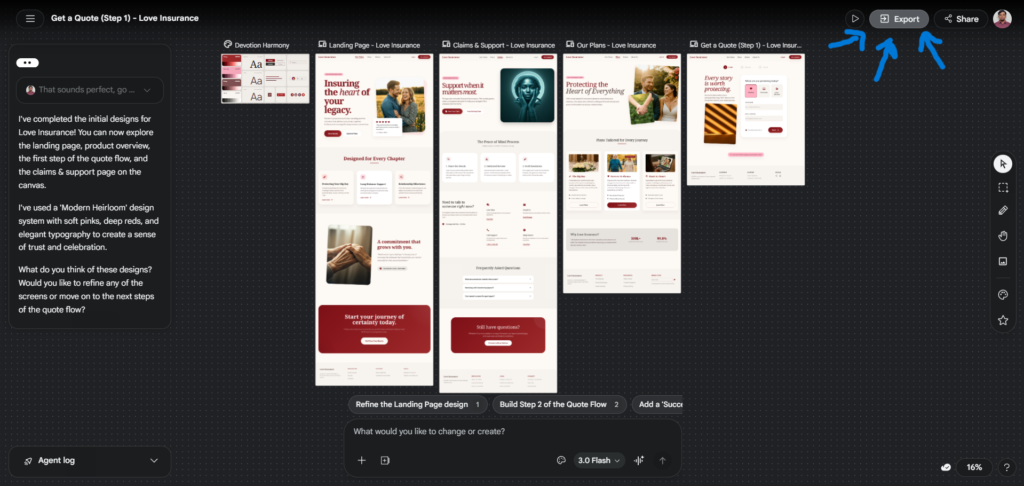
In early 2026, Google evolved Stitch into an AI-native software design canvas. It now features an infinite canvas that gives your ideas room to grow from early ideations to working prototypes, and it allows you to bring ideas in any form, including images, text, or code, directly to the canvas as context.
Understanding the two AI modes available in Stitch is important before you begin. Stitch offers Gemini 2.5 Flash in Standard Mode for fast, lightweight design generation with up to 350 generations per month, and Gemini 2.5 Pro in Experimental Mode for higher-quality, more detailed designs with up to 50 generations per month. As a beginner, starting in Standard Mode is the right call. It is faster, the generation limit is generous, and the quality is more than sufficient for learning and early prototyping.
How to Get Started with Google Stitch AI: 7 Beginner Steps
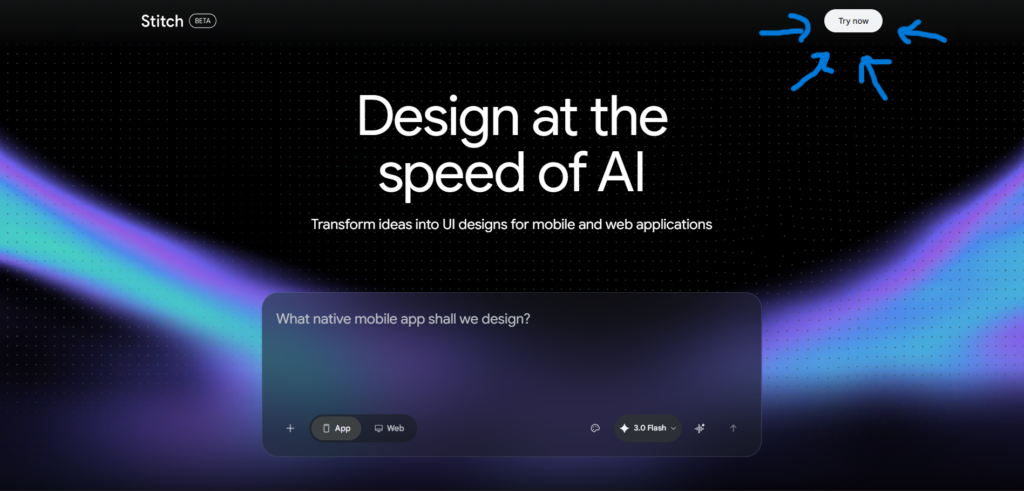
Step 1: Go to stitch.withgoogle.com and Sign In
Open your browser and go to stitch.withgoogle.com. Click the sign-in button and use your existing Google account. The process takes about thirty seconds. You do not need to create a new account or fill in any profile information.
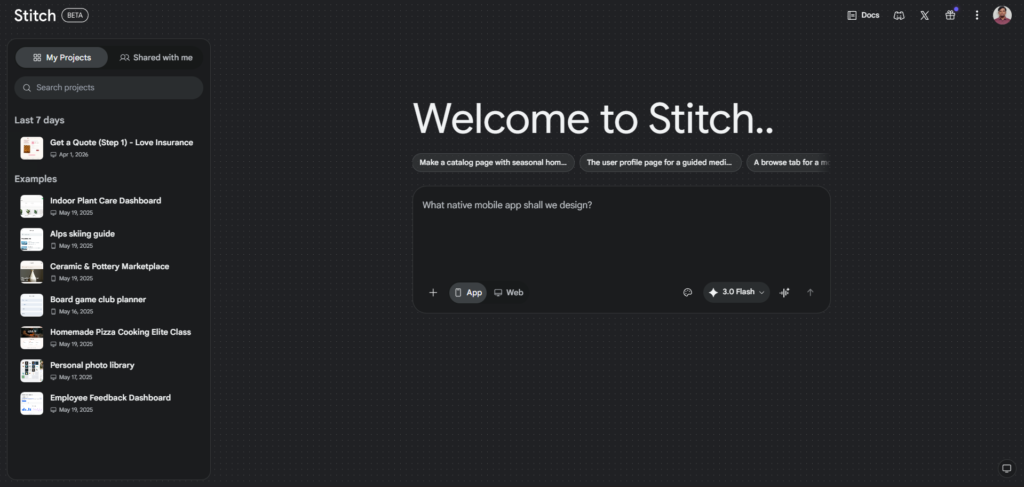
Once you are signed in, you will land on the Stitch canvas. It looks similar to a design tool with a large blank area in the center and a prompt input area at the bottom. Take a moment to look at the interface before typing anything. Familiarising yourself with the layout will make the next steps feel more intuitive.
Step 2: Start a New Project
Click the button to create a new project. Stitch will open a fresh canvas. You will see the prompt input field at the bottom left of the screen. This is where you describe what you want to build.
Before typing your first prompt, understand the modes available. Stitch offers Ideate mode, which is best for early exploration when you are not sure exactly what you want. Flash mode is faster and works well when you have a clear idea. Thinking mode uses Gemini 2.5 Pro for higher-quality output and is best for final polish. For your first project, start in Ideate mode.
Step 3: Write Your First Prompt
Type a description of the UI you want to build into the prompt field. This is the most important step, and it is also the one where most beginners underperform. Vague prompts produce vague results. Specific prompts produce usable ones.
A weak first prompt: “Make an app for fitness.”
A strong first prompt: “A fitness tracking dashboard for mobile with a daily step counter at the top, a weekly activity chart in the middle, and a workout log list at the bottom. Use a dark theme with green accents.”
The difference in output quality between these two prompts is significant. The more context you give, the more coherent the design will be. You do not need to be a designer to write a good prompt. You just need to describe what you are imagining clearly.
Step 4: Review the Generated Design
Stitch will generate your design within thirty to sixty seconds. Study the output carefully before making any changes. Check whether the main sections you described are present, whether the layout structure makes sense, and whether the visual style broadly matches what you had in mind.
Pay attention to the styling, spacing, and font choices. Differences between what you imagined and what Stitch produced are common due to the current limitations of AI-generated UI design, but they are easily fixable through prompt refinement or editing in Figma after exporting.
Do not regenerate from scratch at this stage unless the output is completely wrong. It is almost always faster to refine what you have than to start over.
Step 5: Refine With Follow-Up Prompts
Type your revision requests into the same prompt field. Keep each revision focused on one or two specific changes. The more targeted your instruction, the better Stitch responds to it.
After generating an initial design, you can type natural language modifications like “make the header taller,” “change the card layout to horizontal,” or “add a footer with social media icons.” Stitch will update the design based on your instructions while preserving elements you want to keep.
Good revision prompts are specific about what to change and where. Instead of “make it look better,” try “increase the font size in the navigation and add more space between the cards.” Stitch understands spatial and visual instructions well when they are stated clearly.
Step 6: Try the Voice Canvas Feature
Once you are comfortable with text prompts, try the Voice Canvas. Click the microphone icon on the canvas and speak your instructions naturally. The AI agent actively participates in the conversation. It can ask clarifying questions, offer design critiques, and suggest alternatives. You can layer multiple commands in a single spoken instruction, and Stitch processes them all.
Voice Canvas is particularly useful when you want to describe something quickly or when typing out a complex set of changes feels slower than just explaining it. Many users find that speaking naturally produces better prompts than typing, because you tend to be more descriptive and less stiff when talking.
Step 7: Export Your Design
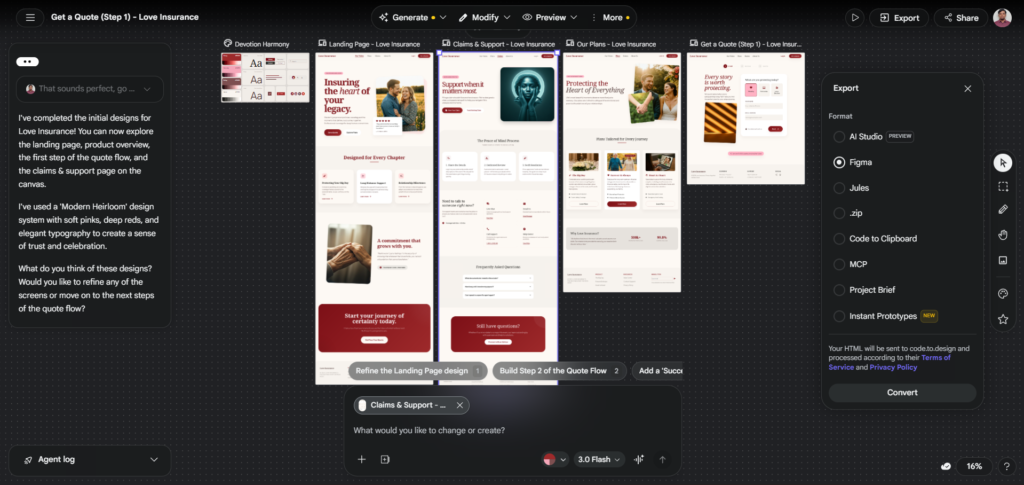
When you are happy with the result, export it. In Standard Mode, you can use the Copy to Figma button to paste the generated UI directly into a Figma file for further editing. Stitch also generates HTML and CSS code for the visual layout of your design.
Choose the export format that matches your next step. If you are handing the design to a developer, the HTML and CSS export is the most practical. If you want to refine the design further in a professional tool, the Figma export is the better route. Either way, what you take out of Stitch is a real, usable starting point, not a decorative mockup.
Writing Prompts That Actually Work
Learning how to get started with Google Stitch AI is partly about learning how to prompt it well. This is a skill that develops quickly with practice, but there are a few principles that help from day one.
Include the type of interface. Always start by telling Stitch what kind of thing you are building. A landing page, a mobile dashboard, an admin panel, a checkout flow. This sets the structural context before anything else.
Describe the main sections. List the key areas or components you need. Navigation, hero section, feature cards, pricing table, footer. Stitch uses this to decide how to organise the layout.
Mention the visual style. Light or dark theme, minimal or detailed, specific colors if you have them, any reference to a style you admire. You do not need technical design vocabulary. Plain descriptions like “clean and minimal with lots of whitespace” work well.
Specify the audience or product type. Saying “for a B2B SaaS tool targeting small businesses” gives Stitch context about the tone and sophistication level of the design. It affects font choices, color palette, and the overall feel of the output.
For complex apps, start high-level and then drill down on details screen by screen. You do not have to describe everything at once. Get the main structure right first, then refine section by section in follow-up prompts.
Key Features Every Beginner Should Use First
Vibe Design Mode
Vibe Design lets you start by explaining the business objective you are trying to achieve, what you want your users to feel, or even examples of what is currently inspiring you, rather than starting with a wireframe. This is genuinely useful for beginners who have a strong sense of what they want to create but do not have the vocabulary to describe it in design terms.
Instead of listing components, you describe the experience. “A calm, focused productivity app that feels like a quiet workspace” is a valid Vibe Design prompt, and Stitch will interpret that emotional and functional context into a visual direction.
URL-Based Design Extraction
Paste any publicly accessible URL and Stitch analyses the visual design language of that page, including colors, typography, spacing, and component style. This is useful when you have seen a design you like and want to build something that carries a similar visual feel. It removes the challenge of translating visual inspiration into written description.
Design.md for Brand Consistency
Stitch uses Design.md files that store your brand’s color palette, fonts, and styling rules so every AI-generated design stays consistent. Once you set this up, every prompt you write will produce results that stay within your brand guidelines rather than drifting visually between generations. For anyone building a real product, this feature is worth learning early.
Common Mistakes Beginners Make and How to Avoid Them
Regenerating instead of refining. Most beginners hit the regenerate button when the first output is not quite right. This wastes your generation limit and rarely produces something better than targeted follow-up prompts. Always try refining first.
Using one-sentence prompts. The single biggest difference between a useful Stitch output and a generic one is prompt quality. Spend sixty seconds writing a thorough description. The extra effort consistently produces dramatically better first drafts.
Expecting a finished product. Stitch is best understood as the beginning of the design process, not the end. The practical workflow for most teams is to explore in Stitch, refine in Figma, and build in a development tool like Antigravity. Going in with this expectation means you will use the tool correctly and get real value from it.
Ignoring the generation limits. There are caps: 350 generations per month in Standard Mode and 50 per month in Experimental Mode. Power users may hit these limits during intensive projects. Beginners rarely hit them, but if you are using Stitch heavily for a real project, pace your generations and use follow-up prompts rather than fresh generations whenever possible.
Frequently Asked Questions
Do I need design experience to use Google Stitch AI?
No design experience is needed at all. Stitch is built for anyone who can describe what they want in plain language. You do not need to know design terminology, understand layout principles, or have any prior experience with tools like Figma or Adobe XD. The prompting skills you need are simply the ability to describe your idea clearly and specifically. Most people pick that up within the first two or three sessions. If you can write a clear email explaining what you want to build, you have enough skill to use Stitch effectively from day one.
Is Google Stitch AI free for beginners?
Yes, Google Stitch AI is completely free to use through Google Labs. You get 350 generations per month in Standard Mode using Gemini 2.5 Flash, and 50 generations per month in Experimental Mode using Gemini 2.5 Pro. No credit card is required. No subscription is needed. You sign in with a Google account and start generating immediately. For most beginners and intermediate users, 350 generations per month is more than enough. Even on an active project, using follow-up prompts for refinements rather than fresh generations keeps you well within the limit.
What is the difference between Standard Mode and Experimental Mode in Stitch?
Standard Mode uses Gemini 2.5 Flash, which generates designs quickly and allows up to 350 generations per month. It is the right starting point for most users. Experimental Mode uses Gemini 2.5 Pro, which produces higher-quality and more detailed designs but is limited to 50 generations per month. As a beginner, start with Standard Mode. The output quality is strong enough for learning and prototyping, and the higher generation limit gives you more room to experiment and practice without worrying about running out. Switch to Experimental Mode when you need a more polished result for a specific project.
Can I export my Stitch designs to Figma?
Yes. Stitch includes a Copy to Figma button in Standard Mode that pastes your generated design directly into a Figma file with proper Auto Layout structure. This is one of the most useful features for anyone who wants to refine their design further before handing it to a developer. The Figma export preserves the layout structure and component hierarchy from Stitch, so you are not starting from zero inside Figma. You are continuing from a solid structural base. For a deeper look at how these two tools work together, read our Stitch vs Figma comparison.
How long does it take to generate a design in Google Stitch AI?
Most designs generate within thirty to sixty seconds in Standard Mode. More complex prompts with multiple screens or detailed instructions may take slightly longer. Experimental Mode using Gemini 2.5 Pro takes a bit more time because the model is doing deeper reasoning to produce a more refined output. In practical terms, you can go from a blank canvas to a complete first-draft UI in under two minutes on most projects. That speed is one of the main reasons the tool is worth learning, particularly if you have been stuck in the slow phase of getting ideas onto a screen.
What should I build first as a complete beginner?
Start with something you actually want to exist. A landing page for a side project, a dashboard concept for an app idea you have had, or a simple mobile screen for a tool you wish existed. Building something you care about keeps you engaged long enough to learn the prompting patterns that make Stitch work well. Avoid abstract practice exercises. Real projects expose you to real prompting challenges faster and teach you more in less time. Once you have one design you are reasonably happy with, check our complete Google Stitch AI guide for a deeper look at what the tool can do beyond basic generation.
Final Thoughts
Getting started with Google Stitch AI is genuinely straightforward once you understand what the tool is designed to do. It is a fast, free starting point for UI design that requires no prior experience and produces real, exportable results.
The learning curve is almost entirely about prompting. Spend time writing better descriptions and you will get better outputs. Use follow-up prompts to refine rather than regenerating from scratch. And treat every design Stitch produces as a starting point, not a finished product.
If you are ready to go beyond the basics, explore how other designers are combining Stitch with other tools in their workflow. Our guide on the Stitch and Anti Gravity combo shows how to take a Stitch design all the way to a deployed application without writing code from scratch.
External Resources:
- Google Stitch Official Site — Start here to access the tool
- Google Stitch Prompt Guide on Google AI Developers Forum — Official prompting guidance from Google
- Gemini 2.5 Model Overview — Background on the model powering Stitch
- Web Accessibility Initiative (WAI) — Useful reference when checking exported code for accessibility