Google Stitch AI is one of the most talked-about tools in the design world right now, and for good reason. It takes a plain text prompt and turns it into a fully structured, exportable UI in minutes. This guide covers everything you need to know, from what it actually is to how it works, who it is built for, and whether it genuinely fits your workflow.
Table of Contents
What Is Google Stitch AI?
Google Stitch AI is a generative UI design tool built by Google Labs. It uses the Gemini 2.5 model family to convert natural language prompts into complete, structured user interface designs. You describe what you want, and Stitch builds it, including layout, components, color scheme, and exportable code.
It was launched as part of Google Labs’ ongoing effort to make product design faster and more accessible. The tool sits at the intersection of design and development. It does not just produce a visual mockup. It produces actual HTML and CSS output that a developer can work with directly, without needing to translate a design file into code manually.
What separates Stitch from other AI design tools is the depth of its output. Most AI design assistants give you something that looks like a wireframe or a rough concept. Stitch produces designs that are close to production-ready, with proper component hierarchy and responsive structure baked in.
It is also tightly integrated with the broader Google ecosystem. Because it runs on Gemini 2.5, it understands context in a way that simpler prompt-to-image tools do not. You can ask it to revise a section, change the color palette, adjust the navigation style, or add a new feature, and it updates the design coherently rather than regenerating from scratch.
At the time of writing, Google Stitch AI is available for free through Google Labs. There is no paid tier announced publicly yet, though this may change as the tool moves out of its experimental phase.
The tool does have real limits. It works best for standard web app UI patterns. It is not designed for complex data visualizations, native mobile-specific interactions, or highly customized brand systems that require precise pixel control. Understanding those limits upfront saves a lot of frustration.
For anyone building SaaS products, landing pages, internal tools, or app prototypes, Google Stitch AI is worth serious attention. It is not a replacement for a skilled designer, but it closes the gap significantly for people who do not have that resource readily available.
How Google Stitch AI Works?
Google Stitch AI runs on Gemini 2.5, which is a multimodal large language model capable of understanding both text and visual structure simultaneously. When you enter a prompt, the model does not just look for keywords. It interprets the intent behind your description and maps it to known UI patterns.
The process works in three internal stages, even though you only see the final output.
Stage 1: Prompt Interpretation
The model reads your prompt and extracts the key elements. It identifies the type of interface you need, the core user actions, the content hierarchy, and any specific style cues you mentioned. If you wrote “a clean dashboard for a fitness tracking app with a weekly summary and a workout log,” Stitch breaks that into components: a dashboard container, a summary widget, a log table or list, and a navigation structure.
This interpretation stage is where Gemini’s language understanding matters most. A simpler model would map your words to templates. Gemini understands that “clean” implies whitespace, limited color, and minimal decoration. It factors that in before it renders anything.
Stage 2: Component Assembly
Once the intent is mapped, Stitch selects and assembles UI components. These are not random visual blocks. They follow established design system patterns, which means the output is structurally sound by default. Buttons are accessible, spacing is consistent, and the layout responds to different screen sizes.
This stage is also where Stitch differs from tools like Midjourney or Adobe Firefly when used for UI. Those tools produce images of interfaces. Stitch produces actual component-based layouts with underlying code structure, not just pixels arranged to look like a UI.
Stage 3: Code Export
The final output is HTML and CSS that you can copy and use. It is not framework-specific React or Vue code by default, though Google has been expanding export options. The code is clean enough to hand to a developer as a starting point, which removes one of the most painful steps in the traditional design-to-development handoff.
You can also continue refining inside Stitch by typing follow-up instructions. Ask it to make the header sticky, change the primary color, or add a pricing section, and it revises the design in context. This iterative prompt-based editing is one of the more useful aspects of the tool in practice.
Step-by-Step: How to Use Google Stitch AI for the First Time
This walkthrough assumes you have a Google account and are starting from scratch. Each step is explained clearly enough that you can follow it with no prior design experience.
Step 1: Access Google Stitch AI Through Google Labs
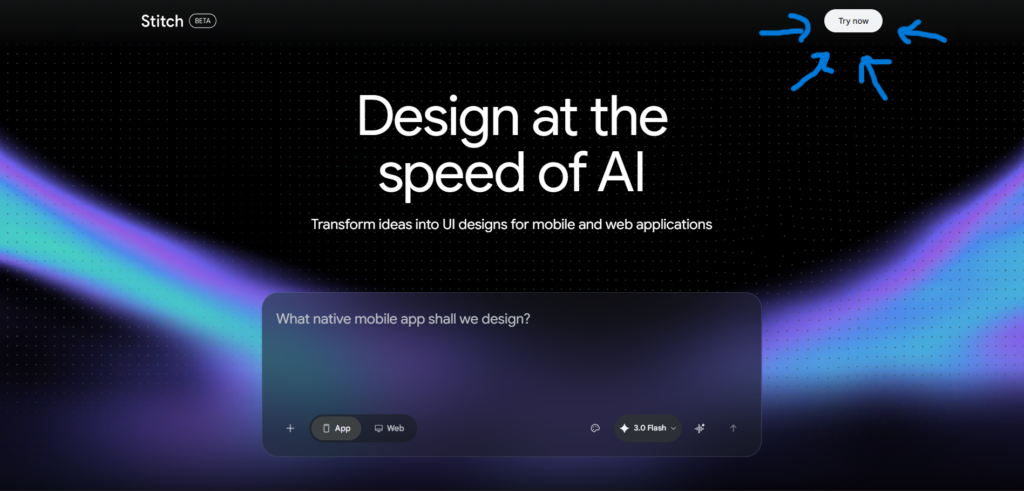
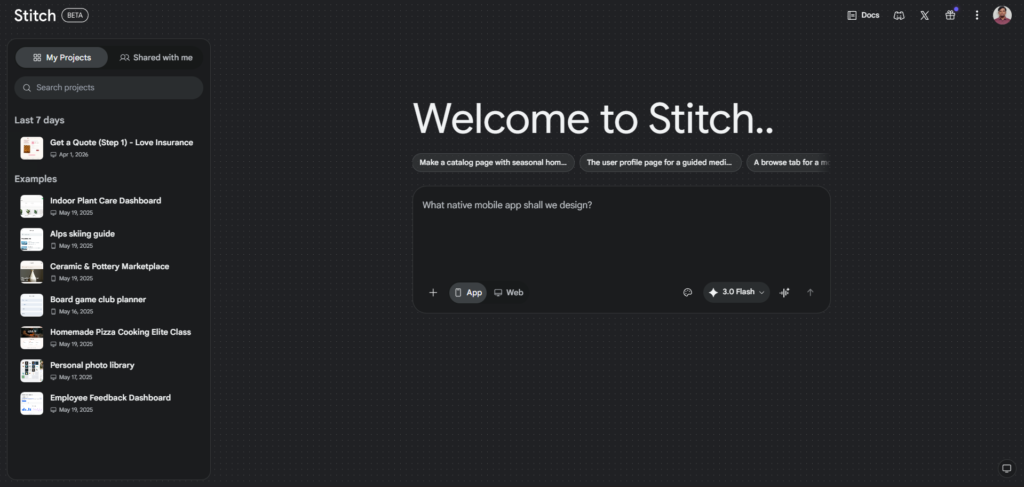
Go to labs.google.com and sign in with your Google account. Look for Stitch in the list of available experiments. Click on it to open the tool. You do not need to install anything. It runs entirely in your browser.
If you do not see Stitch listed, it may not yet be available in your region, as Google Labs rolls out experiments gradually. Checking back over a few days usually resolves this.
Step 2: Write Your First Prompt
Click into the prompt input field and describe the UI you want to build. Be specific but do not overthink it. A good starting prompt includes the type of app or page, the main sections or features, and any style preference you have.
For example: “A simple project management dashboard with a sidebar navigation, a task list in the center, and a progress summary panel on the right. Use a light color scheme with blue accents.”
Vague prompts like “make a nice app” produce generic results. Specific prompts produce usable ones. You can always refine after the first output, so start with as much context as feels natural.
Step 3: Review the Generated Design
Stitch will generate your UI within thirty to sixty seconds. Review it carefully before making changes. Look at the layout structure, check that the main sections are present, and note anything that does not match what you imagined.
Do not dismiss the first output too quickly. Stitch often gets the structure right even when the visual style feels off. You can change colors, fonts, and spacing with a follow-up prompt without regenerating the entire layout.
Step 4: Refine With Follow-Up Prompts
Type your revision requests directly into the prompt field. Keep each revision focused on one or two changes at a time. This gives Stitch a clearer instruction and produces better results than asking for five changes at once.
Good revision prompts: “Make the sidebar narrower and move the navigation icons to the top.” Or: “Change the primary button color to green and increase the font size in the task list.”
Step 5: Export the Code
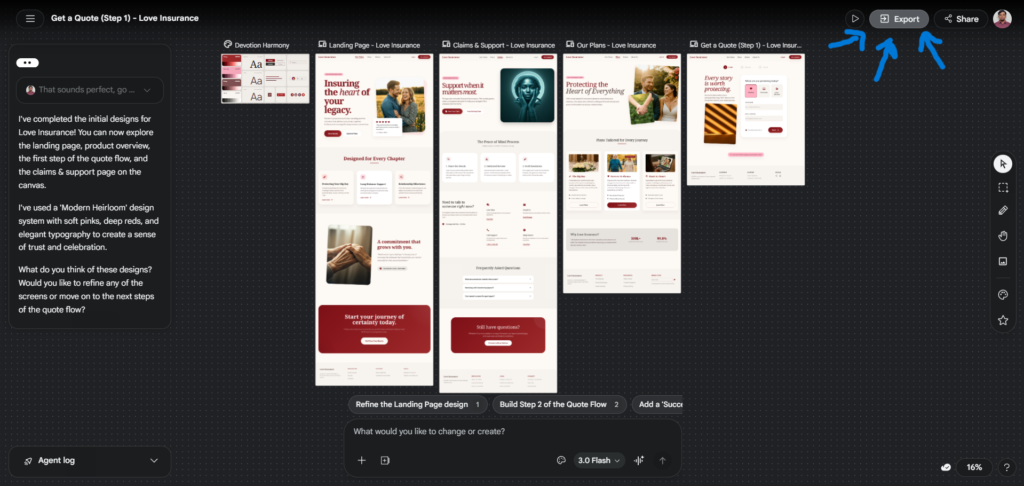
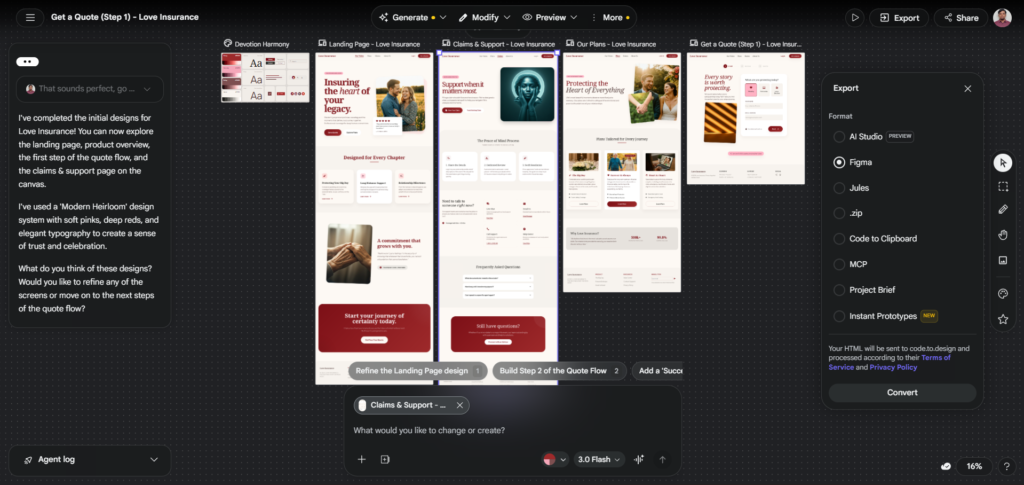
Once you are satisfied with the design, click the export button to copy the HTML and CSS. Paste it into your code editor or project. If you are handing it off to a developer, paste it into a shared file or your project repository directly.
The exported code is a starting point, not a finished product. Your developer will clean it up, add functionality, and integrate it with your back-end. But it removes the blank-canvas problem and saves several hours of initial layout work.
Key Benefits of Using Google Stitch AI
It Removes the Blank Canvas Problem
Starting a new design from zero is one of the most time-consuming parts of building any product. Stitch eliminates that entirely. You describe what you need and get a structured starting point in under a minute. Even if you end up redesigning significant portions, having something concrete to react to is much faster than building from nothing.
This is especially useful for founders, product managers, and developers who have a clear vision of what they want to build but do not have the design skills to put it on screen. Stitch bridges that gap without requiring a week of Figma tutorials.
The Output Is Functional, Not Just Visual
Most AI image generators produce screenshots of interfaces. Stitch produces actual code. That distinction matters enormously in practice. A screenshot of a dashboard is useless to a developer. A structured HTML and CSS layout is immediately useful. It reduces the design-to-development handoff from a multi-step process to a single copy-paste action.
For small teams and solo builders, this alone is worth the time investment in learning how to prompt effectively. You are not creating a reference image. You are creating a working skeleton that your team can build on directly.
It Understands Context Across Multiple Revisions
Because Stitch is powered by Gemini 2.5, it maintains context across your revision prompts. If you told it in your original prompt that you want a fitness app dashboard, it remembers that when you say “add a weekly goal tracker.” It does not treat each revision as an isolated instruction. It updates the design in a way that stays coherent with the overall concept.
This contextual memory is what makes iterative design inside Stitch practical. You can refine a design over ten to fifteen prompts and end up with something that feels intentional rather than patched together.
It Is Free at the Current Stage
Access to Google Stitch AI through Google Labs costs nothing right now. For individual builders and small teams, this is a meaningful advantage. Tools like Figma charge between $15 and $45 per editor per month. Framer starts at $19 per month for published sites. Getting production-quality UI scaffolding at no cost removes a real barrier for early-stage projects.
This free access period is worth taking advantage of while it lasts. Google will almost certainly introduce paid tiers as Stitch matures, and the feature set available during the Labs phase tends to be broader than what eventually lands in the commercial product.
Google Stitch AI vs Other Tools: A Clear Comparison
| Tool | Standout Feature | Design Quality | Code Ownership | Monthly Cost |
|---|---|---|---|---|
| Google Stitch AI | Prompt-to-UI with HTML/CSS export | High for standard layouts | You own all exported code | Free (Labs) |
| Figma | Collaborative design with full component control | Professional grade | Design files stay in Figma | $15/editor (Starter), $45/editor (Professional) |
| Framer | Visual editor plus published hosting | Very high | Limited outside Framer | $19/month (Mini), $35/month (Basic) |
| Canva | Template-based design for non-designers | Moderate, template-dependent | Export as image or PDF | Free tier; $15/month (Pro) |
| Locofy | Converts Figma to production React/Next.js code | Depends on Figma source | Full code ownership | Free tier; $39/month (Pro) |
The comparison shows that Stitch occupies a unique position. It is the only tool in this list that goes from a text description to real code with no design file as an intermediate step. Figma requires you to design first. Locofy requires a Figma file to convert. Stitch skips both of those stages.
The tradeoff is control. Figma gives you pixel-perfect precision. Stitch gives you speed. For prototyping and early-stage builds, speed usually wins.
Who Is Google Stitch AI Actually Built For?
Solo founders and indie developers will find Stitch immediately useful. Building a startup usually means one or two people covering design, development, marketing, and everything else simultaneously. Stitch compresses the design phase from days to hours. If you can describe your product clearly, you can get a working UI scaffold without hiring a designer or spending weeks learning a design tool.
Product managers who need to communicate ideas will also benefit significantly. Instead of describing a feature in a written specification and hoping developers interpret it correctly, you can generate a visual prototype in Stitch and share that instead. It closes the communication gap between concept and implementation without requiring design skills.
Freelance developers taking on full-stack projects often struggle with the front-end design phase. Most developers are comfortable with code but less comfortable making layout and visual decisions. Stitch handles the initial layout decisions, produces the corresponding code, and lets the developer focus on functionality. This can reduce the time spent on a typical client project by a meaningful amount.
Design students and career switchers exploring UI/UX as a field will find Stitch useful as a learning tool. Generating a design and then studying the structure it produces, the component choices it makes, and the CSS patterns it uses is a practical way to build intuition for how good interfaces are put together. It is not a replacement for learning Figma or design fundamentals, but it is a strong complement.
Frequently Asked Questions
Is Google Stitch AI free to use?
Yes, Google Stitch AI is currently free through Google Labs. You only need a Google account to access it. Google has not announced a paid tier yet, but given that this is an experimental product, the pricing model may change once it moves out of Labs into a commercial release. For now, full access costs nothing, which makes it one of the most accessible AI design tools available in 2026. It is worth noting that the free access during Labs phases sometimes includes features that get paywalled later, so using it now gives you the most complete experience.
Does Google Stitch AI require coding knowledge?
No coding knowledge is required to use Stitch. You interact with it entirely through natural language prompts. You describe what you want, and the tool generates the design and code. That said, understanding basic HTML and CSS will help you make better use of the exported code and communicate more precisely with your developer if you are working with one. If you are completely non-technical, Stitch still works, but you may need a developer to take the exported code from prototype to finished product.
What kind of designs can Google Stitch AI produce?
Stitch is optimized for web-based UI design, specifically dashboards, landing pages, SaaS product interfaces, admin panels, and app layouts. It handles standard components well: navigation bars, sidebars, cards, tables, forms, buttons, and modals. It is less suited for highly custom designs that require precise brand expression, complex animation, or specialized data visualization. If your project needs any of those things, you will likely need to use Stitch for the initial structure and then refine in a more specialized tool.
Can I use the exported code in a real project?
Yes, the HTML and CSS exported from Stitch is real, usable code. It is not production-finished, and a developer will need to clean it up, add interactivity, and connect it to your back-end, but it is a legitimate starting point. Think of it the same way you would think of a well-structured template: it gives you the skeleton so you are not starting from zero. For static pages like landing pages or simple marketing sites, the exported code can sometimes be used with minimal modification.
How does Google Stitch AI compare to Figma?
Figma and Stitch serve different stages of the design process. Figma is a precision design tool that gives you complete control over every element. It is the industry standard for professional UI/UX work and is essential for teams that need detailed design specifications, component libraries, and design system management. Stitch is faster and requires no design skill, but offers far less control. The ideal workflow for many teams is to use Stitch to generate an initial layout quickly, then refine it in Figma before handing it to a developer. You can read a more detailed breakdown in our Stitch vs Figma comparison.
Is Google Stitch AI better than using Claude or ChatGPT for UI design?
Google Stitch AI is purpose-built for UI design, which gives it a significant advantage over general-purpose AI assistants for this specific task. Tools like Claude or ChatGPT can write HTML and CSS from a description, but the output requires more manual structure and does not include a visual preview. Stitch shows you the rendered result in real time and lets you refine it visually. For UI work specifically, Stitch produces more consistent and immediately usable output. For a deeper look at how Stitch and Claude can work together as a combined workflow, see our guide on Stitch and Claude as an AI design duo.
Final Thoughts
Google Stitch AI is a genuinely useful tool if your needs match what it is designed to do. It excels at turning ideas into structured UI quickly, without requiring design expertise or a large budget. For solo builders, small teams, and early-stage products, it removes a real bottleneck in the build process.
It is not a replacement for design skill or a professional design tool. If your project requires precise brand control, complex interactions, or a polished design system, you will still need Figma or a dedicated designer. Stitch is best understood as a starting point accelerator, not a full design solution.
If you are building something and struggling with the blank-canvas problem, start there. Generate a layout, study the structure it produces, refine it with follow-up prompts, and export what you have. Then decide what needs more attention. That is a practical, low-risk way to find out whether Stitch fits into your workflow. You can also explore our full Google Stitch AI review for a deeper look at features and real limits before committing time to learning the tool.
External Resources:
- Google Stitch AI on Google Labs — Official access point
- Gemini 2.5 Model Overview — The underlying model powering Stitch
- Google Labs Blog — Official announcements and updates
- Web Content Accessibility Guidelines (WCAG) — Useful when evaluating the accessibility of exported Stitch code