ChatGPT Canvas is the feature that changes how you actually work with ChatGPT, shifting it from a question-and-answer interface into a collaborative workspace where you keep a single document live and refine it in place. If you have ever copy-pasted a ChatGPT response into a document, made changes, then asked for another revision and copy-pasted again, Canvas is the tool that eliminates that entire workflow. This guide covers everything: how Canvas works in 2026, the writing and coding tools available, the important platform changes happening right now, and exactly when to use Canvas versus other ChatGPT tools.
Table of Contents
What Is ChatGPT Canvas?
ChatGPT Canvas is a side-panel workspace built directly into ChatGPT where the model opens a document or code file next to the chat, and you can edit the text or code inline with targeted edits, length controls, and language conversions instead of regenerating the whole reply each time.
Think of it like Google Docs with an AI sitting next to you, suggesting edits as you work in real time. Unlike a normal chat response that scrolls past once a new message arrives, the Canvas document stays anchored on the right side of your screen. ChatGPT writes a first draft into the Canvas and from there you can edit text directly, highlight a passage to refine it inline, or use the Edit button to ask for a change in plain language. The model makes the change in the document. You see exactly what it changed. You decide whether to keep it or reject it.
OpenAI shipped Canvas in October 2024 and made it available to free plan users in early 2025. Through 2026 it was folded into the default ChatGPT writing and coding flow as the standard tool for long-form document and code work.
Canvas is a dedicated editing pane that opens to the right of the ChatGPT chat, holding a single document or code block that updates as you iterate. Unlike a normal reply which scrolls past once a new message comes in, the Canvas document stays anchored in place.
Important: What Is Changing With Canvas in 2026?
This is the section most Canvas guides do not have because it reflects a very recent platform change from the official OpenAI release notes.
Writing and coding functionality is now supported directly in chat responses through writing blocks and code blocks. Paid users can continue using canvas for a limited time through legacy models until those models are sunset.
Canvas will no longer be available in GPT-5.5 Instant or GPT-5.5 Thinking. Writing and coding functionality is now supported directly in chat responses through writing blocks and code blocks. Paid users can continue using canvas for a limited time through legacy models until those models are sunset.
What this means in practical terms: OpenAI is transitioning away from Canvas as a separate side-panel tool and embedding equivalent writing and coding functionality directly into the main chat interface as writing blocks and code blocks. If you open a conversation using GPT-5.5 Instant or GPT-5.5 Thinking in 2026, Canvas will not appear. The document editing experience will happen in the chat itself through blocks.
Canvas remains available on paid plans through legacy models for a transition period. GPT-4.5 is being retired from ChatGPT on June 27, 2026 and OpenAI o3 on August 26, 2026. Canvas availability on these legacy models will end when those models are sunset.
For users reading this guide: if Canvas is not appearing in your interface, this is why. The functionality has not disappeared. It has moved into writing blocks and code blocks in the main chat view. The practical skills covered in this guide, inline editing, targeted revisions, length adjustments, and code review, apply equally to both the Canvas surface and the new blocks experience.
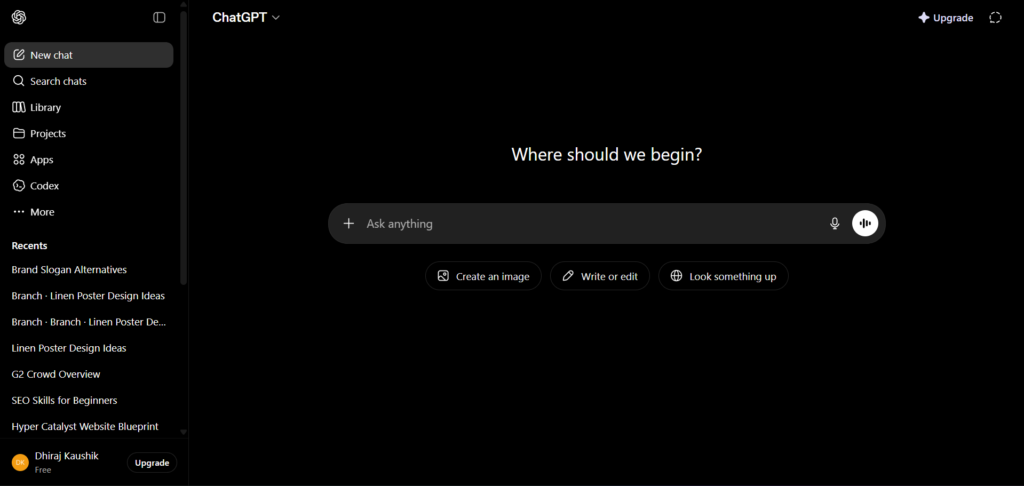
How Canvas Works: The Basics
The model running underneath is the same one you would get in chat — GPT-5.5, GPT-5.4 Thinking, or GPT-5.4 Pro depending on your plan and selection — but the editing surface is different.
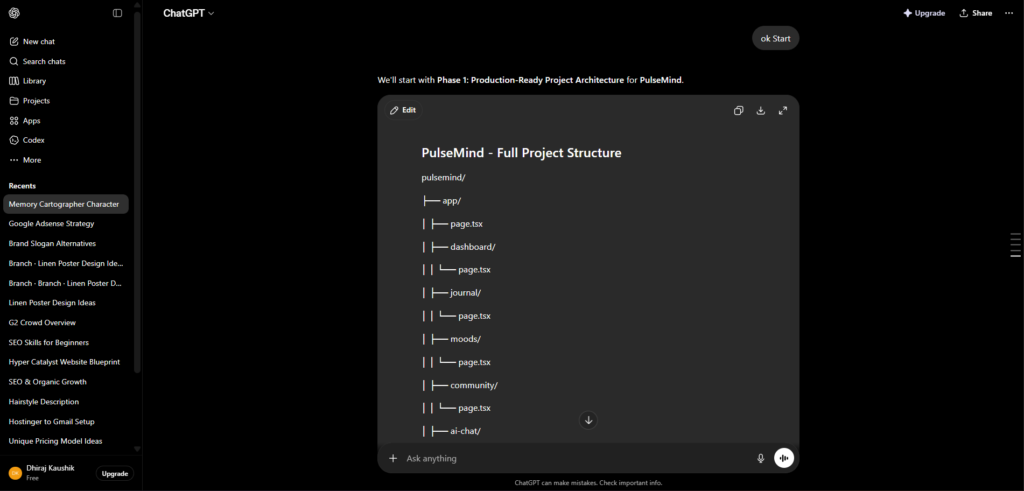
The interface has two areas when Canvas is active. The left side is the chat where you type instructions and have the conversation. The right side is the Canvas document or code file, which persists and updates as you work. The header bar on the Canvas has four main actions: Edit, Copy, Download, and Expand.
The system uses an auto-trigger mechanism, meaning ChatGPT automatically opens a Canvas when it generates content exceeding 10 lines or detects a complex coding or writing task. If you want to open it manually, you can use direct commands.
The key principle that makes Canvas more efficient than regular chat: you work on one persistent document rather than generating and discarding multiple complete responses. When you ask for a revision, only the relevant part of the document changes. The rest stays intact. This is the workflow shift that saves the most time once you have internalised it.
How to Open Canvas?
There are three ways to open Canvas in ChatGPT:
Automatic trigger. ChatGPT opens Canvas automatically when you ask for something long, such as a 1,000-word article, a complete Python script, a README file, or a structured document. You do not need to do anything. The Canvas panel opens on its own.
Manual command. Type “open in canvas” anywhere in your prompt. For example: “Write a product description for my software tool, open in canvas.” Canvas opens with the generated content.
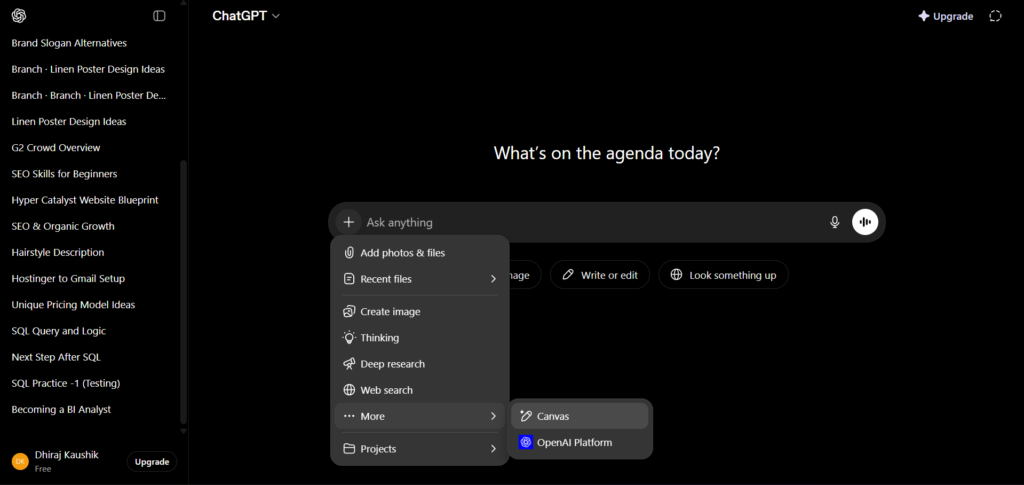
Tools menu. Click the “+” icon in the message composer and select Canvas from the tools menu. This opens an empty Canvas workspace where you can start a document from scratch or paste existing content.
Canvas is available on every ChatGPT plan including the free tier, on web, desktop, and the mobile apps. ChatGPT opens canvas automatically when you ask for long-form writing or code. You can also force it by typing “open in canvas” in your prompt or picking Canvas from the tool menu.
Note the platform change mentioned above: on GPT-5.5 Instant and GPT-5.5 Thinking, Canvas is being replaced by writing blocks and code blocks in the main chat. If you are using these models and Canvas is not opening, switch to a legacy model in the model settings if you specifically want the Canvas side-panel experience.
Canvas for Writing: Every Tool Explained
Canvas provides a set of shortcut tools specifically for writing tasks. Understanding what each one does prevents you from having to describe the same request in the chat every time.
Suggest Edits. Reviews the entire document and suggests grammar, clarity, and structural improvements inline. Changes appear as tracked edits that you can accept or reject individually. Use this as a final pass before any document is complete.
Adjust Length. Shortens or lengthens the document or a highlighted section. You can specify a target word count or simply ask for shorter or longer. Useful when a draft is running over a brief’s word limit or needs more substance in a specific section.
Change Reading Level. Adjusts the complexity and vocabulary of the writing for a different audience. Simplify for a general reader. Elevate for a professional or academic audience. One of Canvas’s standout features is the ability to adjust the reading level of your writing. You can ask ChatGPT to simplify the text for younger readers or make it more advanced for professional use.
Add Final Polish. Runs a comprehensive edit pass focusing on flow, consistency, and professional tone. This is the tool to use when the content is structurally complete but needs a final professional quality check.
Add Emojis. Adds contextually appropriate emojis to the document. While Canvas currently doesn’t support images, you can still ask ChatGPT to suggest the use of emojis or other formatting tips to make your text more engaging, especially for informal writing.
Translate. Converts the document into another language. Useful for multilingual content workflows where you draft in one language and need versions in others.
Canvas for Coding: Every Tool Explained
Canvas has a separate set of shortcut tools for code work that appear when the Canvas contains code rather than prose.
Review Code. Analyses the entire code block for bugs, inefficiencies, and potential improvements. Annotations appear inline next to the relevant lines. This is the quickest way to get a code review without having to ask a specific question.
Add Logs. Inserts console.log statements, print statements, or equivalent debugging output at relevant points throughout the code. Useful when you need to trace execution flow without manually identifying where to add debugging output.
Add Comments. Adds inline documentation comments explaining what each function, class, or complex section does. Useful when preparing code for handoff to another developer or for your own reference on code you will return to later.
Fix Bugs. Identifies and fixes errors in the code. When you know something is broken but have not identified the cause, this shortcut runs a diagnostic pass and proposes fixes inline. Write Python code in Canvas, then use the Execute button to run it and see results. If something breaks, highlight the broken section and click “Fix bugs.” ChatGPT suggests corrections and you can test them immediately.
Port to Language. Converts the code from one programming language to another. Python to JavaScript. JavaScript to TypeScript. Java to Python. The conversion handles syntax differences and uses idiomatic patterns for the target language rather than a literal translation.
Optimise Performance. Reviews the code for performance bottlenecks and suggests more efficient implementations. Useful for code that is functionally correct but running slower than expected.
Step-by-Step: Writing a Document in Canvas
Step 1: Open Canvas With a First Draft Request
Type a detailed first draft request in the chat. Include the type of document, the target audience, the approximate length, and the key points to cover. Example: “Write a 600-word blog introduction about using AI tools for freelance designers. Target audience is intermediate-level freelancers. Open in canvas.” Canvas opens with the generated draft on the right.
Step 2: Read the Draft and Identify What Needs Changing
Read the entire draft before making any changes. Identify the specific sections that need adjustment rather than asking for a full rewrite. Targeted edits preserve the parts of the draft that are already working.
Step 3: Use Inline Editing for Specific Sections
Highlight the text you want to change in the Canvas. A small edit menu appears. You can either use a shortcut button or type a specific instruction for that selection. “Make this paragraph shorter and more direct.” “Change the tone of this section to be more confident.” “Replace this example with one more relevant to graphic designers.” The model changes only the highlighted section, leaving the rest of the document intact.
Step 4: Use Shortcut Buttons for Global Changes
When you need a change applied across the whole document rather than a specific section, use the shortcut buttons. Click Suggest Edits for a comprehensive grammar and clarity review. Click Adjust Length if the document is over or under your target word count. Click Change Reading Level if the draft is too technical or too simplified for your audience.
Step 5: Export the Finished Document
When the document is ready, click Download in the Canvas header. Click the Share button then pick Download as PDF. ChatGPT renders the document with default formatting and A4 page size. You can also copy the full text to the clipboard or download as a text file depending on where the document is going next.
Step-by-Step: Working on Code in Canvas
Step 1: Generate Code in Canvas
Ask ChatGPT to write code and specify “open in canvas.” Example: “Write a Python function that reads a CSV file, calculates the average of a specified column, and returns the result. Include error handling. Open in canvas.” Canvas opens with the generated code with syntax highlighting.
Step 2: Review and Run the Code
Write Python code in Canvas then use the Execute button to run it and see results. Not all code types support in-Canvas execution, but for Python and certain other languages on supported plans, you can test directly without leaving the interface. For other languages or environments, copy the code to your development environment for testing.
Step 3: Fix Problems With Targeted Edits
If something breaks during testing, return to Canvas and highlight the specific function or block causing the problem. Click Fix Bugs or describe the specific error in the chat. The model targets that section rather than regenerating the entire file.
Step 4: Add Documentation
Once the code is working correctly, click Add Comments to add inline documentation. This is especially useful before committing code to a shared repository or handing it off to another developer.
[SCREENSHOT: The ChatGPT Canvas interface showing a Python code file on the right with syntax highlighting, the Add Comments shortcut button active, and inline documentation comments added throughout the code]
Canvas vs Regular ChatGPT Chat: When to Use Each?
Canvas and writing blocks are not always the right tool. Knowing when to use each prevents unnecessary complexity.
| Use Canvas or Writing Blocks When | Use Regular Chat When |
|---|---|
| Writing any document longer than 10 lines | Asking a quick question |
| Writing code you will iterate on | Getting a code snippet to copy once |
| Editing an existing document section by section | Summarising something from a file |
| Producing a deliverable with a target format | Brainstorming ideas in conversation |
| Working on something you will export and use | Having a back-and-forth discussion |
| Refining code with multiple targeted changes | Explaining a concept |
The core distinction: Canvas is for work products you will keep, edit, and export. Regular chat is for conversations, quick answers, and exploratory questions. Canvas is genuinely one of the most useful things OpenAI has shipped since the launch of ChatGPT itself. If you do any kind of writing, editing, or coding with AI, learning how the ChatGPT Canvas feature works changes the game entirely.
Canvas Shortcut Buttons: What Each One Does?
A quick reference guide to every Canvas shortcut button:
Writing shortcuts:
- Suggest Edits — tracked grammar and clarity improvements
- Adjust Length — longer or shorter to a specified target
- Change Reading Level — simpler or more advanced vocabulary
- Add Final Polish — comprehensive professional quality pass
- Add Emojis — contextual emoji additions for informal content
- Translate — convert to another language
Coding shortcuts:
- Review Code — inline annotations identifying issues
- Add Logs — insert debugging output statements
- Add Comments — add inline documentation
- Fix Bugs — diagnose and fix identified errors
- Port to Language — convert to a different programming language
- Optimise Performance — improve efficiency of the implementation
All shortcuts can be applied to the full document or to a highlighted selection. Applying to a selection produces more targeted changes and preserves surrounding content that is already working.
Inline Editing: The Most Useful Canvas Skill
Inline editing is the skill that makes Canvas faster than regular chat for document work, and it is the one most users do not use fully.
You can highlight specific sections and use built-in shortcuts. The AI makes suggestions inline. You see exactly what it wants to change and you decide whether to keep it or reject it.
The workflow for inline editing: highlight a specific piece of text in the Canvas. A small floating toolbar appears. From there you can choose a shortcut action or type a specific instruction that applies only to your highlighted selection. The model changes that selection and leaves the rest of the document untouched. You review the change. Accept it or reject it with one click.
This approach is significantly more efficient than chat-based editing for long documents because: it preserves parts of the document that are already good, it makes clear exactly what changed so you can evaluate the specific revision, and it avoids the model introducing unintended changes elsewhere in the document.
For anyone who has ever asked ChatGPT to “revise this paragraph” in regular chat and received a subtly different version of the entire document, inline editing is the direct solution to that problem.
Exporting From Canvas
Canvas supports several export formats depending on your plan and the type of content.
Copy to clipboard. Available on all plans. Copies the full document text to your clipboard for pasting into any external tool.
Download as text. Available on all plans. Exports a plain text file of the document content.
Download as PDF. Click the Share button then pick Download as PDF. ChatGPT renders the document with default formatting and A4 page size.
Share link. Generates a shareable link to the Canvas document. The recipient sees a read-only version of the document.
For code files, the Download option exports the code file with the appropriate file extension for the programming language. A Python Canvas exports as a .py file. A JavaScript Canvas exports as a .js file. This eliminates the extra step of creating a new file and pasting code into it.
Which Plans Include Canvas?
Canvas is available on the Free, Plus, and Pro plans as of May 2026. Canvas is available on every ChatGPT plan including the free tier.
However, given the June 2026 update removing Canvas from GPT-5.5 Instant and GPT-5.5 Thinking, here is the accurate current state:
| Plan | Canvas Availability | Notes |
|---|---|---|
| Free | Writing blocks and code blocks in chat | Canvas side-panel requires legacy model |
| Plus | Writing blocks and code blocks; Canvas via legacy models | Canvas sunset approaching as legacy models retire |
| Pro | Writing blocks and code blocks; Canvas via legacy models | Same as Plus |
| Business / Enterprise | Writing blocks and code blocks; Canvas via legacy models | Same transition applies |
The practical implication: the collaborative document editing experience that Canvas provides is still fully available in 2026. It is transitioning from a separate side-panel to writing blocks and code blocks directly in the chat view. The features, shortcuts, and inline editing capabilities described in this guide remain available in both formats. For a full breakdown of what each plan includes beyond Canvas, see our ChatGPT complete review.
Honest Limitations
Canvas does not support images. You cannot insert, view, or generate images directly within a Canvas document. For documents requiring visual elements, the text is produced in Canvas and images are added in a separate external tool.
Complex formatting is limited. Canvas handles headings, bold, italics, bullet points, and numbered lists. Advanced formatting such as tables with merged cells, custom fonts, and complex layout designs requires export to a dedicated document tool for final formatting.
Canvas is transitioning to blocks. As covered in the platform changes section, Canvas is being sunset from GPT-5.5 Instant and GPT-5.5 Thinking. The side-panel experience will eventually be fully replaced by writing blocks and code blocks in the main chat. Users who prefer the side-panel layout should be aware this is a transitional period.
Large documents can be slow. Very long documents, above 5,000 words, can cause the Canvas interface to respond more slowly when applying edits. For very long documents, working section by section and assembling in an external tool is more reliable.
Code execution is limited by environment. Not all programming languages and not all code types support direct execution within Canvas. Complex applications, code requiring external dependencies, and certain file operations need to be tested in a proper development environment rather than within the Canvas interface.
Who Is Canvas Most Useful For?
Writers and content professionals. Anyone who produces long-form written content regularly, whether articles, reports, emails, proposals, or marketing copy, will find Canvas meaningfully faster than regular chat for drafting and editing. The inline editing workflow eliminates the copy-paste-revise cycle that makes regular chat inefficient for document production. Our ChatGPT beginners guide covers how to integrate Canvas into a complete content workflow from the start.
Developers working on individual files. For developers writing scripts, utility functions, documentation, or code files where the scope fits within a single Canvas document, the coding shortcuts, inline fix tools, and code review functionality are practical additions to the development workflow. For repository-level engineering work, our ChatGPT Codex guide covers the more powerful agentic coding tool.
Students and researchers producing written work. The combination of first draft generation, section-by-section refinement, reading level adjustment, and length control makes Canvas a practical tool for academic writing assistance. The inline revision workflow, where changes are visible and approvable rather than silently applied, also supports better understanding of the edits being made.
Business professionals producing regular document deliverables. Reports, proposals, executive summaries, client communications, and structured documents that follow a consistent format are well-served by Canvas, particularly for users who build a workflow around producing the same type of document regularly. For teams, the Business plan’s collaborative features combined with Canvas work well for standardised document production. More on team-level workflows is covered in our ChatGPT Agent Mode guide.
Frequently Asked Questions
Is ChatGPT Canvas free to use?
Yes. Canvas has been available on the free ChatGPT plan since early 2025. However, given the June 2026 update, the Canvas side-panel experience is being transitioned to writing blocks and code blocks directly in the chat interface for GPT-5.5 models. Free users access the same writing and coding functionality through the new blocks format. The side-panel Canvas experience remains available on paid plans through legacy models during the transition period. All core features including inline editing, shortcut buttons, length adjustment, reading level changes, and code review are available regardless of whether you are working in Canvas side-panel or writing blocks format.
How do I open Canvas in ChatGPT?
There are three ways to open Canvas. First, ask for any long-form content and ChatGPT automatically opens Canvas for responses exceeding 10 lines or complex writing and coding tasks. Second, type “open in canvas” in your message and ChatGPT will generate the response directly in a Canvas document. Third, click the “+” icon in the message composer and select Canvas from the tools menu to open an empty workspace. Note that on GPT-5.5 Instant and GPT-5.5 Thinking in June 2026, Canvas is being replaced by writing blocks in the chat view. If Canvas is not opening, this platform change is the reason.
Can I use Canvas for code in any programming language?
Canvas supports syntax highlighting and editing for a wide range of programming languages including Python, JavaScript, TypeScript, HTML, CSS, Java, C++, Go, Rust, and others. The Port to Language shortcut converts between languages. Code execution directly within Canvas is available for Python and certain other languages on supported plans and configurations. For languages without in-Canvas execution, you copy the code to your development environment for testing. The Add Comments, Fix Bugs, Add Logs, Review Code, and Optimise Performance shortcuts work across all supported languages regardless of execution capability.
How is Canvas different from regular ChatGPT responses for writing?
The key differences are persistence, targeted editing, and structured export. A regular ChatGPT writing response scrolls past when new messages arrive and requires full regeneration if you want changes. Canvas keeps a single document anchored on screen, lets you highlight specific sections for targeted edits without touching the rest, provides shortcut tools for common editing tasks, and exports directly to PDF, text, or a shareable link. The practical result is that iterating on a document through Canvas is significantly faster than the generate-copy-paste-revise workflow that regular chat produces for long-form writing.
Does Canvas work on mobile?
Yes. Canvas is available on the ChatGPT mobile apps for iOS and Android. The interface adapts to the smaller screen, with the Canvas document taking the full screen when active and a toggle to switch between the chat and the document views. The shortcut buttons and inline editing tools are available in the mobile version. The experience is more constrained than on desktop for complex document work due to screen size, but for reviewing, making targeted edits, and exporting documents, the mobile Canvas is fully functional.
Can I use Canvas to edit a document I already have?
Yes. Paste your existing document into the chat with a request to open it in Canvas, or open an empty Canvas and paste your content directly into the document area. From there you can use all the editing tools, including inline highlighting for targeted revisions, the Suggest Edits shortcut for a comprehensive review pass, and the length and reading level adjustment tools. This is one of the most practical Canvas use cases: bringing an existing draft into the workspace for AI-assisted editing rather than starting from scratch. The model treats your pasted content as the working document and makes changes within it rather than generating a new version from nothing.
Final Thoughts
ChatGPT Canvas is a practical shift in how you work with AI on long-form content and code. The difference between generating responses in regular chat and working in Canvas is the difference between having a conversation and doing actual work. Canvas is where work happens.
The platform is in transition in mid-2026. The Canvas side-panel is being replaced by writing blocks and code blocks in the main chat view for GPT-5.5 models, but the core functionality, the inline editing, the shortcut tools, the persistent document surface, and the targeted revision workflow, remains fully intact in the new format. If you learned Canvas, you already know writing blocks. They are the same tools in a slightly different surface.
The most impactful single change you can make to your ChatGPT writing workflow today is to stop copying AI responses into a document and start working directly in Canvas or writing blocks from the first draft. That shift alone will cut the time you spend on AI-assisted document work significantly.
Start at chatgpt.com, ask for any long-form piece of writing, and let Canvas open automatically. Spend 15 minutes working through inline editing on a document you actually need. The efficiency difference will be immediately clear. For everything else ChatGPT offers in 2026, our ChatGPT complete review covers every feature and plan in one place.
External resources: What is Canvas — OpenAI Help Center | ChatGPT Release Notes — OpenAI Official | How to Use ChatGPT Canvas: Complete Guide 2026 — AI-Toolbox | What is ChatGPT Canvas: Full 2026 Guide — InstaPods | ChatGPT Canvas Feature: 5 Smart Ways to Write Better — WebToolTip
Useful Backlinks
| # | Specific Article / Page | URL |
|---|---|---|
| 1 | “What Is ChatGPT Canvas?” — OpenAI Help Center | help.openai.com/en/articles/8851014-what-is-chatgpt-canvas |
| 2 | “ChatGPT Release Notes — Canvas Update June 2026” — OpenAI Official | help.openai.com/en/articles/6825453-chatgpt-release-notes |
| 3 | “How to Use ChatGPT Canvas: Complete Guide 2026” — AI-Toolbox | ai-toolbox.co/chatgpt-management-and-productivity/how-to-use-chatgpt-canvas-guide-2026 |
| 4 | “What Is ChatGPT Canvas: Full 2026 Guide” — InstaPods | instapods.com/blog/what-is-chatgpt-canvas/ |
| 5 | “ChatGPT Canvas Feature: 5 Smart Ways to Write Better” — WebToolTip | webtooltip.com/artificial-intelligence/chatgpt-canvas-feature/ |
| 6 | “How to Use ChatGPT Canvas: Step-by-Step Guide 2026” — AI-Basics | ai-basics.com/how-to-use-chatgpt-canvas/ |
| 7 | “ChatGPT Canvas Update: What’s New and How to Use It” — God of Prompt | godofprompt.ai/blog/openai-canvas-update-whats-new-how-to-use-it/ |
| 8 | “How to Use ChatGPT Canvas: Ultimate Guide for Writing and Coding” — GlbGPT | glbgpt.com/hub/how-to-use-chatgpt-canvas-the-ultimate-guide-for-writing-coding-2026/ |
| 9 | “ChatGPT Canvas vs Google Docs: Which Should You Use?” — MakeUseOf | makeuseof.com/chatgpt-canvas-vs-google-docs/ |
| 10 | “Best AI Writing Tools in 2026: Canvas, Notion AI, and More” — Creative Bloq | creativebloq.com/features/best-ai-writing-tools-2026 |