ChatGPT Memory is one of the most powerful features OpenAI has added to the platform, and most users either do not know it exists or have never checked what it has quietly saved about them. This guide covers exactly how Memory works in 2026, what ChatGPT stores without you realizing it, and how to take full control of what it remembers, edits, and forgets.
Table of Contents
What Is ChatGPT Memory?
ChatGPT Memory is a feature that allows ChatGPT to remember information about you across separate conversations. Instead of starting from zero every time you open a new chat, ChatGPT can recall your name, your job role, your preferences, your ongoing projects, and other details it has picked up from previous sessions.
OpenAI first announced memory controls in February 2024 as a limited test with select users. By September 2024, Memory became available across Free, Plus, Team, and Enterprise accounts. Then in April 2025, OpenAI expanded Memory significantly, adding a second layer called reference chat history, which changed how the system works at a fundamental level.
Before April 2025, Memory only stored facts you had explicitly told ChatGPT to remember. After that update, ChatGPT could also draw insights from your full conversation history without you saying a word. That shift made Memory much more powerful, and also much more important to understand and manage actively.
In 2026, ChatGPT Memory operates through two entirely separate systems. The first is saved memories, which are specific facts stored in a visible list you can read and edit anytime. The second is reference chat history, which is an implicit layer where ChatGPT draws patterns and context from your past conversations even when nothing has been formally saved. Both systems can be toggled on or off independently inside your settings.
Memory is available by default on Free, Plus, Pro, and Team accounts. For Enterprise and Edu accounts, Memory is switched off by default and must be enabled by an admin. Across all plans, Memory syncs automatically across every device where you use the same OpenAI account, including iOS, Android, macOS, Windows, and the web.
It is worth being clear about one thing that confuses many users. ChatGPT Memory and your chat history are not the same thing. Deleting a conversation does not delete the memories created from that conversation. They are stored separately and managed separately. This distinction matters a great deal if you are trying to clean up what ChatGPT knows about you.
How ChatGPT Memory Actually Works?
Understanding the mechanics behind ChatGPT Memory helps you use it smarter and avoid surprises. The system runs in three stages every time a conversation happens.
Stage One: Extraction
During or shortly after a conversation, ChatGPT scans what was said and identifies details it considers worth keeping. These could be preferences you expressed, facts about your work or personal life, recurring topics, or instructions you gave. The model makes a judgment call about what is worth saving and what is not.
You do not always get a notification when this happens. Sometimes ChatGPT shows a small “Memory updated” indicator under a response. Other times it stores something silently. This is one reason why periodically checking your saved memories list is a good habit, because ChatGPT may have stored things you did not intend to keep permanently.
Stage Two: Storage
Extracted facts are written as short memory entries and attached to your OpenAI account. These entries are not tied to any specific conversation. They exist independently, which is why deleting a chat does not remove the memories created from it. Each entry is visible in Settings, Personalization, Manage Memories, where you can read, edit, or delete individual entries at any time.
The reference chat history layer works differently. ChatGPT does not store specific verbatim text from past conversations. Instead it maintains a model of patterns and context from your history. You cannot view this layer the same way you can view saved memory entries. It is more like an impression of who you are based on your past interactions.
Stage Three: Retrieval
Every time you start a new conversation, relevant memories from your saved list are injected into the system prompt that ChatGPT uses to generate responses. This is why ChatGPT can greet you by name, reference your job, or adjust its tone without you saying anything. The reference chat history layer works in parallel, adding broader contextual signals on top of the specific saved entries.
The model decides which memories are relevant to a given conversation. It does not dump your entire memory list into every response. If you are asking about recipes, your saved preference for vegetarian food is relevant. Your preferred coding language probably is not, and ChatGPT filters accordingly.
What ChatGPT Avoids Storing by Default?
OpenAI has stated that ChatGPT is designed to avoid proactively storing sensitive information such as health details, financial specifics, or anything that could create privacy risks, unless you explicitly ask it to remember that type of information. That said, the model is not perfect at this boundary, which is another reason manual review of your memory list is worthwhile.
The Temporary Chat Option
If you want a completely fresh conversation with no memory involved, Temporary Chat is the right tool. It bypasses both saved memories and reference chat history entirely. Nothing from a Temporary Chat is stored in Memory, and the conversation itself is deleted from the platform within 30 days. You can start a Temporary Chat from the sidebar in the ChatGPT web interface or mobile app.
Step-by-Step: How to View, Edit, and Control ChatGPT Memory
Here is a complete walkthrough of every control available to you inside ChatGPT Memory settings.
Step 1: Open Your Memory Settings
On desktop, click your profile icon in the bottom-left corner of ChatGPT and select Settings. Then go to Personalization and click Manage Memories. On mobile, tap the menu icon, then your name, then Personalization, and then Manage Memory.
This panel shows every saved memory entry stored on your account. Each entry appears as a short line of text describing something ChatGPT has remembered about you. Read through this list carefully the first time you open it. Most users are surprised by how much is stored there.
Step 2: Ask ChatGPT What It Remembers
Before digging into the settings panel, try this shortcut. Open any conversation and type: “What do you remember about me?” ChatGPT will list everything currently active in its memory. This is often faster than scrolling through the settings panel and gives you a plain-language summary of how ChatGPT currently sees you.
Note that ChatGPT may summarize rather than quote entries exactly. If you want the precise text of each stored entry, the settings panel is the accurate source.
Step 3: Delete Specific Memories
Inside the Manage Memories panel, hover over any entry to reveal a delete button. Click it to remove that specific memory. ChatGPT will no longer reference that fact in future conversations. Use this to remove anything outdated, incorrect, or simply something you no longer want stored.
This step is especially important if ChatGPT has stored something inaccurate. A memory entry that says you work in a particular industry or live in a specific city will influence every future response until you delete it. Bad memories cause quietly bad responses over time.
Step 4: Clear All Memories at Once
If you want a completely fresh start, scroll to the bottom of the Manage Memories panel and click Clear All Memories. ChatGPT will ask you to confirm. After confirmation, every saved memory entry is removed and your next conversation opens with no personalization data from the saved memories layer.
Note that clearing saved memories does not turn Memory off. If Memory is still enabled, ChatGPT will begin building a new list from your next conversations. To prevent that, turn off the Memory toggle after clearing.
Step 5: Tell ChatGPT to Remember Something Specific
You can instruct ChatGPT to save a specific fact by starting your message with “Remember that…” For example: “Remember that I prefer responses in short paragraphs without bullet points.” ChatGPT will confirm with a Memory updated message and store that preference for all future conversations.
For the most reliable results, be direct and specific. Vague preferences like “I like clear writing” are stored but rarely influence responses meaningfully. Precise instructions like “Remember that I am a freelance UX designer working with clients in the healthcare industry” give ChatGPT actionable context.
Step 6: Toggle the Two Memory Systems Independently
Inside Settings, Personalization, Memory, you will find two separate toggles. The first is Reference saved memories. The second is Reference chat history. You can turn either one off without affecting the other.
Turning off Reference saved memories stops ChatGPT from using your stored fact list in conversations, but it does not delete those facts. They remain stored and will be used again if you switch the toggle back on. Turning off Reference chat history stops ChatGPT from drawing on past conversation patterns. When you turn this off, OpenAI states that the gathered chat history data is deleted from their servers within 30 days.
Step 7: Separate Memory From Data Training
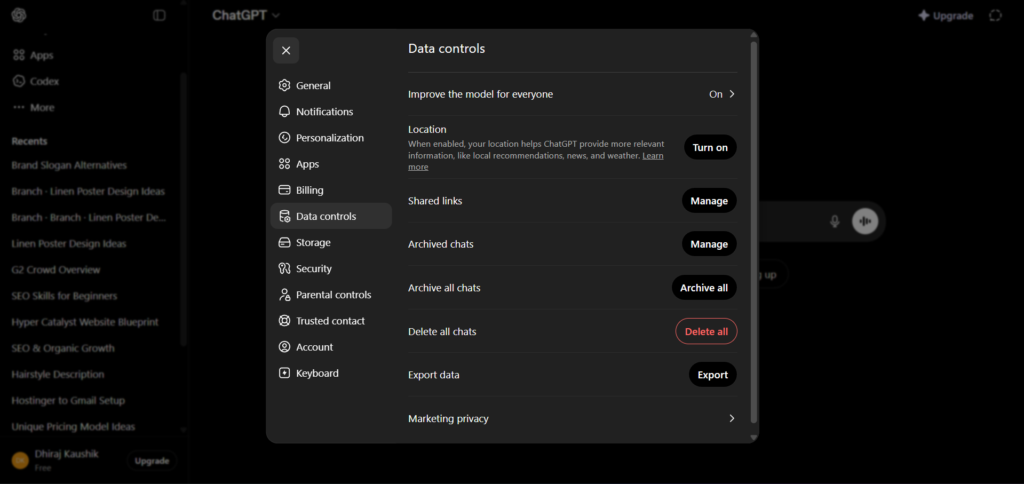
This is the step most users miss. Memory and model training are entirely separate controls. Turning Memory off does not stop OpenAI from using your conversations to train future models. To do that, go to Settings, Data Controls, and turn off the toggle labelled Improve the model for everyone.
For Free, Plus, and Pro accounts, data training is on by default. You must manually opt out. For Business and Enterprise accounts, training is off by default. If you use ChatGPT for client work or anything sensitive, turning off this training toggle is the right step regardless of your Memory settings.
Key Benefits of ChatGPT Memory
Eliminating Repetitive Context Setting
The most immediate benefit is time. Before Memory existed, every new conversation required you to explain who you are, what you are working on, and what tone or format you prefer. For daily users, this repeated setup added up to a genuine waste of time every single session. With Memory active and well-maintained, ChatGPT already knows your role, your preferences, and your current projects. You can open a conversation and go straight to the actual work.
This benefit compounds over time. The more accurate your saved memories are, the less friction exists at the start of every session. A well-curated memory list is worth the ten minutes it takes to set up properly.
Genuinely Personalized Responses
When ChatGPT knows your background, its responses become more useful without any extra instruction. A software developer who has stored their preferred tech stack gets code examples in the right language automatically. A marketer who has stored their target audience gets campaign ideas that fit their actual context, not a generic template.
Memory is different from Custom Instructions, which apply a fixed set of rules to every conversation. Memory builds and updates over time as your context changes, without you needing to rewrite a static instruction set.
Continuity Across Long Projects
For anyone working on a project that spans weeks or months, Memory provides a form of continuity that would otherwise require manual effort. You can store key project parameters, client names, decisions that have already been made, and constraints you are working within. ChatGPT then carries that context forward across every session without you needing to paste in a briefing document each time.
This is particularly useful for writers working on long-form content, developers managing ongoing codebases, consultants working with recurring clients, and anyone running a business with repeating workflows.
Works Across Every Device You Use
Because Memory is tied to your OpenAI account rather than a specific device or browser, it follows you everywhere. The same personalization you experience on your laptop is present when you switch to your phone or the desktop app. You are never starting cold just because you switched devices.
ChatGPT Memory vs Custom Instructions vs Projects: Comparison Table
| Feature | ChatGPT Memory | Custom Instructions | Projects |
|---|---|---|---|
| What It Stores | Facts, preferences, context extracted from conversations | Fixed rules you write manually | Files, conversations, and instructions scoped to one project |
| How It Updates | Automatically over time, plus manual edits | Only when you manually rewrite it | Manually — you add or remove files and instructions |
| Visibility | Viewable and editable in Settings | Fully visible in Settings | Fully visible inside the Project panel |
| Scope | Applies across all conversations globally | Applies to all conversations globally | Applies only within the specific Project |
| Best For | Evolving personal context and preferences | Stable output rules like tone or format | Organized work with dedicated files and instructions |
| Available On | Free, Plus, Pro, Team (Enterprise opt-in) | All plans | Plus, Pro, Business, Enterprise |
| Monthly Cost Impact | Included in all plans | Included in all plans | Included in qualifying plans |
The practical rule is this. Use Custom Instructions for how you want ChatGPT to behave. Use Memory for who you are and what you are working on. Use Projects when you need a dedicated workspace with files and focused context for a specific body of work.
Who Gets the Most Value From ChatGPT Memory?
Freelancers and consultants who work across multiple clients and projects will find Memory genuinely useful. Storing client names, project parameters, and preferences means ChatGPT can assist with client-specific work without requiring a full briefing at the start of each session. The time savings across a week of heavy ChatGPT usage are real and measurable.
Content creators and writers who produce ongoing series, newsletters, or long-form content benefit from Memory’s ability to hold editorial style preferences, audience descriptions, and content pillars across sessions. A creator who has stored their brand voice, target reader profile, and content themes gets first drafts that are immediately closer to the final product.
Developers working on long-running projects can store their tech stack, architectural decisions, naming conventions, and project constraints. When asking for help with a bug or a new feature, ChatGPT already knows the context around the code rather than treating every question in isolation. This reduces the back-and-forth needed to get useful answers.
Students and researchers who use ChatGPT regularly for a specific subject area can store their level of expertise, the topics they are exploring, and the citation style or format they prefer. This keeps every session calibrated to where they actually are rather than requiring the same introductory explanation every time.
Frequently Asked Questions
Does deleting a conversation also delete the memories created from it?
No, and this surprises many users. ChatGPT Memory and your conversation history are completely separate systems. When you delete a chat from your sidebar, the saved memory entries that were created during that conversation remain stored on your account. They will continue to influence future responses until you manually delete them from Settings, Personalization, Manage Memories. If you want a truly clean slate, you need to delete both the conversation and the relevant memory entries separately. OpenAI is clear about this distinction in their Help Center documentation.
Can ChatGPT remember things I did not explicitly tell it to remember?
Yes. When Memory is enabled, ChatGPT can automatically extract and save details from your conversations without you using the “Remember that” command. It makes its own judgment about what seems worth keeping. You may see a “Memory updated” notification appear beneath a response, but this does not always show up, especially for minor additions. This is why manually reviewing your saved memories list from time to time is worthwhile. ChatGPT can store things you mentioned once casually that then influence responses for months without you realizing it.
Is ChatGPT Memory the same across all plans?
The core saved memories feature is available on Free, Plus, Pro, and Team plans with Memory turned on by default. The reference chat history layer, which draws on your full past conversation history, is more fully featured on Plus and Pro plans. For Enterprise and Edu accounts, Memory is switched off by default and requires an admin to enable it. The fundamental controls are the same across plans, but the depth of the chat history reference layer varies depending on your subscription tier.
Does turning off Memory also stop ChatGPT from training on my data?
No. Memory and data training are entirely separate settings with separate toggles. Turning Memory off simply stops ChatGPT from personalizing your conversations based on stored information. Your conversations can still be used to train OpenAI’s models unless you separately go to Settings, Data Controls, and turn off the “Improve the model for everyone” toggle. For Free, Plus, and Pro users, training is on by default and requires a manual opt-out. For Business and Enterprise users, training is off by default.
What happens to my memories if I switch from Plus to Free?
Your saved memory entries remain stored on your account regardless of plan changes. The visible saved memories list stays intact. What may change is the depth of the reference chat history layer, which is more limited on Free accounts than on Plus or Pro. Your stored entries will still be used in conversations, but the broader implicit memory layer drawing on your full conversation history may be reduced in scope. OpenAI has not published a precise breakdown of the differences by plan for this specific layer.
Can I export my saved memories as a file?
Not directly through the ChatGPT interface. OpenAI’s data export function, which you can request through Settings, Data Controls, Export Data, provides a ZIP file containing your conversations. However, your saved memory entries are not included in this export as a structured file. The only way to see and record your current memories is to open Settings, Personalization, Manage Memories and manually copy the entries. If you want a backup before clearing your memories, copying them into a note before deleting is currently the only available method.
Final Thoughts
ChatGPT Memory is one of those features that quietly makes ChatGPT significantly more useful the more time you put into managing it. A well-maintained memory list saves time, reduces repetitive setup, and produces more relevant responses across every session. A neglected or inaccurate memory list does the opposite, pulling responses in the wrong direction based on outdated facts you forgot were stored.
The privacy side of Memory deserves a calm and clear-headed look. The feature is not secretive, and the controls OpenAI provides are genuine. What catches people off guard is the separation between Memory and chat history, and the equally separate question of data training. Understanding that these are three different switches, each with its own setting, is the most important thing you can take away from this guide.
The practical next step is simple. Open your ChatGPT settings right now, go to Manage Memories, and read through what is stored. Delete anything outdated or inaccurate. Then decide whether you want to add a few precise entries that will make every future session more useful. That ten minutes of setup pays off across every conversation you have after it.
Related reading on Edurancehub:
Useful Backlinks
| # | Website | URL | Why It Matters? | DA |
|---|---|---|---|---|
| 1 | OpenAI Official Announcement | https://openai.com/index/memory-and-new-controls-for-chatgpt/ | Primary source for the Memory feature launch — ideal for citation and credibility | DA 90+ |
| 2 | OpenAI Help Center: Memory FAQ | https://help.openai.com/en/articles/8590148-memory-faq | Official FAQ page — directly supports your How It Works and FAQ sections | DA 90+ |
| 3 | OpenAI Help Center: Reference Saved Memories | https://help.openai.com/en/articles/11146739-how-does-reference-saved-memories-work | Official documentation on the two memory layers — supports your Step-by-Step section | DA 90+ |
| 4 | OpenAI Help Center: Data Training Opt-Out | https://help.openai.com/en/articles/8983130-what-if-i-want-to-keep-my-history-on-but-disable-model-training | Supports your critical privacy section separating Memory from training toggle | DA 90+ |
| 5 | OpenAI ChatGPT Pricing | https://openai.com/business/chatgpt-pricing/ | Official plan page — supports your plan availability claims | DA 90+ |
| 6 | NordVPN Blog: Is ChatGPT Private 2026 | https://nordvpn.com/blog/is-chatgpt-private/ | High-authority cybersecurity publication covering ChatGPT privacy in depth — co-citation opportunity | DA 85+ |
| 7 | Wikipedia — ChatGPT | https://en.wikipedia.org/wiki/ChatGPT | Add your Memory guide as an external reference in the Features section of the ChatGPT Wikipedia page | DA 95+ |
| 8 | AI Chat Importer Blog | https://ai-chat-importer.com/blog/chatgpt-memory-vs-chat-history-explained | Covers Memory vs Chat History confusion — outreach for co-citation or guest post swap | DA 45+ |
| 9 | GptPrompts.ai Memory Guide | https://gptprompts.ai/chatgpt-memory-guide | Detailed Memory guide with plan comparison — outreach for backlink exchange or mention | DA 50+ |
| 10 | Dev.to | https://dev.to | Publish a condensed 600-word version of this Memory guide with a canonical link back to Edurancehub — fast developer and tech audience referral traffic | DA 85+ |