Claude AI Mastery takes about ten minutes to get the basics working, but most guides stop right there and skip the features that actually make it useful long term. This walkthrough covers all ten steps properly, from creating your account through the settings most beginners never discover, so you are not left rediscovering half of what Claude can actually do months later by accident.
Table of Contents
What Is Claude AI?
Claude AI is Anthropic’s conversational assistant, accessible through a website, mobile apps, and a desktop app, designed to help with writing, research, analysis, and coding through natural conversation. For a complete beginner, the simplest way to think about it is a very capable assistant you talk to in plain English, one that can hold context across a long conversation, read documents you upload, and search the web when it needs current information.
Unlike some AI tools that require learning specific commands or syntax, Claude is built to respond well to plain language requests. You do not need to learn special formatting or memorize command structures to get useful results, though, as covered later in this guide, learning a few specific habits does meaningfully improve output quality beyond the basics.
Claude comes in a free version and several paid tiers, with the free plan currently running Claude Sonnet 5, the same model available to Pro subscribers, just with lower daily usage limits. This means a complete beginner is not stuck with a deliberately weakened version just because they have not paid yet, which is worth knowing before assuming you need to upgrade immediately.
If you have already read our full review of Claude AI, this guide goes deeper specifically into the practical, step by step mechanics of actually using it well, rather than evaluating whether it is worth using in the first place.
Why This Guide Covers More Than the Basics?
Most beginner guides stop at “type a question and read the answer,” which technically works but leaves out nearly everything that separates a casual, occasional user from someone who has genuinely integrated Claude into their daily work. Features like Projects, Styles, and file uploads are not hidden exactly, but they are also not obvious from the main chat screen, which means a huge number of users go months without discovering them simply because nothing prompts them to look.
This matters because the gap in usefulness between someone using only the basic chat box and someone using the fuller feature set is significant. It is less like the difference between a beginner and expert user of the same tool, and more like two people using two different products that happen to share the same name.
How Claude AI Works for New Users?
Understanding the basic shape of a Claude AI conversation helps new users avoid the most common early mistakes. Each conversation is called a chat, and within that chat, Claude remembers everything said earlier in the same conversation, but starts fresh with no memory once you open a brand new chat, unless you are using a Project, covered later in this guide.
The Interface at a Glance
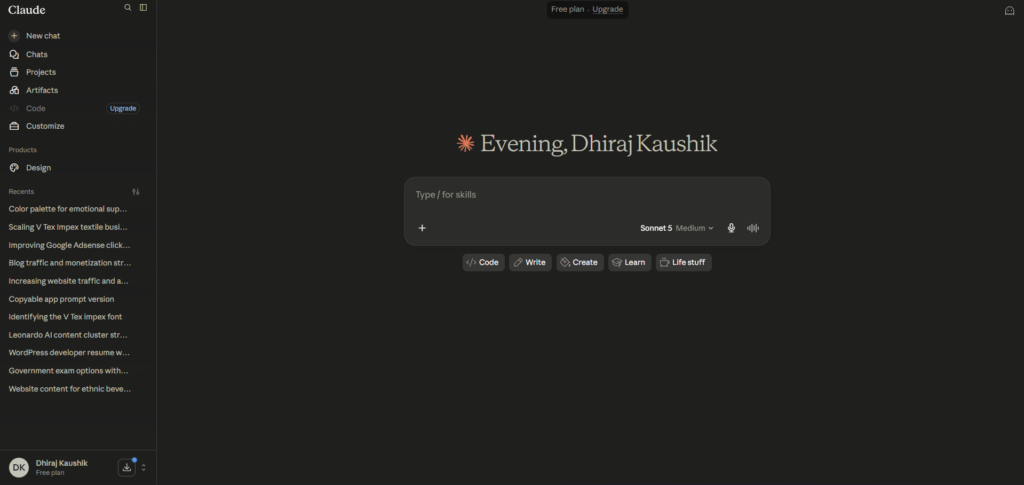
The main screen is a simple text box where you type your request, with your conversation history displayed above it as you go. A sidebar shows your past conversations, letting you return to earlier chats rather than losing that context permanently. Near the input box, you will find options to attach files, switch between models, and access features like web search.
Models You Can Choose Between
Depending on your plan, you may see multiple model options when starting a new chat. Claude Sonnet 5 is the balanced default, good for most everyday tasks. Claude Opus 4.8, available on paid plans, handles more demanding reasoning tasks with more depth, useful for complex analysis or difficult coding problems. Beginners rarely need to think hard about this choice early on, since Sonnet 5 handles the vast majority of everyday requests well.
What Happens When You Send a Message?
When you type a request and hit send, Claude processes your entire conversation history up to that point, not just your latest message, which is why maintaining a single ongoing conversation about one topic tends to produce more coherent, contextually aware responses than starting a new chat for every single question.
This also explains a common beginner frustration: a very long, sprawling conversation covering many unrelated topics can eventually produce less focused responses than a shorter, more topic specific one. If you notice response quality dropping in a very long thread, starting a fresh chat for a genuinely new topic, rather than continuing an already crowded one, often solves the problem immediately.
Step-by-Step Guide to Using Claude AI
Here is the complete beginner walkthrough, covering everything from account creation through the features most new users never find on their own.
Step 1: Create Your Account
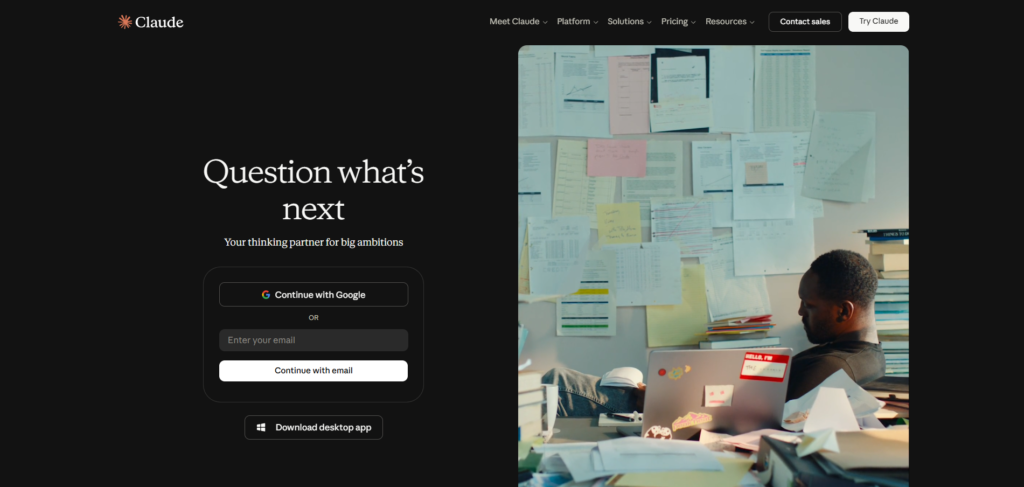
Go to claude.ai and sign up using your email address or a Google account. No credit card is required for the free plan, and you will typically be verified and ready to chat within a couple of minutes.
Step 2: Explore the Interface Before Asking Anything Complex
Spend a few minutes clicking around before diving into serious work. Notice the model selector, the file attachment icon, and the sidebar showing your conversation history, so you are not hunting for these features later when you actually need them.
Step 3: Write Your First Prompt With Specific Detail
Avoid vague requests like “help me write something.” Instead, specify the topic, the audience, the tone, and the approximate length you want. Specific prompts consistently produce more useful first responses than vague ones, saving you several rounds of back and forth clarification.
Step 4: Continue the Conversation Instead of Starting Over
If Claude’s first response is close but not quite right, respond in the same conversation with specific feedback rather than starting a brand new chat. Claude retains the context of what it already generated, so refining within the same thread produces better results than beginning from scratch each time.
Step 5: Try Uploading a File for Context
Click the attachment icon and upload a document, PDF, or spreadsheet, then ask Claude questions about it directly. This is one of the most underused features by beginners, who often paste text manually instead of simply uploading the actual file.
Step 6: Turn On Web Search for Anything Time-Sensitive
For questions about current events, recent prices, or anything that may have changed since Claude’s training data was last updated, enable web search inside the conversation. This lets Claude pull live information rather than relying on a fixed cutoff date.
Step 7: Set Up a Project for Repeated or Ongoing Work
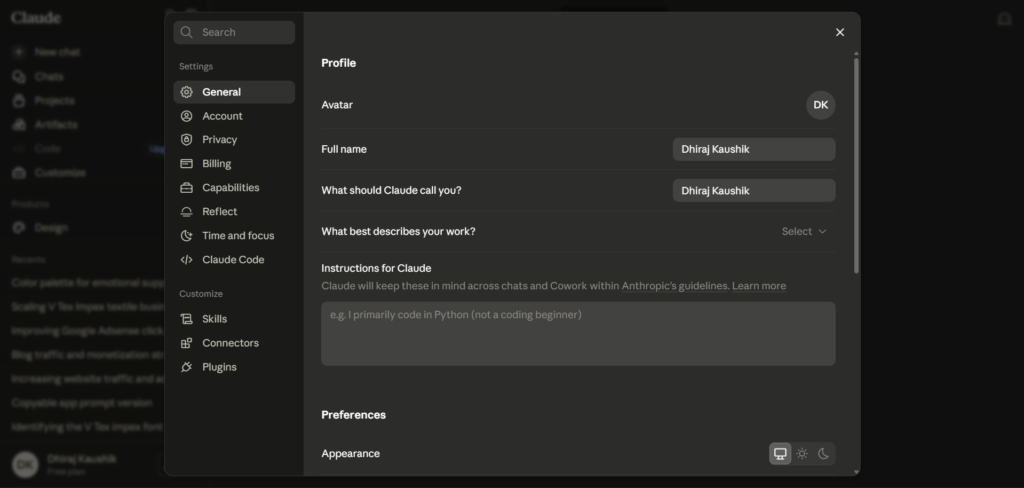
If you find yourself returning to the same topic repeatedly, whether it is a specific job search, a recurring report, or an ongoing creative project, create a Project. Upload relevant reference files once and add custom instructions, and every future conversation inside that Project automatically carries that context.
Step 8: Use Artifacts for Documents, Code, or Visual Content
When Claude generates something substantial, a document, a piece of code, or a chart, it often opens in a separate panel called an Artifact rather than sitting directly in the chat. This makes it easier to view, edit, and export standalone content without scrolling through the conversation to find it again.
Step 9: Create a Style if You Want a Consistent Tone
For anyone using Claude regularly for writing, set up a Style describing your preferred tone and voice once, then apply it automatically across future conversations instead of re-explaining your preferences every single time.
Step 10: Know When It Is Actually Time to Upgrade
Stay on the free plan until you consistently hit its usage limit during real, regular use, not just casual testing. Once that happens reliably, comparing Claude’s actual pricing tiers against your specific usage pattern will tell you clearly whether Pro is worth the twenty dollars a month for your situation.
Key Benefits of Learning Claude AI Properly
Beginners who learn to write specific, detailed prompts from the start consistently get better results than those who stick with vague, one line requests indefinitely. This single habit, more than any paid upgrade, is the biggest factor separating a frustrating first week with Claude from a genuinely useful one.
Understanding Projects early prevents a common beginner mistake, which is repeatedly re-explaining background context in every new conversation. Once someone learns to set up a Project for recurring work, the time saved compounds significantly across weeks and months of continued use.
Knowing that the free plan runs the same core model as Pro, just with usage limits, removes unnecessary pressure to upgrade immediately. Many beginners assume free means fundamentally worse, when in Claude’s case it specifically means less usage headroom rather than a downgraded experience.
Learning to use file uploads and web search properly from the start unlocks a meaningfully more capable version of Claude than most beginners discover through trial and error alone. These two features alone move Claude from a general knowledge chatbot to a tool that can work directly with your actual documents and current information.
Beginners who take the time to understand the difference between a regular chat and a Project early on tend to develop noticeably better organizational habits over time. Rather than one long, sprawling chat history covering dozens of unrelated topics, they end up with clean, purpose built workspaces that are actually easy to navigate back to months later.
Comparison Table
| Tool Name | Beginner Learning Curve | Standout Beginner Feature | Free Tier Usability | Monthly Cost |
|---|---|---|---|---|
| Claude AI | Low, plain language works well | Projects for recurring context | Genuinely usable, same core model | Free, then $20 |
| ChatGPT | Low, very intuitive interface | Broad plugin and image tools | Usable, more restrictive limits | Free, then $20 |
| Gemini | Low, familiar to Google users | Native Gmail and Docs integration | Usable within Google apps | Free, then $19.99 |
| Perplexity | Very low, search-like interface | Automatic source citations | Usable, limited daily searches | Free, then $20 |
| Copilot (Microsoft) | Low for Windows users | Built into Windows and Office | Usable, tied to Microsoft account | Free, then $20 |
Pricing reflects publicly listed individual plan rates as of mid-2026. All five tools listed here are genuinely approachable for complete beginners, so the right starting point often comes down to which ecosystem, Google, Microsoft, or a standalone assistant, you are already comfortable in.
Who This Guide Is For?
Complete beginners who have never used an AI assistant before will benefit most from following all ten steps in order, since later steps build on habits established in earlier ones, particularly the emphasis on specific prompting and using Projects for organized work.
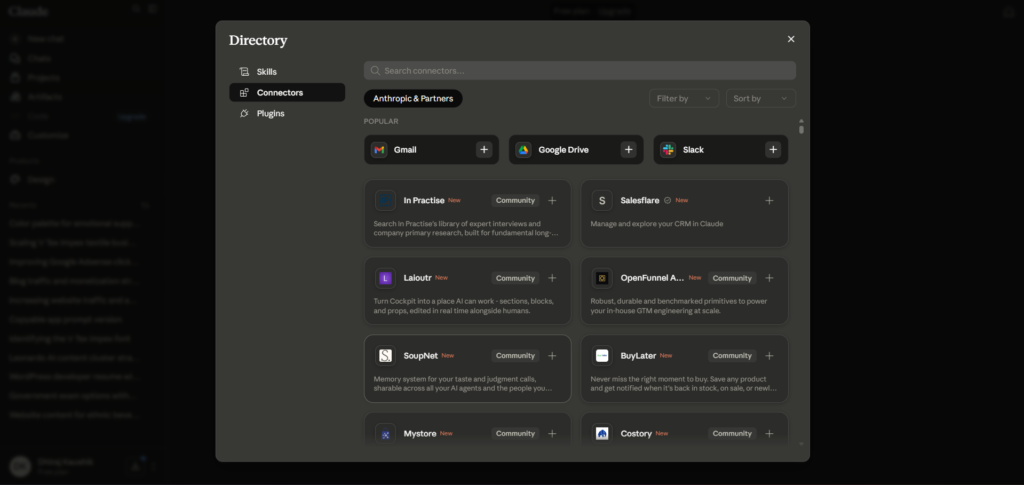
Casual users who have tried Claude briefly but stuck to simple one-off questions will likely find the biggest value in the steps covering Projects, file uploads, and web search, since these are the features most commonly skipped by people who only ever use the basic chat box.
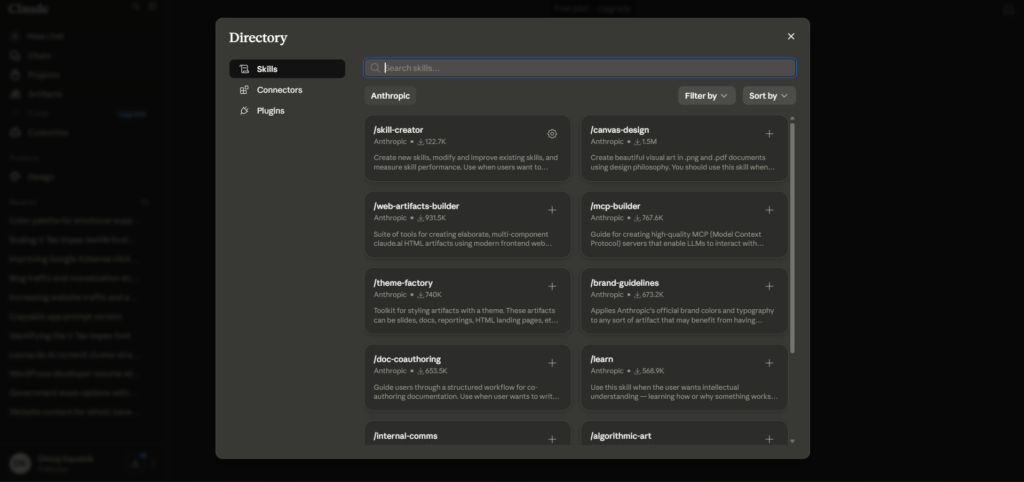
Professionals evaluating Claude AI for work specifically should pay close attention to Projects and Styles, since these two features together are what separate a tool used for occasional quick questions from one genuinely integrated into a daily professional workflow. If your work involves regular writing tasks, it is also worth reading how Claude specifically handles different writing use cases once you have the basics down.
Parents or educators setting up Claude for a student should know that Anthropic’s education specific features, including Learning Mode, are only available through university partnerships rather than individual accounts, so a personal account for a younger student will function as the standard consumer version covered throughout this guide.
FAQ
Is Claude AI hard to learn for a complete beginner?
No, Claude AI is designed to respond well to plain, everyday language, so there is no special syntax or command structure to memorize before getting useful results. The features that take longer to discover, like Projects, Styles, and file uploads, are not required for basic use but do meaningfully improve results once you learn them. Most beginners can get comfortable with the core chat experience within their first few conversations, with the more advanced features becoming useful once a specific recurring need arises, often within the first week or two of regular use.
Do I need to pay for Claude AI to use it properly?
No, the free plan currently runs Claude Sonnet 5, the same core model available on the Pro plan, so a beginner is not working with a deliberately limited or lower quality version by staying free. The main constraint on the free tier is a lower daily usage limit, which resets after a set number of hours rather than a full calendar day. Most casual users can comfortably use Claude for everyday questions, writing help, and light research without ever needing to upgrade.
What is the difference between a regular chat and a Project in Claude AI?
A regular chat starts with no memory of previous conversations and exists as a standalone thread, while a Project is a persistent workspace where you can upload reference files and custom instructions that automatically carry into every new conversation started inside it. Projects are particularly useful for recurring work, like managing a specific client, an ongoing writing project, or a repeated type of analysis, where re-explaining background context every time would waste significant effort. Beginners often skip Projects initially simply because they are not immediately obvious, but they become one of the most valuable features once discovered, often becoming the primary way regular users end up structuring their entire workflow.
Can Claude AI access the internet to answer current questions?
Yes, Claude AI includes a web search feature you can enable directly inside a conversation, letting it pull live information rather than relying solely on its training data, which has a fixed cutoff date. This is particularly important for questions about recent events, current prices, or anything that changes frequently, since an assistant working only from training data would not know about information more recent than that cutoff. When web search is used, Claude typically cites the specific sources it pulled information from.
How do I upload a document to Claude AI?
Click the attachment icon near the message input box, select the file from your device, and it will attach to your current conversation, after which you can ask Claude questions directly about that document’s content. Claude supports common file types including PDFs, Word documents, spreadsheets, and plain text files. This feature is significantly more efficient than manually copying and pasting large blocks of text, and it also preserves formatting and structure that a copy and paste approach often loses.
What should a beginner ask Claude AI first to get a feel for it?
Rather than a generic test question, try something specific to your actual life or work, drafting a real email you need to send, explaining a concept you are currently confused about, or summarizing a document you actually need to read. Testing with real, personally relevant tasks gives a far more accurate sense of Claude’s usefulness than a generic prompt like “write me a poem,” since you can judge the response against something you actually care about getting right.
Final Thoughts
Learning how to use Claude AI properly takes longer than the ten minutes most quick start guides suggest, but not by much. The real difference between a frustrating first experience and a genuinely useful one comes down to a handful of specific habits: writing detailed prompts, using Projects for recurring work, and knowing that the free plan is more capable than most people initially assume.
None of the ten steps covered here require any technical background, and most beginners can work through the entire list in under an hour of actual hands-on practice. The features that take the longest to discover on your own, Projects, Styles, and file uploads specifically, are exactly the ones worth prioritizing early rather than stumbling into months later.
Revisit this list again after your first few weeks of regular use. Habits that felt unnecessary during your first session, particularly setting up Projects or a custom Style, often become obviously valuable once a real recurring need for them shows up naturally in how you actually end up using Claude day to day.
Start with a real task you actually need done today rather than a generic test prompt, and you will get a far more honest sense of whether Claude AI fits into how you actually work.
External Links: