ChatGPT Voice Mode has moved well past the novelty stage. In 2026, it is a fully functional spoken conversation system with camera access, screen sharing, nine distinct voices, and near real-time response speeds that make text feel slow by comparison for the right kinds of tasks. This guide covers exactly how Standard and Advanced Voice Mode differ, how to set everything up on mobile and desktop, and what Voice Mode is genuinely useful for versus where typing still wins.
Table of Contents
What Is ChatGPT Voice Mode?
ChatGPT Voice Mode is the spoken conversation feature built into the ChatGPT mobile app and desktop interface. It allows you to speak your prompts out loud and hear ChatGPT’s responses in a natural voice, rather than reading and typing. There are two distinct versions of the feature, and the gap between them is significant enough that they almost feel like different products.
Standard Voice Mode has been available since the early versions of ChatGPT. It works by converting your speech to text, sending that text to the language model, generating a text response, and then converting that response back to audio using text-to-speech. This pipeline creates a noticeable delay. You typically wait five to ten seconds between speaking and hearing a response. It works, but it does not feel like a real conversation.
Advanced Voice Mode is different at a technical level. OpenAI first demonstrated it publicly on May 13, 2024, alongside the GPT-4o announcement, and rolled it out to all Plus and Team users on September 24, 2024. Rather than converting voice to text and back, Advanced Voice Mode processes audio directly end to end. The model hears your voice, understands tone and pacing, and generates a spoken response without an intermediate text step. Response latency drops to two to three seconds, interruptions are handled naturally, and the output voice carries genuine variation in pace and emphasis.
On December 12, 2024, OpenAI added live camera access and screen sharing to Advanced Voice Mode. This expansion meant you could point your phone camera at something in the real world, describe a situation, and have ChatGPT respond while seeing what you see. That combination of voice, vision, and real-time reasoning is what makes Advanced Voice Mode a tool worth understanding properly in 2026.
The nine available voices are named Arbor, Breeze, Cove, Ember, Juniper, Maple, Sol, Spruce, and Vale. Each has its own character and tonal range. Changing your voice selection starts a new conversation, so it is worth picking one you are comfortable with before beginning longer sessions.
In terms of access, Standard Voice Mode is available to all users including Free accounts. Advanced Voice Mode is available on Free with a short daily preview of approximately fifteen minutes before the system drops back to Standard. Plus subscribers at $20 per month get several hours of Advanced Voice daily. Pro subscribers at $100 and $200 per month have significantly higher limits. Vision-in-Voice, the camera access feature, is available on Plus and above.
How ChatGPT Voice Mode Actually Works?
Understanding the technical difference between Standard and Advanced Voice Mode helps you know what to expect and when each one is the right tool.
Standard Voice Mode: The Three-Step Pipeline
Standard Voice Mode runs on a sequential three-step process. First, your device records your speech and sends the audio to OpenAI’s servers where a speech-to-text model transcribes it. Second, the transcribed text goes to the language model, which generates a text response exactly as it would in a regular chat. Third, that text response is passed through a text-to-speech engine and sent back to your device as audio.
Each step adds latency. The transcription, the model inference, and the text-to-speech generation all run in sequence, which is why Standard Voice Mode takes five to ten seconds to respond. The voice output is also generated from text, which means it does not carry the natural variation in pace, emphasis, or tone that comes from genuine audio generation.
Advanced Voice Mode: End-to-End Audio Processing
Advanced Voice Mode removes the intermediate text steps. The model receives your audio directly, processes it as audio, and generates its response as audio without converting to text at any point. This is what OpenAI means when they describe it as a speech-native conversation.
The practical result is a two-to-three second response time, natural interruption handling where you can speak over ChatGPT mid-sentence and it adjusts, and output voices that carry genuine tonal variation. The model can pick up on your tone, respond to sarcasm with appropriate acknowledgment, and adjust its pace when you ask it to slow down, all because it is working with audio rather than text representations of audio.
This approach also uses significantly more computational resources than text processing. OpenAI has stated that voice processing requires roughly ten times the computational load of equivalent text interactions, which explains the daily limits on lower plans and the higher cost on Pro tiers.
Vision-in-Voice: Camera and Screen Sharing
When camera access is enabled during an Advanced Voice Mode session on iOS or Android, the model processes visual frames from your camera alongside the audio input. It does not see a continuous video stream. Instead it samples frames at intervals and incorporates what it sees into the conversation context. The result is that you can point your camera at an object, a document, a piece of equipment, or a real-world scene and discuss it verbally without switching to a different interface.
Screen sharing works similarly. You share your screen from within the ChatGPT app and the model can reference what it sees during the voice conversation. This is useful for getting real-time guidance while working in another app, reviewing a document while talking through questions about it, or walking through a workflow step by step.
Background Mode and Conversation Continuity
Advanced Voice Mode includes a Background Conversations feature. When enabled in settings, voice conversations continue running even when your phone is locked or you switch to another app. The audio keeps playing and you can respond without returning to the ChatGPT screen. When you finish and return to ChatGPT, the conversation is available to review as a transcript.
One important limitation is that Advanced Voice Mode sessions do not currently carry context from your saved ChatGPT memories. Each voice session starts without the personalization layer that applies to text conversations. This is an ongoing limitation rather than a deliberate design choice, and OpenAI has indicated it is an area of active development.
Step-by-Step: How to Set Up and Use ChatGPT Voice Mode?
Here is a complete walkthrough covering setup on mobile, how to access each feature, and how to get the most from a voice session.
Step 1: Enable Voice Mode on Mobile
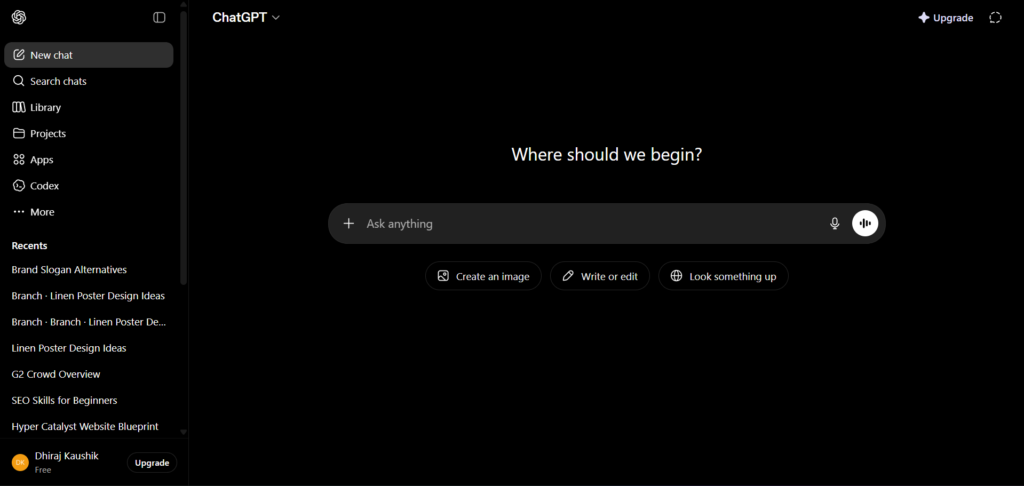
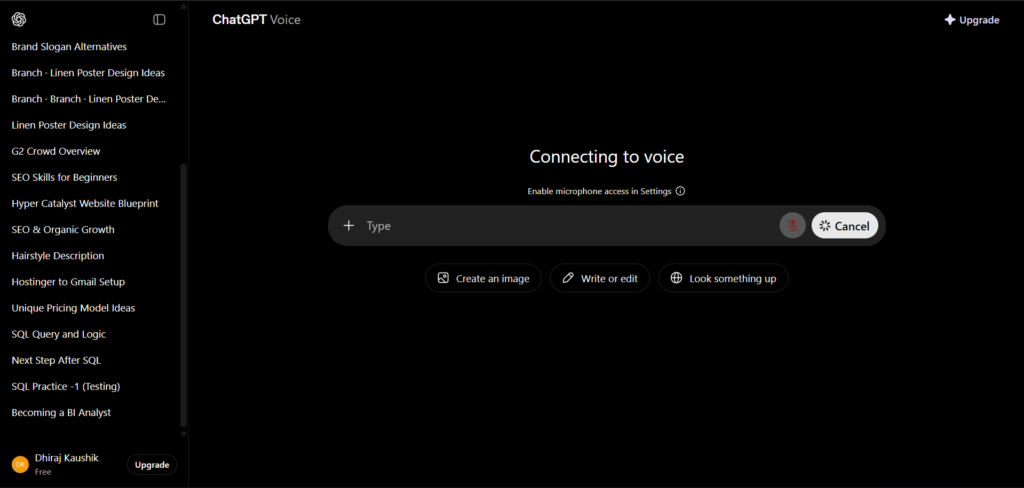
Open the ChatGPT app on iOS or Android. Inside any conversation, look for the waveform icon in the bottom-right corner of the input bar. Tap it to enter Voice Mode. On the first launch, the app will ask for microphone permission. Grant it. ChatGPT will switch to either the integrated voice view inside the chat or the separate blue orb screen, depending on your account settings.
If you want to switch between integrated mode and separate orb mode, go to Settings, then Voice, and toggle Separate Mode on or off. Most users on iOS and Android see the integrated experience by default in 2026. Both modes offer the same features.
Step 2: Enable Voice Mode on Desktop
On the ChatGPT web interface or the macOS and Windows desktop app, look for the headphone icon in the chat input bar. Click it to start a voice session. Desktop Voice Mode supports the same Advanced Voice features as mobile but does not currently support the live camera input, since desktop devices typically lack a convenient pointing camera. Screen sharing is available on desktop by clicking the screen share button that appears once a voice session is active.
Step 3: Choose Your Voice
On your first Advanced Voice session, ChatGPT will prompt you to select a voice from the nine available options: Arbor, Breeze, Cove, Ember, Juniper, Maple, Sol, Spruce, and Vale. Take a moment to listen to a few before committing. You can change your voice selection at any time through Settings, Voice, Voice Selection. Note that changing your voice during a session ends the current conversation and starts a new one.
Step 4: Use Vision-in-Voice on Mobile
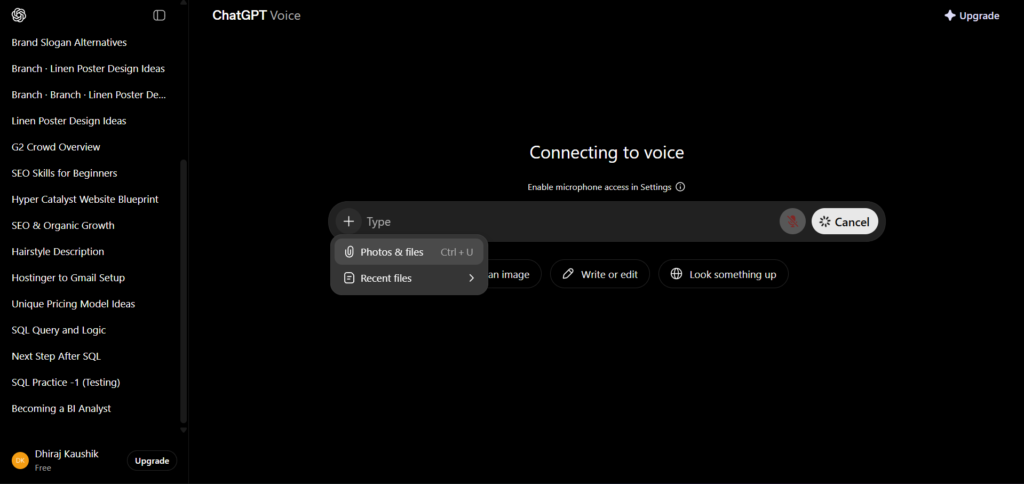
During an active Advanced Voice Mode session on iOS or Android, tap the camera icon in the toolbar. This activates Vision-in-Voice. Point your camera at what you want to discuss. ChatGPT will begin incorporating what it sees into the conversation. You can switch between the front and rear camera, share a photo from your gallery, or activate screen sharing from the same toolbar.
To share your screen during a voice session, tap the three-dot menu inside Voice Mode and select Share Screen. Your screen content becomes visible to ChatGPT and can be referenced in the ongoing conversation. Tap the screen share button again to stop.
Step 5: Enable Background Conversations
To keep a voice conversation running when you switch apps or lock your phone, go to Settings, Voice, and enable Background Conversations. Once active, voice sessions will continue in the background and you can respond without returning to the ChatGPT app. This feature is particularly useful for listening to longer explanations, language practice sessions, or walking through a checklist while your hands and screen are occupied elsewhere.
Step 6: Set a Custom Voice Instruction During a Session
You can adjust how ChatGPT speaks to you verbally during any Advanced Voice session. Say something like “speak more slowly,” “keep your answers shorter,” or “use a more formal tone.” ChatGPT will adjust for the remainder of the session. These verbal instructions only apply to the current voice session and do not carry over to future conversations or your saved memory settings.
Key Benefits of ChatGPT Voice Mode
Hands-Free Operation for Real Situations
The clearest practical benefit of Advanced Voice Mode is that it works without your hands or eyes on a screen. Cooking, commuting, exercising, and driving are all situations where typing is impossible and reading a screen is impractical. Voice Mode handles all of these naturally. You can ask questions, think through problems out loud, and hear responses without stopping what you are doing. For people who spend significant parts of their day away from a desk, this makes ChatGPT accessible in contexts where it previously was not.
Language Practice With Real Conversational Flow
Advanced Voice Mode is one of the better language learning tools available for intermediate learners who want conversational practice rather than structured exercises. The natural interruption handling, the two-to-three second response time, and the ability to switch languages mid-conversation create something close to an actual conversation. You can ask ChatGPT to respond only in the language you are practicing, ask for corrections when you make mistakes, and adjust the difficulty of vocabulary in real time. This is a use case where the difference between Standard and Advanced Voice Mode is immediately obvious. The five-to-ten second delay in Standard Mode breaks the conversational rhythm entirely.
Real-Time Visual Guidance
The Vision-in-Voice combination opens up genuinely useful scenarios that a text interface cannot match. Pointing your camera at a piece of equipment you are trying to fix, a plant you cannot identify, a label you cannot read clearly, or a document you want to discuss out loud while walking through it are all practical tasks that this feature handles well. The ability to talk and see simultaneously, without switching interfaces, makes assistance feel immediate and connected to the real situation rather than abstract.
Thinking Out Loud as a Workflow Tool
For many people, speaking is faster and more natural than typing when they are working through an idea. Voice Mode allows you to think out loud and have ChatGPT engage with your reasoning in real time. Brainstorming sessions, talking through the structure of a piece of writing, and working through a decision by speaking the considerations out loud are all workflows where voice input produces results more quickly than typing would. The output can then be reviewed as a transcript for any parts worth keeping.
ChatGPT Voice Mode vs Alternatives: Comparison Table
| Tool | Voice Quality | Visual Input | Languages | Interruption Handling | Monthly Cost |
|---|---|---|---|---|---|
| ChatGPT Advanced Voice Mode | Nine voices, end-to-end audio, 2-3 sec latency | Camera + screen share (Plus and above) | 50+ languages | Natural, real-time | From $20/month (Plus) |
| Google Gemini Live | Natural voice, deep Google ecosystem integration | Camera via Google Lens integration | 40+ languages | Handled, slight lag | From $19.99/month (Advanced) |
| Pi.ai | Warm, empathetic voice; designed for conversation | No visual input | English primary | Good for casual conversation | Free with limits |
| Claude Voice (Anthropic) | Clear voice, text-to-speech pipeline | No real-time camera | English primary | Standard pipeline; interruptions reset | From $20/month (Pro) |
| Apple Siri with ChatGPT | Siri voice quality; routes to ChatGPT for complex queries | Limited visual context | 20+ languages | Siri-level handling | Included with Apple devices |
For users already in the Google ecosystem who rely on Gmail, Google Calendar, and Google Maps, Gemini Live integrates more naturally into daily tasks. For pure conversation quality and the widest feature set including camera input, language range, and voice variety, Advanced Voice Mode is the strongest option in 2026. Pi.ai is worth knowing about for users who primarily want an empathetic conversational companion rather than a task-focused assistant.
Who Gets the Most From ChatGPT Voice Mode?
People with active, hands-free lifestyles who commute, exercise, cook regularly, or spend time away from a desk will find Advanced Voice Mode genuinely changes how they interact with AI. Rather than needing to sit down and type, they can have useful conversations while doing other things. The quality difference between Standard and Advanced Voice Mode matters here because a five-to-ten second delay breaks the natural rhythm of a hands-free session in ways that a two-to-three second delay does not.
Language learners at the intermediate level who have moved past basic vocabulary and want conversational practice will find Advanced Voice Mode one of the more effective tools available for this purpose. The ability to have a real-time, interruptible conversation in a target language, with instant access to corrections and vocabulary help, is genuinely hard to replicate with other tools at the same price point.
Professionals who think better when speaking will find Voice Mode useful for brainstorming, outlining, and working through complex decisions out loud. Writers who struggle to start drafting in text often find they can produce a strong verbal outline quickly and then refine it. Consultants and analysts who need to work through reasoning before committing to a recommendation can use voice sessions as a thinking tool rather than a drafting tool.
People who need real-world visual assistance on the go will benefit from Vision-in-Voice. Identifying an unfamiliar product ingredient, reading and discussing a document while walking, getting guidance on a physical task while your hands are occupied, and explaining a real-world problem by showing it rather than describing it in text are all scenarios where this feature delivers something uniquely useful.
Frequently Asked Questions
What is the difference between Standard Voice Mode and Advanced Voice Mode in ChatGPT?
Standard Voice Mode runs on a three-step pipeline: your speech is transcribed to text, the text goes to the language model, and the response text is converted back to audio. This produces response delays of five to ten seconds and voice output that lacks natural tonal variation. Advanced Voice Mode processes audio directly from end to end without converting to text. Response latency drops to two to three seconds, the voice output carries genuine variation in pace and tone, and interruptions are handled naturally mid-sentence. Advanced Voice Mode also supports camera input and screen sharing, which Standard does not. The two modes are technically distinct systems rather than versions of the same system.
Which ChatGPT plans include Advanced Voice Mode?
Advanced Voice Mode is available on Free accounts with a short daily preview of approximately fifteen minutes before the system falls back to Standard Voice. Plus subscribers at $20 per month receive several hours of Advanced Voice daily with Vision-in-Voice camera access included. Pro subscribers at $100 and $200 per month have significantly higher daily limits. Business and Enterprise plans include Advanced Voice with limits managed at the organizational level. Standard Voice Mode is available on all plans without usage restrictions.
Can ChatGPT Voice Mode access my saved memories and custom instructions?
Currently, Advanced Voice Mode sessions do not carry context from your saved ChatGPT memories or your custom instructions. Each voice session begins without the personalization layer that applies to text conversations. This is an ongoing limitation that OpenAI has acknowledged. Within a single voice session, ChatGPT will remember what you have discussed in that session, but it will not start with knowledge of your job, preferences, or ongoing projects the way a text conversation does when Memory is enabled.
How do I use the camera during an Advanced Voice Mode session?
On iOS or Android, start an Advanced Voice Mode session by tapping the waveform icon in the ChatGPT app. Once the voice session is active, tap the camera icon in the toolbar to enable Vision-in-Voice. ChatGPT will begin incorporating what your camera sees into the conversation. You can switch between front and rear cameras, share a photo from your gallery, or share your screen by tapping the three-dot menu and selecting Share Screen. Camera access during Voice Mode requires a Plus subscription or above and is not available in Standard Voice Mode or on desktop.
Does ChatGPT Voice Mode work without an internet connection?
No. All processing for both Standard and Advanced Voice Mode happens on OpenAI’s servers, not locally on your device. A reliable internet connection is required throughout any voice session. Approximately one to two megabytes of data is used per minute of conversation. For users on limited mobile data plans, longer voice sessions will accumulate usage noticeably. OpenAI has not announced any offline voice capability as of mid-2026.
What are the nine available voices in Advanced Voice Mode and how do I change them?
The nine voices are named Arbor, Breeze, Cove, Ember, Juniper, Maple, Sol, Spruce, and Vale. Each has its own character and tonal range. Arbor and Cove tend toward warmer, conversational tones. Ember and Sol have a cleaner, more neutral delivery. You can listen to previews of each in Settings, Voice, Voice Selection. Selecting a different voice during an active session ends the current conversation and starts a new one, so it is worth choosing before you begin a longer session. Your voice selection is saved and applied to future voice sessions until you change it again.
Final Thoughts
ChatGPT Voice Mode in 2026 is genuinely useful for a specific set of situations, and not particularly useful for others. The honest assessment is that it excels when typing is impractical, when the task benefits from a conversational back-and-forth, when you want real-time visual guidance through the camera, or when you are practicing a language and need a real conversation partner. For most research, writing, and structured tasks, text is still faster and more precise.
The gap between Standard and Advanced Voice Mode is large enough that the fifteen-minute free daily preview of Advanced is worth trying before deciding whether to upgrade. If that preview changes how the interaction feels compared to Standard, that reaction is a reliable signal that the Plus tier is worth it for your use case. If the difference does not stand out, Standard Voice at no cost covers the basics well.
The starting point is simple. Open the ChatGPT app, tap the waveform icon, and try a five-minute conversation on something you would normally type. That hands-on comparison tells you more than any written guide can about whether Voice Mode fits how you work.
Related reading on Edurancehub:
Useful Backlinks
| # | Website | URL | Why It Matters | DA |
|---|---|---|---|---|
| 1 | OpenAI Voice Mode FAQ | https://help.openai.com/en/articles/8400625-voice-mode-faq | Official documentation — primary citation for features, limits, and voice selection | DA 90+ |
| 2 | OpenAI: Hello GPT-4o | https://openai.com/index/hello-gpt-4o/ | Original Advanced Voice Mode announcement — essential source citation | DA 90+ |
| 3 | OpenAI ChatGPT Pricing | https://openai.com/business/chatgpt-pricing/ | Official plan page — supports your plan-by-plan access breakdown | DA 90+ |
| 4 | TechCrunch: Advanced Voice Mode Vision | https://techcrunch.com/snippet/2930515/advanced-voice-mode-is-finally-getting-vision-capabilities/ | High-authority tech publication covering the Vision-in-Voice launch — co-citation opportunity | DA 95+ |
| 5 | LearnPrompting: Advanced Voice Mode Guide | https://learnprompting.org/blog/how-to-use-openai-chatgpt-advanced-voice-mode | Detailed setup guide — co-citation and outreach opportunity for reference links | DA 60+ |
| 6 | GPTPrompts.ai Voice Mode Guide | https://gptprompts.ai/chatgpt-voice-mode-guide | Detailed 2026 Voice Mode guide with tier-by-tier limits — co-citation target | DA 50+ |
| 7 | ToolChase: ChatGPT Voice Mode Complete Guide | https://toolchase.com/blog/chatgpt-voice-mode-guide/ | Updated April 2026 with real plan limit testing — outreach for backlink swap | DA 45+ |
| 8 | JustAINews: ChatGPT Voice Mode Explained | https://justainews.com/companies/openai/chatgpt-voice-mode-explained/ | AI news publication covering Voice Mode features and setup — co-citation opportunity | DA 55+ |
| 9 | Wikipedia — GPT-4o | https://en.wikipedia.org/wiki/GPT-4o | Advanced Voice Mode was introduced with GPT-4o — adding your article as a further reading reference on this page is achievable | DA 95+ |
| 10 | Dev.to | https://dev.to | Publish a condensed version of this Voice Mode guide with a canonical link back to Edurancehub — developer and tech audience referral traffic | DA 85+ |