I deliberately approached Gemini the way someone who has never touched an AI tool would, no prior prompting knowledge, no shortcuts, just clicking through the actual interface step by step to see what a genuine first-time US user experiences in 2026. Here is everything I learned, including the parts that confused me, the features that surprised me, and exactly what to do in your first week to actually get value out of this thing rather than just poking at it once and forgetting it exists.
Table of Contents
What Gemini Actually Is in Plain English?
Gemini is Google’s AI assistant, and the easiest way to understand it is this: it is a chat program that can read, write, look at images, listen to audio, and generate new content for you, and it lives both as its own app and quietly inside the Google tools you probably already use every day, Gmail, Docs, Sheets, and Search.
Gemini crossed 750 million monthly active users in early 2026, making it one of the fastest-growing consumer AI products in history. That scale matters for a beginner specifically because it means the rough edges have largely been worked out through real-world use, and the interface has matured past the confusing early versions from a couple of years ago.
The confusing part for any newcomer is the naming. Gemini is both the name of the chatbot you talk to and the name of the underlying family of AI models Google builds. When people say “Gemini 3 Pro” they mean the specific model, when they say “open Gemini” they mean the app. This distinction does not matter much for daily use, but knowing it exists will save you confusion the first time you read about it elsewhere.
Step-by-Step: Creating Your Account and First Prompt
Step 1: Go to the Right Website
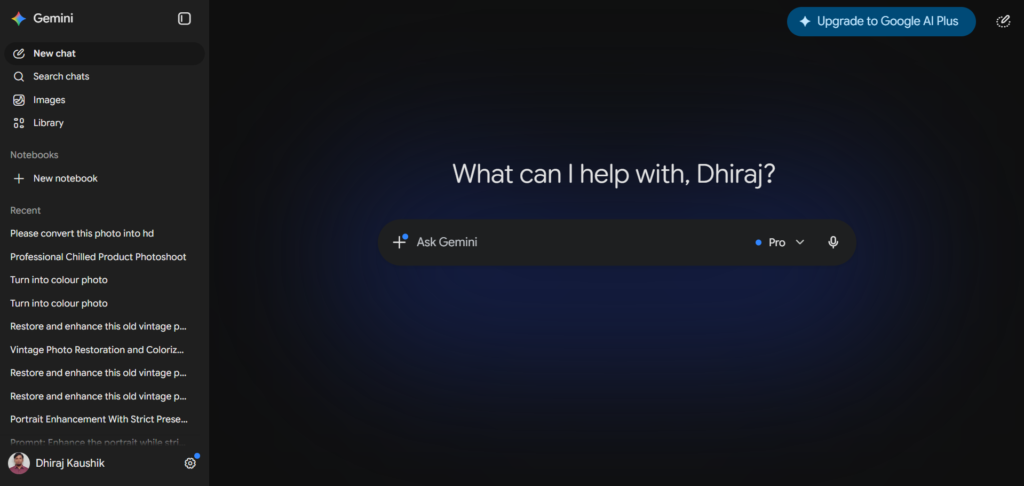
Open your browser and go to gemini.google.com. Click Sign In. If you already have a Google account, the one you use for Gmail or YouTube, use that. If you do not have one, create a free Google account first, which takes about two minutes.
Step 2: Choose Your Model
Once signed in, you will see a model selector near the top of the screen, usually showing something like “Gemini 3 Pro” by default. As a beginner, leave this on the default setting. You do not need to understand the differences between models yet. The default model handles the vast majority of everyday tasks competently.
Step 3: Write Your First Prompt
Type something into the message box at the bottom of the screen and press enter. Treat Gemini as a collaborative assistant rather than a search engine. Instead of typing a few keywords the way you would in Google Search, write a full sentence describing what you actually want.
A good first prompt looks something like: “Explain what AI image generation is to someone who has never used it, using a friendly and simple tone.” A weak first prompt looks like just typing “AI image generation” and hoping for the best.
Step 4: Refine With Follow-Up Prompts
If the first response is not quite right, do not start over. Just respond again in the same conversation. Follow-up prompts such as “expand on this point,” “simplify the language,” or “add a practical example” help guide Gemini closer to what you actually wanted. This back-and-forth refinement is the single most important skill for getting good results, and it is something most beginners do not realize they are allowed to do.
Step 5: Explore the Response Options
Underneath any response, you will see small icons letting you copy the text, like or dislike the response, regenerate it, or hear it read aloud. Take a moment in your first session to click through these so you know they exist before you actually need them.
The Three Ways US Users Access Gemini
You can use Gemini through three main interfaces, and understanding which one fits your situation prevents a lot of early confusion.
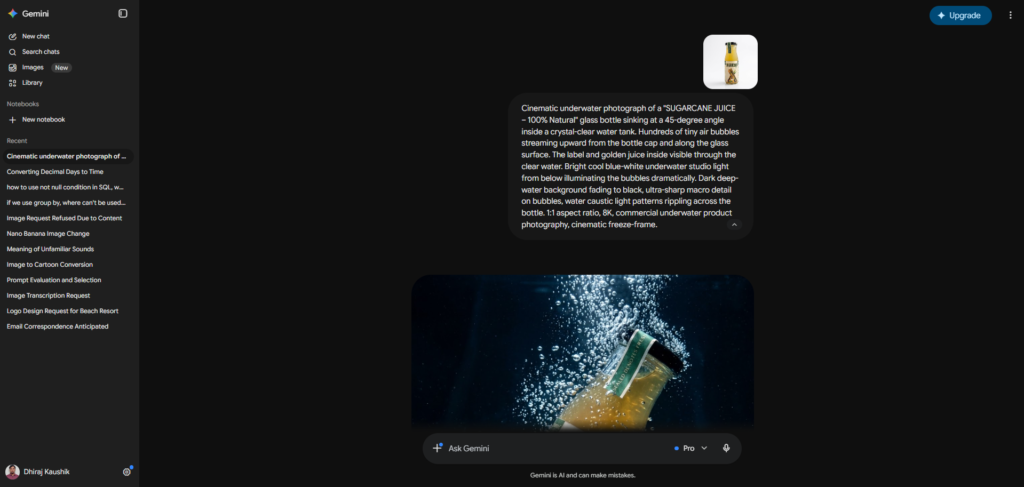
The standalone web and mobile app at gemini.google.com or through the dedicated Gemini app on Android and iOS is the best starting point for beginners. This allows you to interact directly with the AI and learn how it responds to prompts without any distractions or assumptions about what you already know.
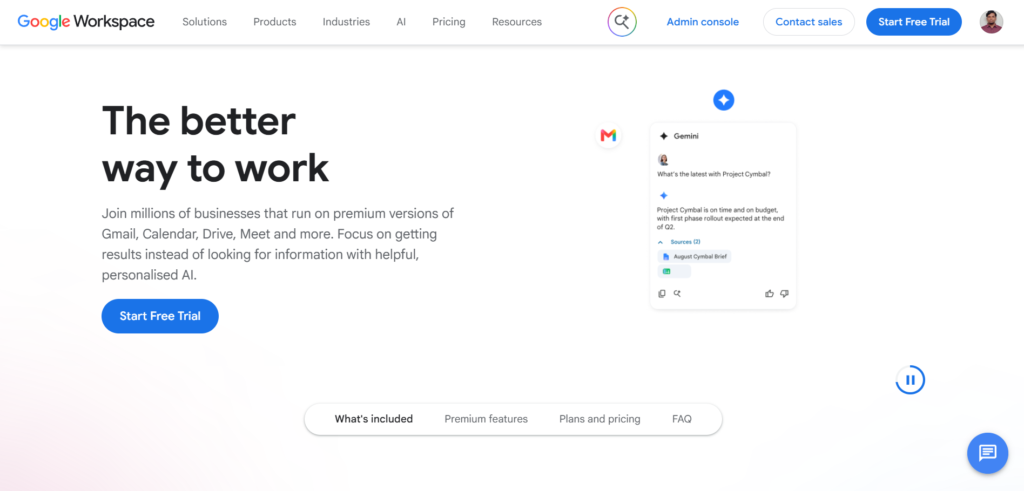
Integrations inside Google Workspace products, meaning the Gemini features that appear directly inside Gmail, Docs, Sheets, and Slides, are where most of the everyday practical value actually lives once you are comfortable with the basics. A few workflows pay for themselves in week one. Open any email, click the Gemini icon, and ask it to draft a polite decline for a meeting request, and it will pull the tone from your past replies automatically.
Gemini built into Android phones and Google TV is the most passive way to encounter Gemini, often without realizing it is the same underlying technology. If you have a Pixel or recent Android phone, Gemini has likely already replaced Google Assistant as your voice helper.
For your first week specifically, stick to the standalone app. Learn how prompting and follow-ups work there before trying to use Gemini inside Gmail or Docs, since the workflow inside those apps assumes you already understand the basics.
Understanding the Confusing Naming: Gemini vs Gemini Advanced vs Google AI Pro
This single point of confusion trips up more beginners than anything else about Gemini, and it is worth addressing directly rather than letting you figure it out through trial and error.
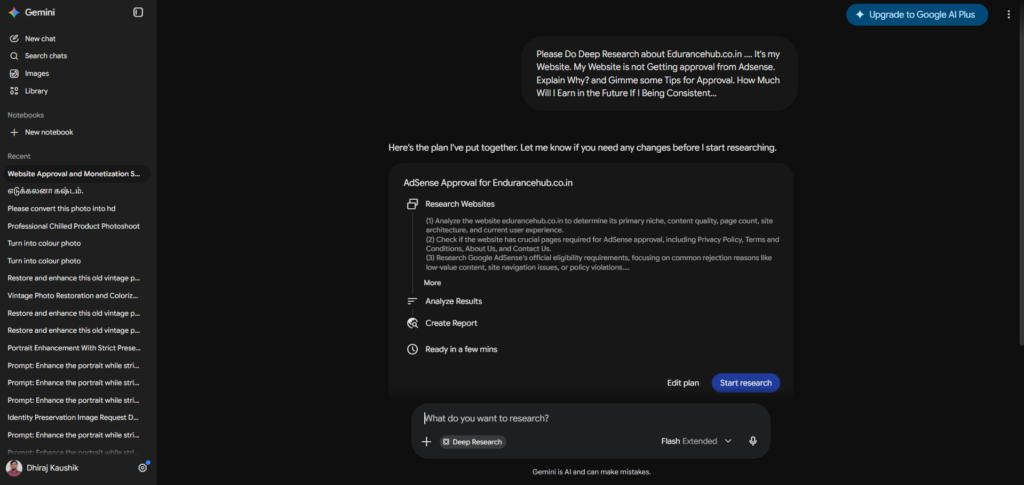
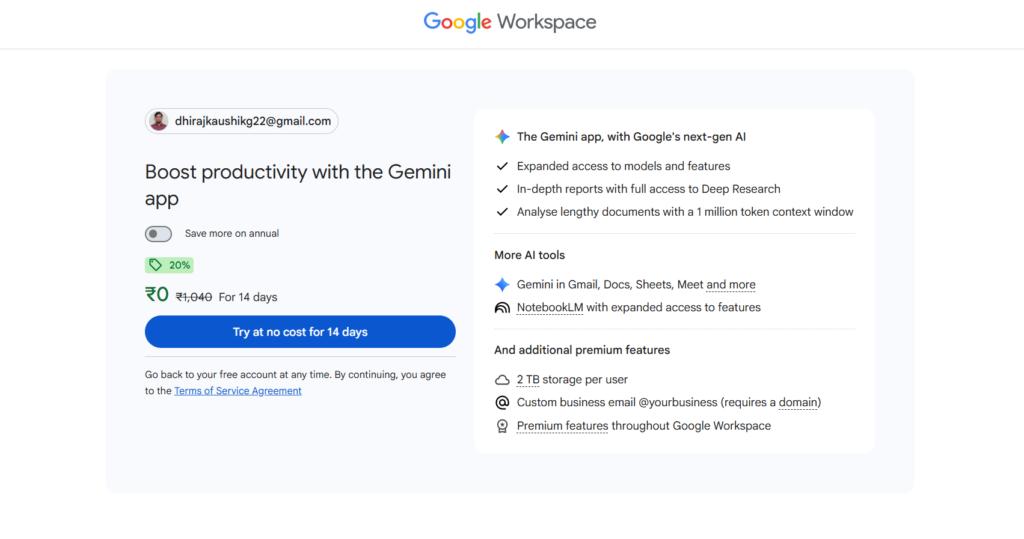
Confusing the tiers is one of the most common mistakes new users make. “Gemini,” “Gemini Advanced,” “Google AI Pro,” “Google AI Ultra,” it is legitimately confusing, partly because Google has renamed these tiers more than once. What used to be called “Gemini Advanced” is now called Google AI Pro, priced at $19.99 per month. If you see the older name referenced anywhere, including in some older tutorials, that refers to the same thing as today’s AI Pro tier.
The practical advice here is simple: always check the current Google One or Gemini subscriptions page for what each tier actually includes before subscribing to anything, rather than relying on what a friend told you or an older article described, since names and included features have shifted multiple times through 2025 and 2026.
The Tools Menu: What Each Button Actually Does?
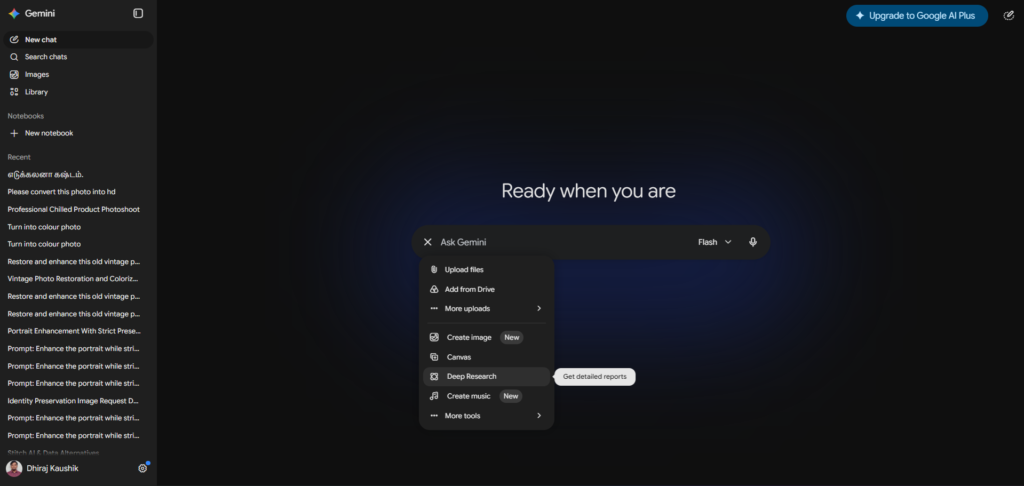
Next to the message box, there is a Tools button, sometimes shown as a small icon, that opens a menu of specific capabilities most beginners never click on. Understanding what is in here unlocks most of what makes Gemini more than a basic chatbot.
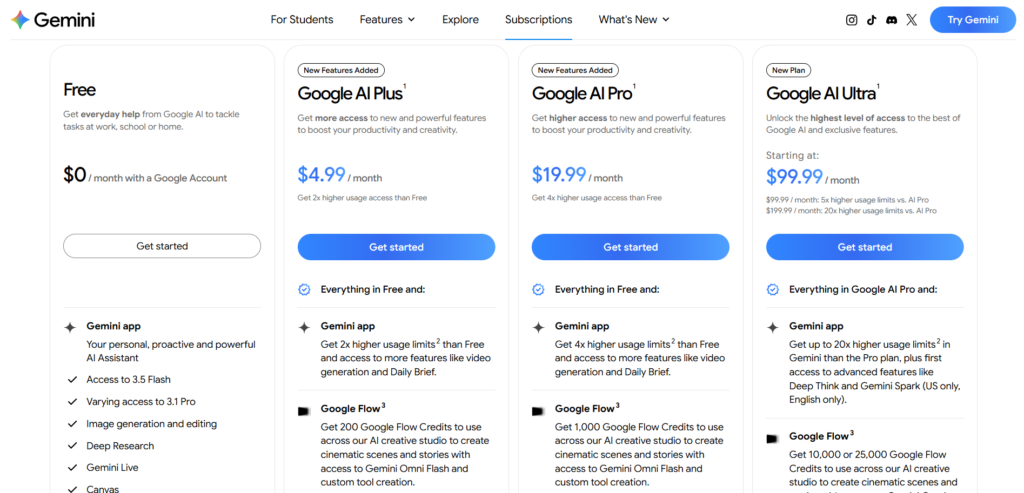
Deep Research. Click Tools, select Deep Research, and enter your prompt to get Gemini to comb through hundreds of online sources and files for a comprehensive, cited response. As of 2026, Deep Research can also accept your own attached PDFs, Docs, and Sheets alongside its web research, so you can drop in your own existing analysis and ask it to extend rather than start completely from scratch.
Canvas. If you want Gemini to produce a document-style output you can edit and refine over multiple turns rather than a single chat reply, click Tools and select Canvas. A practical way to use it as a beginner is to start with structure before content, prompting something like “create a detailed outline for a beginner’s guide on this topic” before asking it to expand each section individually.
Create Images. Click Tools, select Create Images, and type a description of the picture you want. This is genuinely one of the more approachable features for a first-time user since the results are immediately visible and easy to judge.
Voice Input. Press the microphone icon to speak your prompt instead of typing it. On the mobile app specifically, tapping the Gemini Live icon opens a true back-and-forth voice conversation rather than simple speech-to-text, and you can actually interrupt Gemini mid-sentence the way you would in a real conversation.
File Upload. Click the plus icon in the message bar to upload an image, document, or other file, then type your question about it in the same message.
Your First Week: A Practical Plan
Day 1 to 2: Stick to the basic chat interface. Ask Gemini real questions you actually have, not test questions. Practice the refinement skill of following up rather than starting a new conversation each time.
Day 3: Try Deep Research once on a topic you genuinely want to understand more deeply. Notice how different the output feels compared to a regular chat answer.
Day 4: Try Create Images with a specific, detailed description rather than a vague one. Compare a vague prompt against a detailed one to feel the difference good prompting makes.
Day 5: If you use Gmail, open an actual email and click the Gemini icon to draft a reply. This is usually the moment beginners realize how much time this can save on routine communication.
Day 6: Try the mobile app’s voice mode if you have a smartphone. Have an actual spoken back-and-forth rather than a single voice command.
Day 7: Review what you tried during the week and identify which single feature actually saved you time or produced something genuinely useful. That feature is where you should focus your continued learning, rather than trying to master every capability at once.
The Three Mistakes Every Beginner Makes
Treating Gemini like a search engine instead of a collaborator. Typing a few keywords and expecting a perfect answer on the first try is the single most common reason beginners come away unimpressed. Gemini responds much better to full sentences with context about your situation, your audience, and what you actually want to accomplish.
Not enabling or using Workspace features. Most of Gemini’s real-world value comes from in-app use inside Docs, Sheets, and Gmail rather than the standalone chat. If you only use the standalone chat window, you are getting maybe 30 percent of the practical benefit available to you, particularly if your daily work already happens inside Google’s apps.
Giving up after one mediocre response. The single biggest skill gap among beginners is not realizing that follow-up prompts within the same conversation produce dramatically better results than starting over. If a response disappoints you, tell Gemini specifically what was wrong with it rather than abandoning the conversation entirely.
Setting Up Personal Context So Gemini Actually Knows You
This is a more advanced step worth doing once you are past your first week, and it meaningfully changes how relevant Gemini’s answers feel.
Three settings in particular help Gemini understand who you are and what you do, so its answers stop being generic and start being relevant to your actual situation. Look in your Gemini settings for a personal context or custom instructions option, where you can describe your profession, your goals, and the kind of tone or detail level you generally prefer.
If you are switching to Gemini from another AI tool, Google has added an Import Memory feature that lets you upload your full chat history from ChatGPT or Claude as a ZIP file so Gemini can build context from your past conversations rather than starting completely cold. Be aware this imports everything, including throwaway conversations and unrelated questions, so it works but is not a particularly clean or selective way to transfer context if you have a long history elsewhere.
Gemini on Google TV and Other Surfaces
One genuinely underreported development worth knowing about as a US user specifically: Google brought Gemini to Google TV in 2026, with richer visual answers, narrated deep dives into educational topics, and live sports updates, rolling out in the US and Canada first. If you have a Google TV device in your living room, you now have a passive, voice-driven way to encounter the same underlying technology without ever opening the Gemini app directly.
Google also introduced Gemini Omni, a new video generation model launched on May 19, 2026, available for free, no subscription required, through YouTube Shorts and the YouTube Create App specifically. This is worth knowing as a beginner because it means you can experiment with AI video generation without paying anything at all, even if the full Gemini app and Google Flow surfaces for more advanced video work do require a paid Google AI Plus, Pro, or Ultra subscription.
When to Upgrade From the Free Plan
The free tier includes Gemini 3.5 Flash as the default for general chat, a daily allotment of the more powerful Gemini Pro model for harder reasoning tasks, image generation, voice mode, and up to five Deep Research reports per month. That is a remarkable amount of capability for zero dollars, and for a great many beginners, students, casual users, and anyone not using it constantly throughout the day, the free tier is genuinely all they need.
The honest advice from testing this extensively: start free, use it seriously for a couple of weeks, and only consider paying once you actually hit a real wall, whether that is running out of Deep Research reports, needing the much larger context window for long documents, or wanting deeper integration across every Workspace app. Most casual users never hit that wall. If you do find yourself hitting free tier limits and you use Workspace heavily, upgrading to Google AI Pro at $19.99 per month is the natural next step, and our Google AI Pro review covers exactly what that upgrade includes based on 30 days of real testing.
For a full comparison of every current pricing tier including the budget-friendly AI Plus option many beginners overlook, see our Gemini pricing 2026 guide.
FAQ
Do I need to pay anything to start using Gemini?
No. Gemini’s free tier is genuinely capable and is the right starting point for every beginner regardless of budget. It includes Gemini 3.5 Flash as the default model, a daily allotment of the more powerful Gemini Pro for harder tasks, basic image generation, voice mode through Gemini Live, and up to five Deep Research reports per month. For most casual and even moderately regular use, this free tier provides everything a beginner needs for weeks or months before any paywall becomes relevant. Only consider paying once you hit an actual usage limit that affects your real work.
What is the actual difference between Gemini, Gemini Advanced, and Google AI Pro?
This naming confusion trips up nearly every beginner. Gemini is simply the name of the AI assistant itself, available to everyone for free. “Gemini Advanced” was an older name for what is now called Google AI Pro, the $19.99 per month paid tier. If you encounter the term Gemini Advanced in an older article or tutorial, understand that it refers to today’s Google AI Pro subscription. Always check the current official Gemini subscriptions page for what each tier includes before paying for anything, since Google has changed these names and the included features more than once through 2025 and 2026.
How do I write a good prompt as a complete beginner?
Treat Gemini as a collaborative assistant rather than a search engine. Start by clearly defining what you want Gemini to do, then provide enough context so it understands your situation, your audience, and your objective, and finally guide the output by specifying tone, format, or level of detail you want. A strong example looks like: “Explain how compound interest works to someone with no finance background, using a friendly tone and a simple real-world example.” If the first response does not land correctly, do not start a new conversation. Simply respond with a follow-up like “simplify this further” or “add a practical example,” since this kind of refinement within the same conversation consistently produces better results than starting over.
Should I use the standalone Gemini app or the Workspace integrations first?
Start with the standalone app at gemini.google.com for your first week specifically. This lets you learn how prompting, follow-ups, and the various tools actually work without the added complexity of an email or document workflow layered on top. Once you are comfortable with basic prompting after a few days, move to trying Gemini inside Gmail or Google Docs if you use those tools regularly, since most of Gemini’s genuine day-to-day value for many US professionals comes specifically from these in-app integrations rather than the standalone chat window alone.
What is Deep Research and how is it different from a normal Gemini question?
A normal Gemini question gets you a quick conversational answer based on the model’s training and a possible quick web search. Deep Research is a separate tool, accessible by clicking Tools and selecting Deep Research, that has Gemini comb through dozens of sources and any files you attach, then produce a comprehensive, structured, cited report rather than a quick chat reply. This typically takes ten to twenty-five minutes rather than a few seconds. As a beginner, save Deep Research for genuinely complex questions where you need synthesis across many sources, not for simple questions a normal chat response would answer just as well, since the free tier limits you to five Deep Research reports per month.
Is it worth importing my ChatGPT history into Gemini if I am switching?
It can help Gemini understand your context faster, but it comes with a real tradeoff worth knowing about before you do it. Google’s Import Memory feature lets you upload your full chat history from ChatGPT or Claude as a ZIP file, and Gemini will use that to build a picture of who you are and what you work on. The catch is that this imports everything indiscriminately, including throwaway questions and completely unrelated conversations, which adds noise rather than a clean, curated profile. For most beginners switching platforms, manually setting up personal context through Gemini’s custom instructions or personal context settings, describing your profession and preferences directly, produces a cleaner result than a full historical import.
Final Thoughts
Approaching Gemini as a genuine first-time user revealed that the biggest barrier for most beginners is not the technology itself, which is genuinely capable and easy to access, but the confusing naming and the habit of treating it like a search engine rather than a conversational collaborator. Once you get past those two things, the actual learning curve for everyday use is short, usually a matter of days rather than weeks.
The free tier in 2026 is generous enough that there is no real reason not to start today, regardless of your budget or how serious you think your eventual use case might be. Start with the standalone app, practice writing fuller, more specific prompts than you would type into a search engine, learn to refine through follow-ups rather than starting over, and only move into the Workspace integrations and paid tiers once you have a genuine sense of how you actually use it day to day.
Open gemini.google.com right now and ask it one real question you actually have, something from your actual day rather than a test question. That first real interaction will teach you more about whether and how Gemini fits into your life than any guide, including this one, ever could. For the complete picture of every feature and plan available once you are past the beginner stage, our complete Gemini review covers the full platform in depth.
External resources: Google Gemini: Complete Beginner’s Guide 2026 — Beginners in AI | How to Use Gemini: A Detailed Beginner’s Guide — Zapier | How to Use Google Gemini: Complete Beginner’s Guide 2026 — Beginners in AI | Google Gemini: The Complete 2026 Guide to Models, Features, and Pricing — Precision AI Academy | Google’s official Gemini help center