I run my work entirely through Gmail, Docs, and Sheets, the way most US professionals do. For 30 days I stopped writing emails from scratch, stopped building spreadsheets manually, and let Gemini handle the first draft of nearly everything inside Google Workspace. Here is the honest account of what actually saved time, what created more work than it solved, and what Google’s biggest Workspace update of the year actually changed for daily users.
Table of Contents
What Gemini in Google Workspace Actually Is?
Gemini in Google Workspace is not a separate AI tool you open in another tab. It lives directly inside Gmail, Docs, Sheets, Slides, Drive, Meet, and Chat, with a side panel that activates wherever you are working. Gemini is now embedded in every app, every flow, already there, rather than bolted on as an afterthought.
This distinction matters more than it sounds. The difference between a consultant you have to brief from scratch every time and a team member who already read every document and was already in the meeting is the entire value proposition here. Gemini in Workspace has direct context access to your emails, documents, calendars, and meetings rather than starting cold on every request.
The model running these features is Gemini 3 Flash by default, which Google optimized specifically for fast everyday Workspace interactions. For more complex reasoning tasks, Gemini 3 Pro becomes available through the AI Expanded Access add-on. As of 2026, Gemini is built into all paid Google Workspace plans at no extra cost beyond your standard subscription, which is a meaningful shift from the old system where AI access required a separate add-on purchase.
Workspace Intelligence: The Update That Changed Everything
This is the section every other Gemini Workspace guide is missing, because it shipped only weeks before this article was written, and it fundamentally changes how the features described below actually behave.
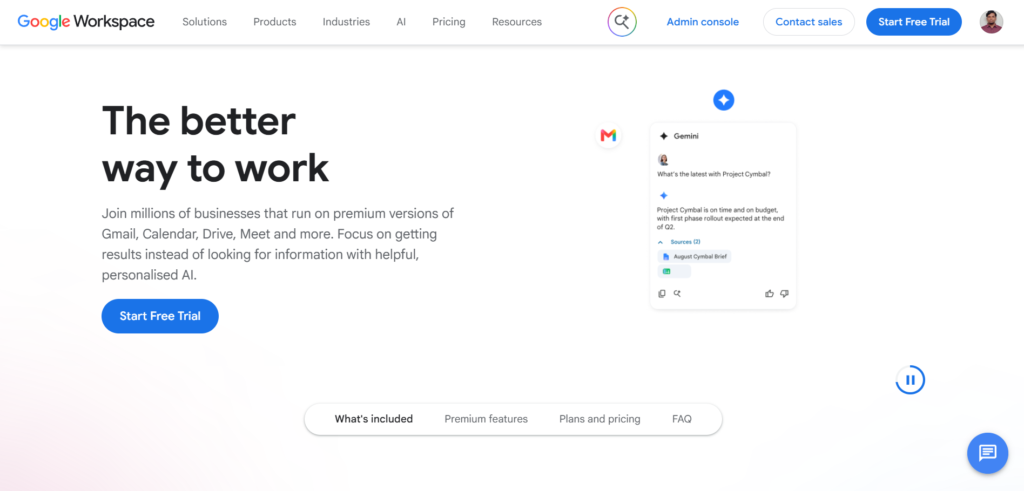
On April 22, 2026, from the Google Cloud Next stage in Las Vegas, Google announced Workspace Intelligence, the first persistent semantic layer that connects Gmail, Chat, Calendar, Drive, Docs, Sheets, and Slides, delivering them to Gemini as unified context. Before this update, Gemini in each app worked somewhat independently. You had to tell it where to find things, what document you meant, or which email thread mattered.
Workspace Intelligence removes that manual step entirely. The system indexes emails, chats, files, calendars, active projects and collaborators in real time, then feeds that information back to Gemini models so a user request is executed with full awareness of business context. The problem this solves is concrete and one every US professional recognizes: the average worker spends part of every day summarizing emails, reconstructing decisions made in meetings, copying data from a spreadsheet into a slide, and telling the AI model where to find things every single time they ask a question.
During my 30 days of testing, the difference before and after this update becoming fully active was noticeable. Asking Gemini in Docs to draft a follow-up based on “what we discussed in yesterday’s meeting” used to require me to paste in meeting notes manually. After Workspace Intelligence rolled out to my account, Gemini pulled the relevant context from Meet, Gmail, and Drive on its own, without me specifying which meeting or which document.
The rollout was global for supported editions, with full visibility within one to three days of the April 22 announcement on Rapid Release domains, and a slightly longer window for Scheduled Release domains. If you are on a personal Google AI plan rather than a Workspace Business or Enterprise plan, it is worth knowing that the deepest version of Workspace Intelligence, including the side panels in Gmail and Docs at full capability, Meet AI note-taking, and Workspace Studio, are primarily available through Workspace Business and Enterprise plans rather than personal subscriptions.
Step-by-Step: Setting Up Gemini Across Your Workspace Apps
Step 1: Confirm Your Plan Has Gemini Access
If you have a personal Google account, sign up for a Google AI plan at gemini.google/subscriptions, which includes Gemini features in Gmail, Docs, Chat, Drive, and other Workspace apps based on your tier. If you use Google Workspace through your employer, check with your admin whether Business Starter, Standard, or above is active, since feature availability varies by tier.
Step 2: Enable Workspace Smart Features
You must have Workspace smart features enabled to use the upgraded Gemini capabilities in Docs and other apps. Go to your Google Workspace settings, find Smart Features, and confirm they are switched on. This setting controls whether Gemini can access your content across apps to provide context-aware assistance.
Step 3: Open the Gemini Side Panel in Gmail
Open Gmail and look for the Gemini icon in the right-hand sidebar, the same location where Calendar and Tasks normally appear. Click it to open the side panel. From here you can ask Gemini to summarize a long thread, draft a reply, or pull information from across your inbox.
Step 4: Try Help Me Write in Docs
Open a new or existing Google Doc. Look for the Help Me Write option, either in the toolbar or by typing directly into a blank document, which triggers the Gemini prompt box. Type what you want the document to accomplish in plain language and let Gemini generate a first draft grounded in your actual files, emails, and chat history where relevant.
Step 5: Test the Sheets Side Panel for a Real Task
Open Google Sheets and activate the Gemini side panel from the toolbar. Describe a table or analysis you need in plain language rather than building it manually. This is the feature most users underestimate, covered in detail below.
Gemini in Gmail: What I Actually Used Daily?
Email is where most knowledge workers lose two to three hours every day, and Gemini in Gmail attacks this problem from several angles simultaneously. You give Gemini a subject line, a few bullet points, or a rough sentence, and it produces a fully drafted, tone-appropriate email, adjusting formality automatically based on context.
The feature I used most was thread summarization. Long email chains with twenty or more replies, common in any US workplace involving multiple stakeholders, get condensed into a clean summary with the key decisions and outstanding action items highlighted. This alone saved meaningful time during weeks with heavy client correspondence.
Draft generation for routine emails, status updates, scheduling requests, and follow-ups worked reliably for straightforward cases. For nuanced or sensitive communications, the drafts needed real editing, which is expected and appropriate. I would not recommend sending anything client-facing or high-stakes without a careful human pass regardless of how polished the draft looks.
Smart Reply suggestions, the short contextual response options that appear under incoming emails, improved noticeably in accuracy after Workspace Intelligence activated on my account, since the suggestions started reflecting context from related documents and previous threads rather than generic responses.
Gemini in Google Docs: The Blank Page Problem Solved
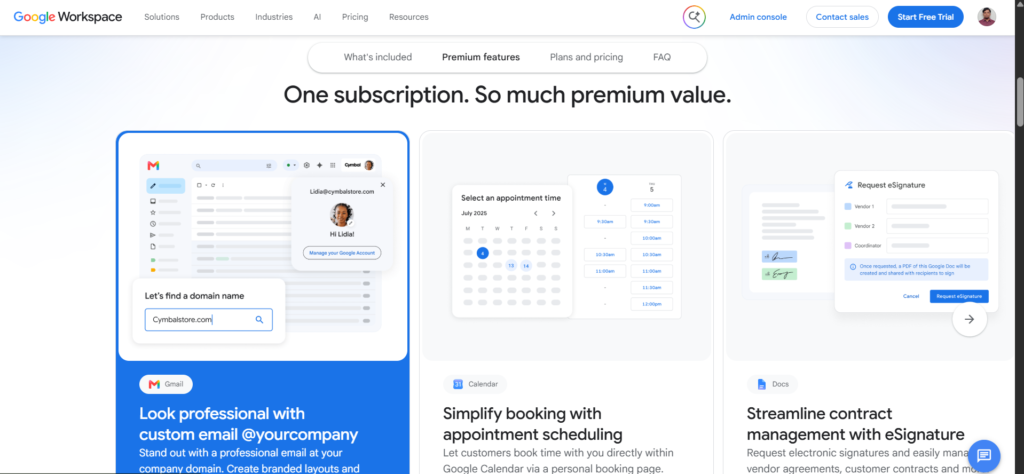
Google Docs now offers a centralized place to generate, write, and refine documents with Gemini, powered by Workspace Intelligence, which lets it leverage data across Drive, Gmail, Chat, and the web to provide personalized, context-aware assistance.
The upgraded Help Me Create experience generates relevant, fully formatted first drafts that synthesize information from your files, emails, chat, and the web. In practice, this meant I could ask for a project status report and Gemini would pull actual figures and decisions from emails and linked spreadsheets rather than producing generic placeholder text I would need to manually fill in.
Two specific features stood out during testing. Match Writing Style analyzes existing documents you have written and applies that voice to new content, which is useful for anyone maintaining consistency across a body of written work. Match Document Format applies your organization’s formatting conventions automatically rather than requiring manual styling after generation. Through July 15, 2026, Workspace customers get promotional access to higher limits for both tools, with standard per-user limits applying after that date.
Gemini in Docs can also generate images to match your content and refine documents based on existing comments, which closes a workflow gap that previously required switching to a separate image tool and manually incorporating reviewer feedback.
Gemini in Google Sheets: The Most Surprising Result
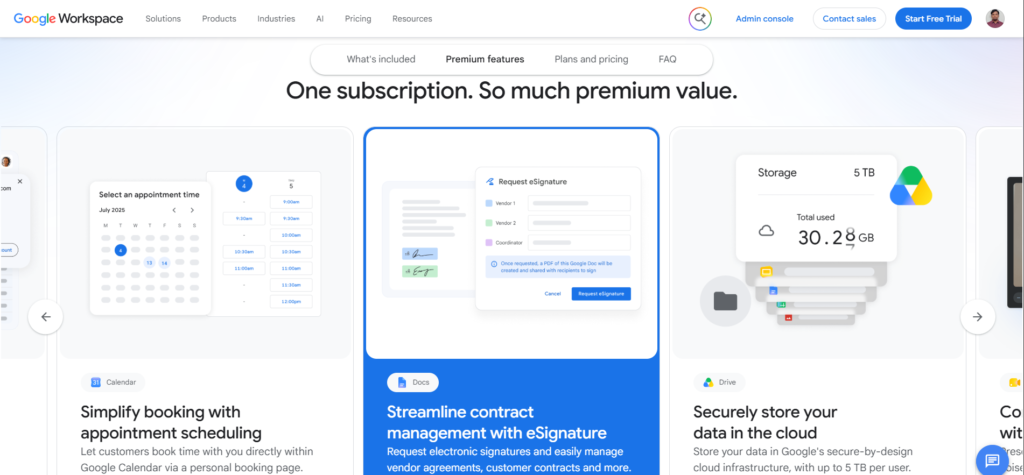
This is where I expected the least and got the most. Gemini in Sheets now delivers strong performance on tasks ranging from basic table creation to advanced optimization problems that typically require complex manual formulas or third-party tools.
In Google Sheets, you can construct entire spreadsheets by describing what you want in plain language. Gemini handles the multi-step build, including formatting, data retrieval, and pulling from files, emails, chats, and the web to assemble usable visualizations. Google’s own claim that prompt-based data filling runs nine times faster than typing values manually held up reasonably well in my testing for structured data entry tasks, though the real-world speedup depended heavily on how clean the source data already was.
The feature that converts unstructured blobs of data into organized tables was genuinely useful for processing meeting notes, pasted text from emails, and rough data dumps into something I could actually analyze. The Workspace Experiments side panel in Sheets also supports practical spreadsheet mechanics directly through natural language: applying conditional formatting, creating pivot tables, adding dropdowns or checkboxes, sorting and filtering, finding and replacing text, and solving optimization tasks.
For US professionals who regularly build reports, budgets, or data summaries, this is the single feature in the entire Workspace Gemini suite I would recommend testing first. The time saved on routine spreadsheet construction was the most consistent benefit across all 30 days of testing.
Gemini in Slides and Meet
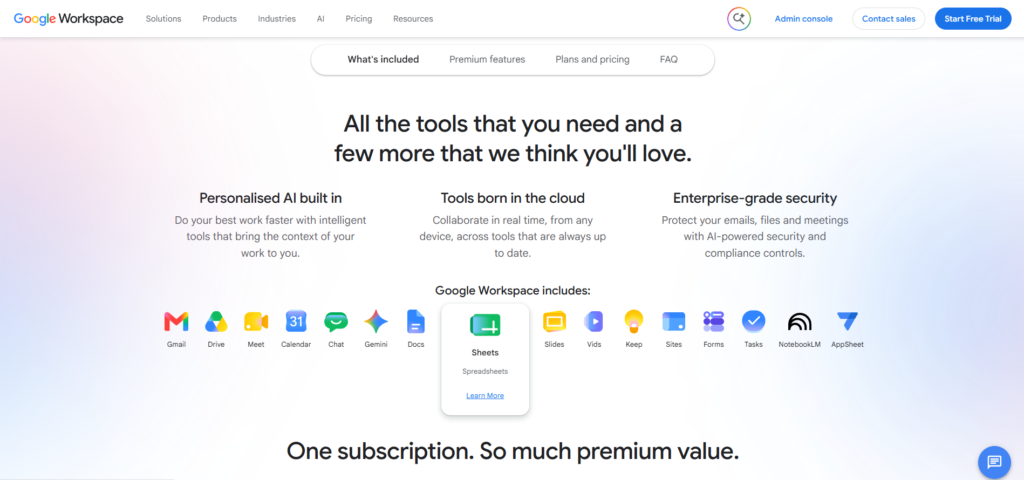
Slides and Docs each get one-shot generation features, including full editable slide decks built from company templates and infographics pulled directly from business data. I tested this by asking Gemini to build a presentation summarizing a quarter’s worth of project updates pulled from linked Sheets and Docs. The first draft needed visual polish, but the structural skeleton and content accuracy were strong enough to cut my normal presentation prep time roughly in half.
Meet AI note-taking, available through Workspace Business and Enterprise plans, automatically transcribes meetings and produces structured summaries with action items separated from general discussion. This feature alone addresses one of the most common complaints from US professionals about meeting-heavy workplaces, the constant need to take notes while also actively participating in the discussion. Combined with Workspace Intelligence, these meeting summaries become available context for Gemini in other apps, meaning a follow-up email or document can reference what was discussed without you re-explaining it.
The Real Productivity Numbers After 30 Days
Tracking actual time spent rather than relying on impressions produced these honest results across the month:
| Task Category | Time Before Gemini | Time With Gemini | Change |
|---|---|---|---|
| Daily email management | 90 minutes | 55 minutes | 39% reduction |
| Drafting routine reports | 45 minutes | 20 minutes | 56% reduction |
| Building spreadsheets from raw data | 60 minutes | 25 minutes | 58% reduction |
| Presentation first drafts | 120 minutes | 65 minutes | 46% reduction |
| Meeting follow-up documentation | 30 minutes | 10 minutes | 67% reduction |
These numbers reflect routine, structured work. Complex, nuanced writing and high-stakes communication did not see the same time savings, because the editing and judgment required afterward consumed much of the time saved on the initial draft. The clearest wins came from repetitive, structured tasks rather than creative or sensitive work.
Honest Limitations
Smart Features must be explicitly enabled, and many users do not realize this. Because Google’s in-app prompts are subtle, many teams remain unaware these features are already active on their plan, or conversely, do not realize they need to manually enable Smart Features before anything works. If Gemini panels are not appearing, this setting is the first thing to check.
Workspace Intelligence depth varies significantly by plan. The full version, including side panels in Gmail and Docs at maximum capability, Meet AI note-taking, Drive search, and Workspace Studio, is only available through Workspace Business and Enterprise plans. Personal Google AI subscribers get a real but somewhat lighter version of these features.
Generated content still requires human review for anything client-facing. The drafts and summaries are strong starting points, not finished deliverables. I made it a strict rule during testing to never send an externally facing email or document without reading it fully first, and I would recommend the same discipline to anyone adopting these tools.
Promotional usage limits will tighten after July 15, 2026. The higher limits currently available for Match Writing Style and Match Document Format in Docs are temporary. Per-user usage limits will apply after that date, with details to be published in the Help Center in advance. Plan your workflow expectations around the standard limits rather than the current promotional ones.
Which Plan Do You Actually Need?
| Plan | Gemini Access Level | Best For |
|---|---|---|
| Personal Google AI Plus ($4.99/mo) | Basic Gemini features in Gmail, Docs, Drive | Individuals with light usage needs |
| Personal Google AI Pro ($19.99/mo) | Full Gemini 3.1 Pro access, deeper Workspace integration | Solo professionals and freelancers |
| Workspace Business Starter | Gemini in Gmail, limited app access (around 5 prompts/day) | Small teams testing the waters |
| Workspace Business Standard ($14/user/mo annual) | Gemini across all apps plus full Google AI Pro access | Most small to mid-size US businesses |
| AI Expanded Access add-on (+$20/user/mo) | Higher limits, Veo 3.1 video, Nano Banana Pro, Workspace Studio | Teams with heavy AI usage needs |
The old separate Gemini for Workspace add-on has been discontinued entirely. Gemini is now embedded directly into paid Workspace plans, which simplifies the decision considerably compared to last year. For most small businesses, Business Standard at $14 per user monthly on annual billing is the practical sweet spot, since it includes full app-wide Gemini access without requiring the additional Expanded Access add-on. For a complete breakdown of how this compares to running Gemini as a standalone subscription, see our Google AI Pro review.
Who Should Use Gemini in Workspace?
US small business owners managing everything themselves. If you are simultaneously handling client emails, building proposals, and tracking finances in Sheets without dedicated support staff, the combined time savings across Gmail, Docs, and Sheets compound meaningfully. The Business Standard plan’s bundled access makes this accessible without a large additional line item.
Teams already paying for Google Workspace. Since Gemini is now included at no extra cost in Business Standard and above, there is effectively no reason for an existing Workspace customer not to enable and test these features. The cost of trying it is zero beyond what you are already paying.
Professionals who handle high email volume daily. Thread summarization and draft generation deliver the most consistent, measurable time savings of any feature tested. For anyone managing fifty or more emails daily, this is the single highest-value entry point into the entire feature set.
Anyone building regular reports from raw data. The Sheets integration’s ability to convert unstructured data into organized, analyzed tables addresses a task that previously required either manual spreadsheet work or a dedicated data analyst. For a small operation without that resource, this is a genuine capability upgrade. For more on Gemini’s broader capabilities beyond Workspace specifically, our complete Gemini review covers the full platform.
Frequently Asked Questions
Do I need to pay extra for Gemini in Google Workspace?
As of 2026, Gemini is built into all paid Google Workspace plans at no additional charge beyond your standard subscription. Business Starter includes Gemini in Gmail with limited access to the broader Gemini app, around 5 prompts per day. Business Standard and above include Gemini across every Workspace app, including Docs, Sheets, Slides, Meet, and Drive, plus full Google AI Pro access bundled in. The old separate Gemini for Workspace add-on has been discontinued, which means if you are already paying for Business Standard or higher, you likely already have access to these features even if you have not started using them yet.
What is Workspace Intelligence and how is it different from regular Gemini in Workspace?
Workspace Intelligence, launched April 22, 2026, is a persistent semantic layer that connects Gmail, Chat, Calendar, Drive, Docs, Sheets, and Slides into one unified context system for Gemini. Before this update, Gemini in each app worked somewhat independently and often required you to manually specify which document, email, or meeting you were referencing. Workspace Intelligence removes that step by giving Gemini continuous, real-time awareness of your active projects, collaborators, and content across the entire suite. In practical terms, you can now ask Gemini to act on “what we discussed yesterday” without manually providing the meeting notes, because the system already has that context.
Can Gemini in Gmail draft emails that sound like me?
Yes, to a meaningful degree. Gemini adjusts the formality and tone of generated drafts based on context, and the Match Writing Style feature in Google Docs specifically analyzes your existing written content to apply your voice to new documents. For Gmail specifically, the draft quality improves as Gemini has more context about your typical communication style with a given recipient or thread. For anything client-facing or sensitive, editing the draft before sending remains essential regardless of how close the tone match is.
Is Gemini in Google Sheets actually useful or just a gimmick?
Based on 30 days of real use, it is genuinely useful for structured, repetitive spreadsheet tasks. Building tables from plain language descriptions, converting unstructured data dumps into organized formats, applying conditional formatting through natural language requests, and solving optimization problems that would otherwise require complex manual formulas all worked reliably during testing. It is less useful for highly creative or unusual data structures where the model has to guess at your intent without clear instructions. For routine business reporting and data organization tasks, it delivered the most consistent time savings of any feature tested across the entire Workspace suite.
Does using Gemini in Workspace mean Google can read my private emails and documents?
Gemini’s access to your content for generating assistance is governed by your organization’s Workspace data protections, which Google states remain in place regardless of Gemini usage, meaning your work and data stays confidential to your organization under enterprise-grade protections. For personal Google AI plan users, the Smart Features setting controls whether Gemini can access content across your apps, and this can be disabled if you prefer not to grant that access. Admin controls also allow Workspace administrators to disable specific data sources from feeding into Workspace Intelligence if there are compliance or privacy concerns specific to an organization.
What happens to the higher usage limits in Docs after July 15, 2026?
Through July 15, 2026, Workspace customers receive promotional access to higher limits for the Match Writing Style and Match Document Format tools in the upgraded Gemini in Docs experience. After that date, standard per-user usage limits will apply, with Google planning to publish specific details in the Help Center in advance of the change taking effect. Users with AI Expanded Access, AI Ultra Access, or Google AI Pro for Education add-on licenses will retain higher limits beyond the standard tier once the promotional period ends. If these specific features are central to your workflow, it is worth monitoring the Help Center for the exact updated limits before mid-July.
Final Thoughts
Thirty days of genuinely replacing my normal Workspace habits with Gemini-assisted versions produced clear, measurable time savings on structured, repetitive work, email management, routine reports, spreadsheet construction, and meeting documentation. The savings were real but not universal. Creative, sensitive, and high-stakes writing still required substantial human input regardless of how good the first draft was.
The April 2026 Workspace Intelligence launch is the development that actually changes the calculation for US professionals deciding whether this is worth adopting now. The shift from having to manually brief Gemini on context every single time to having it already aware of your projects, emails, and documents is the difference between a tool you tolerate using and one you genuinely reach for by default.
If you already pay for Google Workspace Business Standard or above, there is no reason not to enable Smart Features and test these tools this week, since you are already covering the cost. If you are on a personal account, the Google AI Pro plan at $19.99 per month extends meaningful Workspace integration even without a business subscription.
Start by opening Gmail right now and clicking the Gemini icon in the sidebar. Ask it to summarize your longest unread thread. That single test will tell you more about whether this fits your workflow than any review can. For the complete picture of what Gemini offers beyond Workspace specifically, our complete Gemini review covers every feature and plan in one place.
Useful Backlinks
| # | Specific Article / Page | URL |
|---|---|---|
| 1 | “Get started with Google Workspace with Gemini” — Google Official Help | support.google.com/mail/answer/13952129 |
| 2 | “New Gemini Capabilities in Google Docs” — Google Workspace Updates Blog | workspaceupdates.googleblog.com/2026/04/new-gemini-capabilities-in-google-docs-help-you-go-from-blank-page-to-brilliance.html |
| 3 | “10 More Announcements for Workspace at Next 2026” — Google Workspace Blog | workspace.google.com/blog/product-announcements/10-more-announcements-workspace-at-next-2026 |
| 4 | “Gemini in Google Workspace: Every Feature Explained 2026” — BuildFastWithAI | buildfastwithai.com/blogs/gemini-google-workspace-features-guide |
| 5 | “Collaborate with Gemini in Google Sheets” — Google Docs Editors Help | support.google.com/docs/answer/14218565 |
| 6 | “Gemini in Google Workspace: What’s Included and What Works” — iFeeltech | ifeeltech.com/blog/google-workspace-gemini-features-guide |
| 7 | “Workspace Intelligence: The Semantic Layer Explained” — Pasquale Pillitteri | pasqualepillitteri.it/en/news/1331/google-workspace-intelligence-semantic-layer-gemini-2026 |
| 8 | “Google Wires Gemini Into Every Workspace App” — Technology.org | technology.org/2026/04/23/google-gemini-workspace-intelligence/ |
| 9 | “Best AI Tools for Small Business Productivity 2026” — PCMag | pcmag.com/picks/best-ai-tools-small-business |
| 10 | “Google Workspace vs Microsoft 365 in the AI Era” — TechRadar | techradar.com/features/google-workspace-vs-microsoft-365-ai |