I kept re-typing the same instructions into Gemini every single day. The same tone guidelines for client emails. The same coding stack preferences. The same “explain this like I am a beginner” framing for research questions. So I built five Gemini Gems over two weeks to stop that cycle entirely, and the results were more useful than I expected for some tasks, and genuinely disappointing for others. Here is the full honest breakdown.
Table of Contents
What Gemini Gems Actually Are?
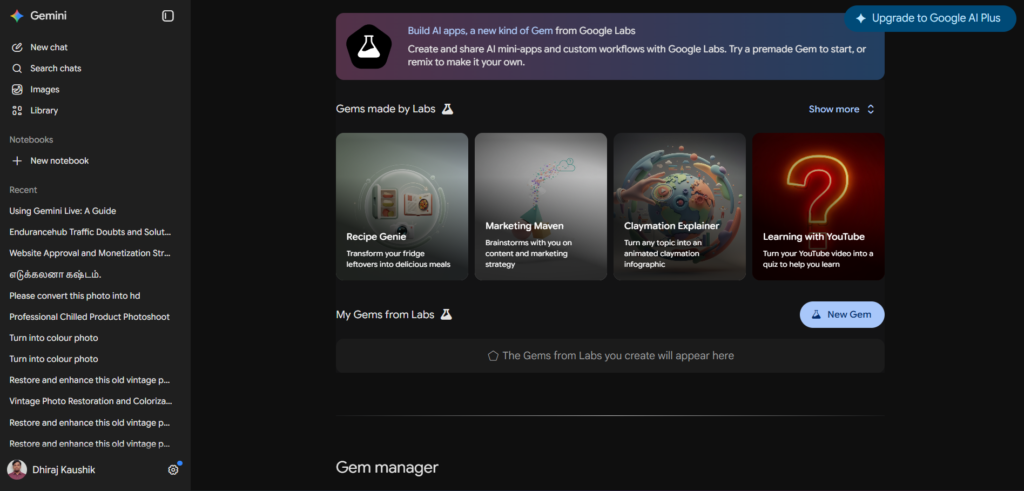
Gemini Gems are saved Gemini configurations that bundle a name, a description, a set of instructions functioning as a system prompt, an optional default tool, and optional knowledge files into a single reusable AI assistant. Instead of explaining the same context, tone, and constraints every time you start a new conversation, a Gem remembers its role and stays consistent across every future session.
Think of Gems as persistent personas for Gemini. You define the assistant’s behavior once, and it stays consistent across every conversation you have with it going forward. This collapses what used to be a repetitive ritual, paste the system prompt, attach the files, pick the right tool, remember the tone, into a single saved assistant you open with one click.
Gems are not a separate product. They live directly inside the standard Gemini interface, accessible through the Gem manager in your profile menu. You are not learning a new tool. You are configuring the existing one to behave consistently for a specific recurring purpose.
Do You Need a Paid Plan for Gems?
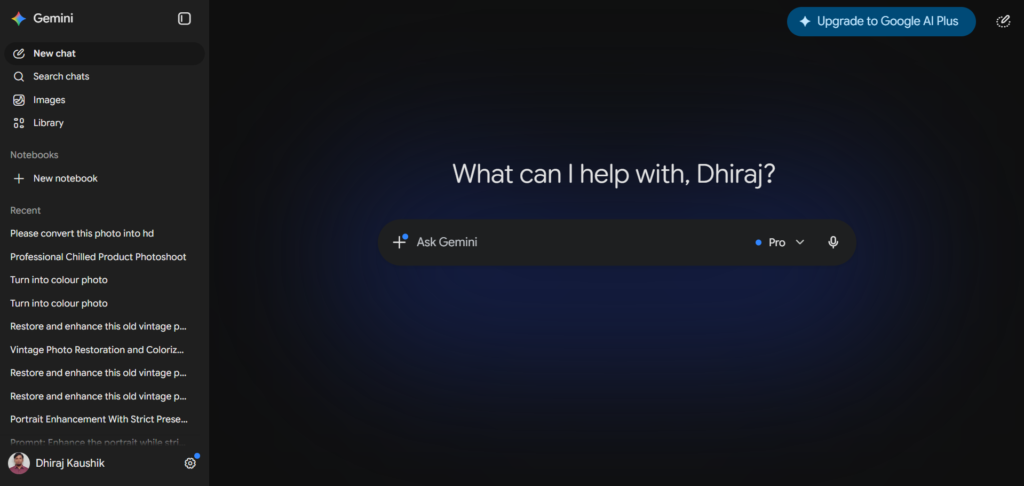
This is genuinely confusing right now because different sources report different requirements, and the honest answer is that it depends on exactly when and where you are checking.
Gems are free on every Gemini plan, with some default tool options carrying per-tier usage limits. That said, building and using a Gem with full default tool access, including Deep Research and other premium-tier tools as the Gem’s default action, has historically required a Google AI Pro or Ultra subscription at $19.99 per month or higher. The practical reality in mid-2026 is that basic Gem creation and use is now accessible more broadly than it was a year ago, but the most capable Gems, the ones using Deep Research or advanced reasoning models as their default tool, still benefit from or require a paid tier to function at full capability.
My recommendation: check your own account directly at gemini.google.com under the Gems section before assuming either way. If you are on the free plan and the New Gem button is grayed out or limited, that confirms you need to upgrade for the specific functionality you want. If it is fully active, you can start building immediately at no cost.
Step-by-Step: How to Build Your First Gem?
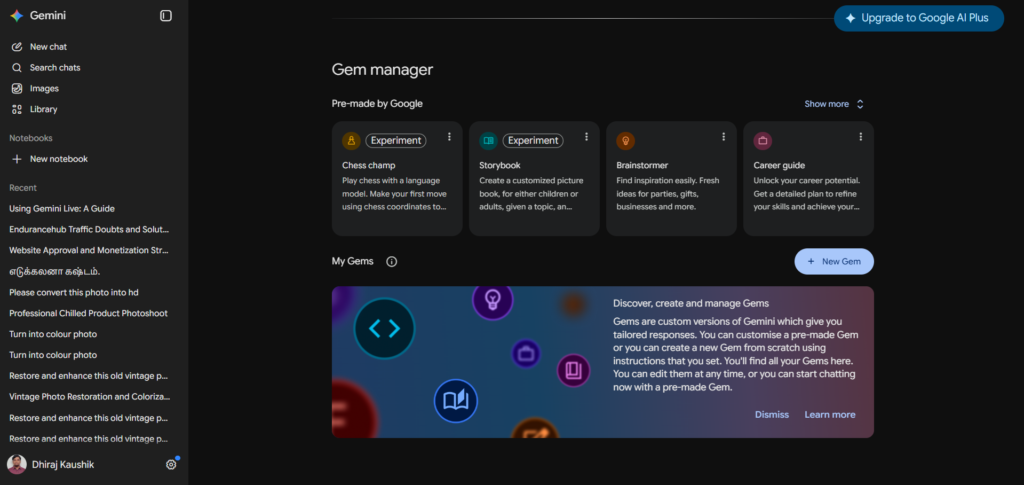
Step 1: Open the Gem Manager
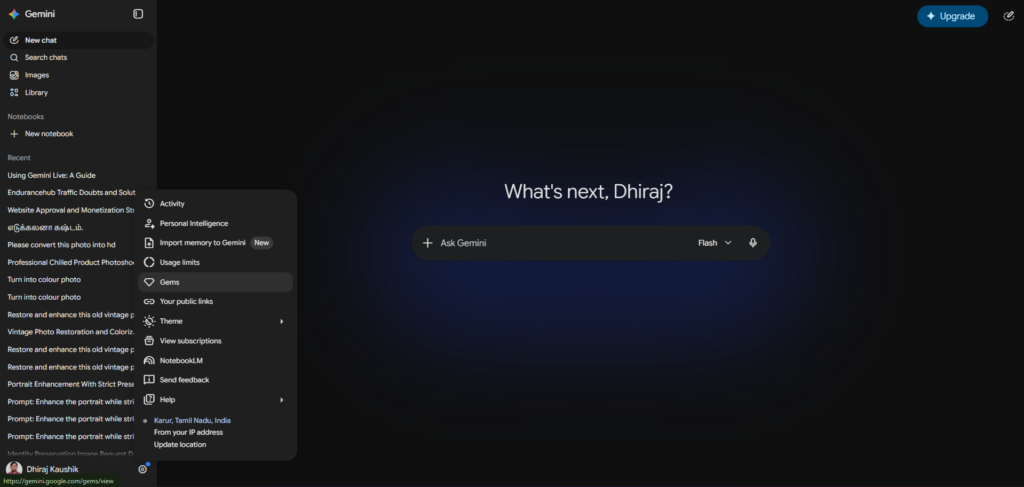
Open the profile menu inside Gemini, click Gems, then click New Gem. Alternatively, look for Gem Manager directly in the left sidebar depending on your interface version.
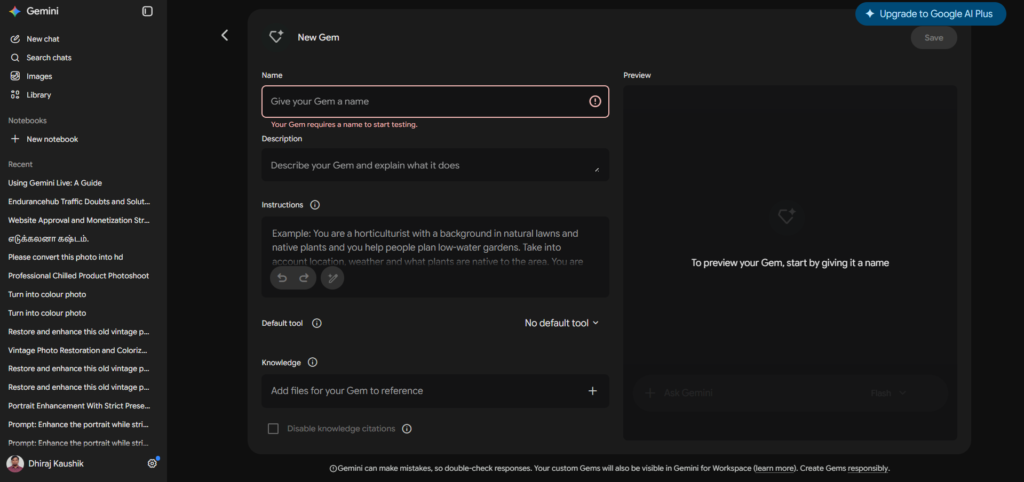
Step 2: Name Your Gem and Write a Clear Description
Give your Gem a descriptive name that makes its purpose immediately clear. “Client Email Drafter” is more useful long-term than “Email Helper” once you have built five or six Gems and need to find the right one quickly. The description field is a short summary of what the Gem does, useful both for your own reference and if you later decide to share it.
Step 3: Write the Instructions Field
This is the most important step and the one that determines whether your Gem actually performs consistently. Google recommends 500 to 2,000 characters for optimal performance. The structure that works best follows five components: role definition (start with who the Gem is), communication style (how it should respond), knowledge focus (what it specializes in), response format (preferred output structure), and constraints (what to avoid or emphasize).
A real example: “You are an experienced senior developer who conducts thorough but encouraging code reviews. Communication style: direct but supportive. Knowledge focus: TypeScript with functional React components. Response format: list issues by severity, then suggest specific fixes. Constraints: never approve code with unhandled errors, always explain why a change matters.”
Step 4: Choose a Default Tool
Select the default tool that matches the Gem’s purpose. Deep Research is one of the available default tool options, alongside Canvas, Create music, and Guided Learning depending on your plan. A research-focused Gem should default to Deep Research. A writing-focused Gem might default to Canvas for document editing.
Step 5: Attach Knowledge Files for Repeated Context
If your Gem needs grounding in specific documents, upload them here. For professional development use cases specifically, leveraging the file upload feature to ground Gems in your project’s unique context, including documentation, style guides, API specifications, and source files, ensures responses are grounded in official sources and reduces hallucinated or generic answers.
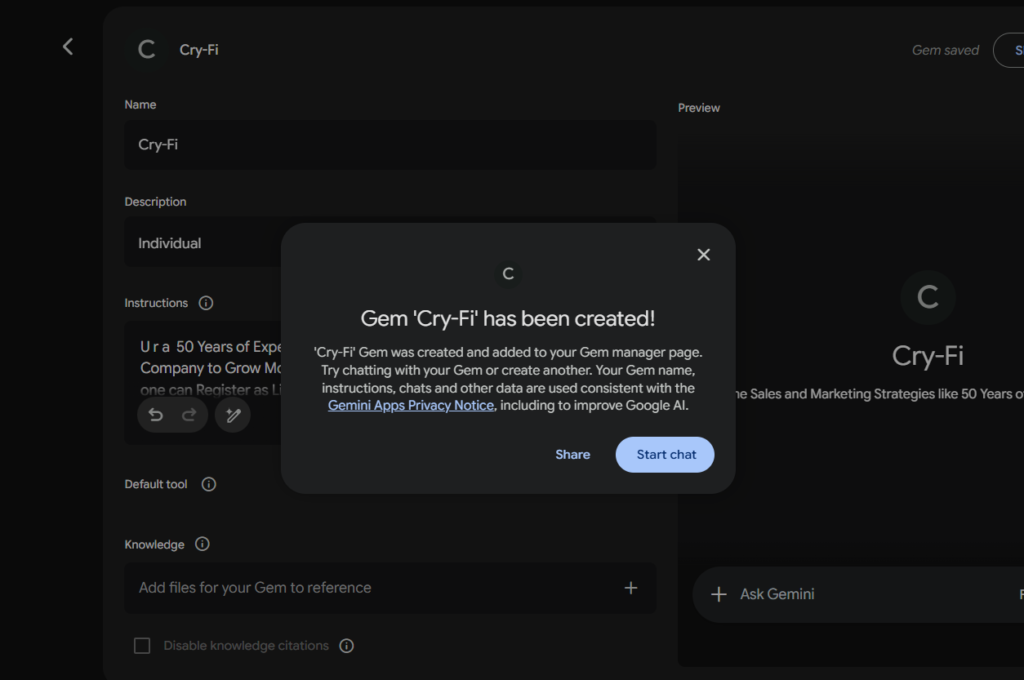
Step 6: Save and Test
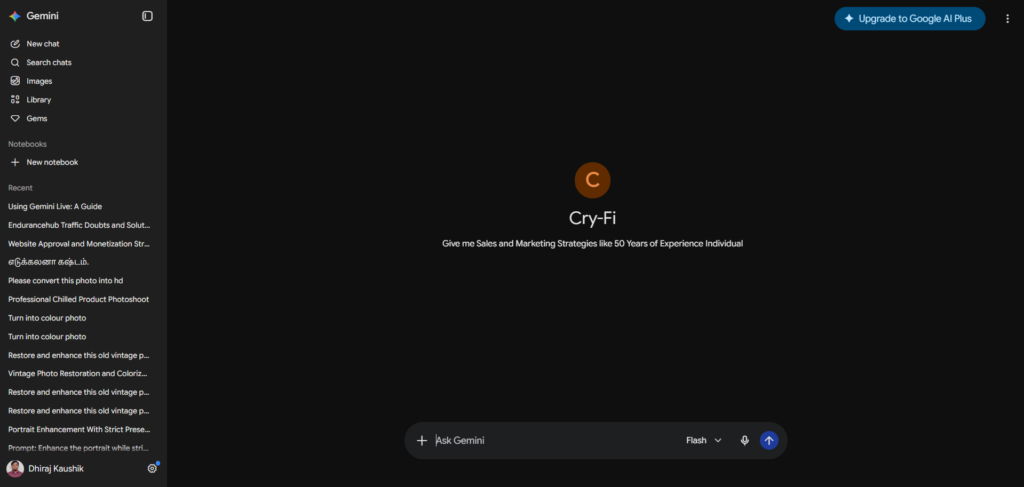
Click Save. Then immediately test the Gem with a real task rather than a hypothetical one. Iterate by re-opening the Gem from My Gems and adjusting the instructions based on what the first few real interactions reveal about gaps in your original configuration.
The 5 Gems I Built and How Each One Performed?
Gem 1: Client Email Drafter. Instructions defined a professional but warm tone, specific formatting preferences, and a constraint to always end with a clear next step. This Gem performed the best of all five. Email drafts came out consistently usable with minimal editing after the first week of refinement. The repeated tone and format meant I stopped manually adjusting voice on every single draft.
Gem 2: Coding Mentor. Instructed to use TypeScript with functional React components, conduct thorough but encouraging code reviews, and flag severity levels clearly. Performance was strong for code review tasks but inconsistent for generating new code from scratch, where it occasionally defaulted to patterns outside my specified stack despite clear constraints. Most instruction-following problems stem from conflicting directives or unclear priorities, and revisiting my instructions to simplify them to one primary behavior improved consistency noticeably.
Gem 3: Research Brief Assistant. Set to default to Deep Research as its tool, with instructions to always produce a structured report with an executive summary and source citations. This Gem worked well precisely because Deep Research is one of the available default tool options, meaning every conversation with this Gem automatically triggered the deeper research workflow rather than a quick conversational answer.
Gem 4: Content Outline Builder. Designed for blog and article planning, with instructions to always produce a structured outline with H2 and H3 headings, target keyword placement notes, and an estimated word count per section. This was useful for early planning stages but required the same level of manual review as a fresh prompt would, since the value here was mainly in not having to re-explain the outline format every single time.
Gem 5: Beginner Explainer. Configured to explain any topic as if speaking to someone with zero background knowledge, avoiding jargon and using concrete analogies. This Gem performed inconsistently. Gemini tends toward structured, analytical responses by default, and for genuinely creative or simplified explanation tasks, I had to explicitly instruct the Gem to think unconventionally and prioritize accessible language over technical completeness to get it to actually behave differently from a standard Gemini response.
Writing Instructions That Actually Work
The single biggest lesson from building five Gems is that vague instructions produce vague, inconsistent results. Replace subjective terms like “sometimes,” “often,” or “appropriate” with specific conditions. A Gem instructed to be “appropriately formal” will behave unpredictably across conversations because “appropriate” means nothing concrete to the model. A Gem instructed to “always address the recipient by first name and close with a specific call to action” behaves consistently because there is nothing left to interpret.
If your Gem behaves differently across conversations despite identical prompts, the instructions almost certainly contain ambiguous language somewhere. Simplify to one primary behavior per Gem rather than trying to cram multiple competing priorities into a single configuration, and test iteratively rather than assuming your first draft of instructions is final.
For creative tasks specifically, Gemini’s default tendency toward structured, analytical output means you often need to explicitly counteract that tendency. Instructions like “explore unexpected angles” or “prioritize original ideas over conventional approaches” push the model away from its default behavior when creativity rather than structure is the goal.
For complex, multi-step work, a more advanced technique is chaining multiple specialized Gems together in what amounts to a manual AI pipeline. A Prompt Assistant Gem refines your goal into an optimized prompt, which is then passed to a Coding Mentor Gem to generate the actual code. This team of agents approach is more setup work than a single Gem, but for recurring complex workflows, it produces more reliable results than trying to cram every requirement into one configuration.
Gemini Gems vs ChatGPT Custom GPTs
Gemini Gems and ChatGPT Custom GPTs solve the same underlying problem on two different platforms: saving an AI configuration so you do not have to re-paste the same context into every new chat. The right choice depends primarily on which platform you already use day to day rather than any major feature gap between them.
| Feature | Gemini Gems | ChatGPT Custom GPTs |
|---|---|---|
| Cost to create | Free on most plans, premium tools may need Pro | Requires ChatGPT Plus or higher |
| Default tools available | Deep Research, Canvas, Create music, Guided Learning | Web Search, Canvas, Image Generation, Code Interpreter |
| Public sharing | Public Gems appear in Google’s Gem gallery | Can publish to the public GPT Store |
| Workspace integration | Integrates with Gemini for Workspace | Limited native Workspace integration |
| Knowledge file support | Yes | Yes |
| Community size (as of March 2026) | Over 10,000 public Gems across categories | Larger, more established GPT Store |
Gemini Gems lean on Google’s own tool ecosystem, which makes them the natural choice if you already work inside Gmail, Docs, and Sheets daily. ChatGPT Custom GPTs use OpenAI’s broader capability set and benefit from a more mature, larger public store. If you split your work across both Gemini and ChatGPT regularly, the practical approach is to build the same assistant twice, once on each platform, rather than trying to force one platform to cover both ecosystems. For a full comparison of how the two platforms perform across other features, see our Gemini vs ChatGPT comparison.
Honest Limitations
Instruction-following is not perfect, even with clear constraints. My Coding Mentor Gem occasionally generated code outside its specified stack despite explicit instructions against it. Gems improve consistency significantly over starting from scratch every time, but they do not guarantee perfect adherence to every rule you set, particularly for generative tasks rather than evaluative ones like code review.
Building a genuinely effective Gem takes iteration, not a single setup session. None of my five Gems performed exactly as intended on the first attempt. Real improvement came from testing with actual tasks, identifying where instructions were ambiguous, and rewriting those specific sections. Treat your first version as a draft, not a finished product.
Some default tools carry usage limits even when Gem creation itself is free. If your Gem defaults to Deep Research, you are still bound by whatever Deep Research usage limit applies to your specific plan tier. A Gem does not unlock unlimited access to a premium tool; it simply pre-selects that tool as the default action for that specific assistant.
Public Gems mean public visibility of your configuration. If you choose to share a Gem publicly, the instructions and purpose become visible to others. For Gems built around proprietary business processes, company style guides, or anything containing sensitive context, keeping the Gem private rather than sharing it through the public gallery is the appropriate choice.
Who Should Build Gems?
US professionals who repeat the same type of task daily. If you draft similar emails, review similar code, or produce similar reports regularly, a Gem eliminates the repetitive setup that wastes time on every single interaction. The time investment in writing good instructions pays back within the first week of regular use.
Small business owners who need consistent brand voice across communications. A Gem preloaded with your company’s style guide or email templates ensures consistent, on-brand communications even when you are the only person handling customer-facing writing. This is particularly valuable for US solopreneurs managing every aspect of client communication alone.
Developers who want a consistent coding assistant grounded in their actual stack. Embedding your preferred frameworks, language version, and coding standards directly into a Gem’s instructions means every interaction defaults to your actual project requirements rather than generic best practices that may not match your codebase.
Anyone managing multiple distinct AI use cases who is tired of re-explaining context. If you use Gemini for both research and creative writing, a single general-purpose conversation forces you to constantly reset context. Separate Gems for separate purposes, a Research Brief Assistant and a Beginner Explainer, for example, let you maintain multiple specialized assistants rather than one generalist that performs adequately at everything. For more on how Gemini’s broader feature set complements Gems specifically, our complete Gemini review covers the full platform.
Frequently Asked Questions
Are Gemini Gems free to use in 2026?
Basic Gem creation and use is free on most Gemini plans as of mid-2026. However, the most capable configurations, particularly Gems that default to premium tools like Deep Research, are subject to whatever usage limits apply to your specific subscription tier. If you are on the free plan and find Gem creation limited or unavailable, upgrading to Google AI Pro at $19.99 per month typically unlocks full access. The safest approach is checking your own account directly under the Gems section in Gemini, since availability and limits have shifted multiple times through 2025 and 2026.
How long does it take to build a useful Gem?
The initial setup takes only a few minutes and requires no technical skills. You fill in a name, description, instructions, default tool, and optionally attach knowledge files, then save. However, building a Gem that performs consistently well typically takes one to two weeks of real-world testing and refinement. None of the five Gems I built performed exactly as intended on the first attempt. The instructions almost always need at least one round of revision after you see how the Gem actually behaves with real tasks rather than hypothetical ones.
Can I share my Gemini Gems with other people?
Yes. You can share a Gem with your team, clients, or friends directly, and you can also publish it publicly to Google’s Gem gallery, where it becomes browsable alongside more than 10,000 other public Gems as of March 2026 across categories including productivity, creativity, education, and business. Keep in mind that sharing publicly makes your instructions and configuration visible to anyone who finds it, so Gems built around sensitive business processes or proprietary information should remain private rather than shared through the public gallery.
What is the difference between a Gem and just writing a detailed prompt every time?
A detailed prompt written fresh each conversation requires you to retype the same context, tone guidelines, and constraints repeatedly, and it is easy to accidentally omit something or phrase it slightly differently each time, leading to inconsistent results. A Gem saves that configuration permanently, so every new conversation with that Gem starts with the exact same role definition, communication style, and constraints automatically applied. The practical difference becomes most obvious over weeks of repeated use, where a Gem maintains consistency that manually retyped prompts gradually drift away from.
Should I use one general Gem or multiple specialized Gems?
Multiple specialized Gems consistently outperform one general-purpose Gem trying to handle everything. Keep each Gem focused on one task or purpose rather than combining unrelated use cases into a single configuration. A Gem trying to be both a coding mentor and a creative writing partner will produce instructions that conflict with each other internally, leading to inconsistent behavior. Building separate, narrowly focused Gems for each distinct recurring task you have produces more reliable, predictable results than one do-everything assistant.
How does Gemini Gems compare to ChatGPT Custom GPTs for someone deciding between platforms?
Both solve the identical underlying problem of saving a reusable AI configuration. The meaningful difference is which tool ecosystem each platform’s Gems or GPTs can default to. Gemini Gems integrate with Google’s tools including Deep Research, Canvas, and Gemini for Workspace, making them the natural choice if your daily work already happens inside Gmail, Docs, and Sheets. ChatGPT Custom GPTs integrate with OpenAI’s capabilities including web search, image generation, and code interpreter, and benefit from a larger, more established public GPT Store. If you are already committed to one platform for other reasons, building your custom assistants there makes more sense than trying to force the other platform’s tool ecosystem to work for your existing habits.
Final Thoughts
Two weeks of building and refining five Gemini Gems produced a clear pattern: the tool delivers real, measurable consistency benefits for narrowly defined, repetitive tasks, and delivers much less value for creative or open-ended work where flexibility matters more than predictability. My Client Email Drafter and Research Brief Assistant Gems earned a permanent place in my daily workflow. My Beginner Explainer Gem required so much fighting against Gemini’s default analytical tendency that I eventually reverted to writing fresh prompts for that specific use case instead.
The lesson that applies broadly: build Gems for the parts of your work that are genuinely repetitive and benefit from consistency. Do not force every use case into a Gem just because the feature exists. The five-minute setup cost is low, but the real value only appears after a week or two of testing and refining instructions against actual tasks.
Open the Gem manager inside Gemini today and build one Gem around your single most repetitive AI task. That first real test will tell you more about whether Gems fit your workflow than reading about five examples can. For the complete picture of everything Gemini offers beyond Gems specifically, our complete Gemini review covers every feature and plan in one place.
Useful Backlinks
| # | Specific Article / Page | URL |
|---|---|---|
| 1 | “How to Use Gemini Gems: Build Custom AI Assistants 2026” — AI-Toolbox | ai-toolbox.co/gemini-management-and-productivity/how-to-use-gemini-gems-create-custom-2026 |
| 2 | “Gemini Gems Complete Guide” — Gemini Lab | gemilab.net/en/articles/gemini-basics/gemini-gems-custom-ai-guide |
| 3 | “How to Use Gemini Gems for Custom AI Instructions” — BootFile | bootfile.ai/blog/how-to-use-gemini-gems-for-custom-ai-instructions-complete-2026-guide |
| 4 | “Creating Custom Coding Assistants with Gemini Gems” — Steve Kinney | stevekinney.com/courses/ai-development/gemini-and-gems |
| 5 | “Gemini Gems Explained” — AI with Katarina | aiwithkatarina.com/gemini-gems-create-custom-ai-assistants/ |
| 6 | “Gemini Gems — Custom AI Assistants for Google Gemini” — GitHub | github.com/Gemini-Gems |
| 7 | “Best Practices for Writing AI System Prompts in 2026” — Creative Bloq | creativebloq.com/features/best-practices-ai-system-prompts |
| 8 | “ChatGPT Custom GPTs Guide” — Edurancehub (internal) | edurancehub.co.in/chatgpt-custom-gpts/ |
| 9 | “How US Small Businesses Are Using AI Assistants in 2026” — Inc.com | inc.com/best-ai-assistants-small-business-2026 |
| 10 | “Best AI Productivity Tools for Solopreneurs” — Entrepreneur.com | entrepreneur.com/best-ai-tools-solopreneurs-2026 |