

Leonardo AI LoRA training is the feature that separates casual image generation from professional, repeatable creative output. If you have been generating images that look different every time you try to reproduce a style, character, or brand look, LoRA training is the fix. This guide walks you through the entire process in plain language, from what LoRA actually means to getting your first trained Element working in live generations.
Table of Contents
What Is LoRA Training and Why Does It Matter?
LoRA stands for Low-Rank Adaptation. In simple terms, it is a method for teaching an AI model something new by adding a small, lightweight layer of custom learning on top of the existing model. Instead of retraining the entire base model from scratch, which would require enormous computing power and weeks of time, LoRA adds a small set of parameters that guide the model toward a specific visual style, subject, or aesthetic.
Think of it like this. A large AI image model knows how to generate millions of different things. A LoRA is a focused set of instructions that says: when generating images, lean specifically toward this visual pattern, this character’s face, this art style, or this product’s appearance. The base model keeps all of its general knowledge. The LoRA adds a targeted layer of specific knowledge on top.
Why does this matter for creative work? Because without custom training, every time you generate an image of your character, product, or brand style, the model produces a new interpretation. Your character has slightly different facial features in each image. Your brand’s colour palette drifts. Your illustration style is inconsistent across a series. LoRA training eliminates this problem. Once you have a trained Element, you apply it to any new generation and the result stays consistent with your reference material.
This is the feature that professional illustrators, game developers, marketing agencies, and brand designers cite most often as their reason for choosing Leonardo AI over simpler generation tools. No other managed AI image platform in 2026 offers LoRA training with this level of accessibility, without requiring a local GPU, coding knowledge, or external training infrastructure.
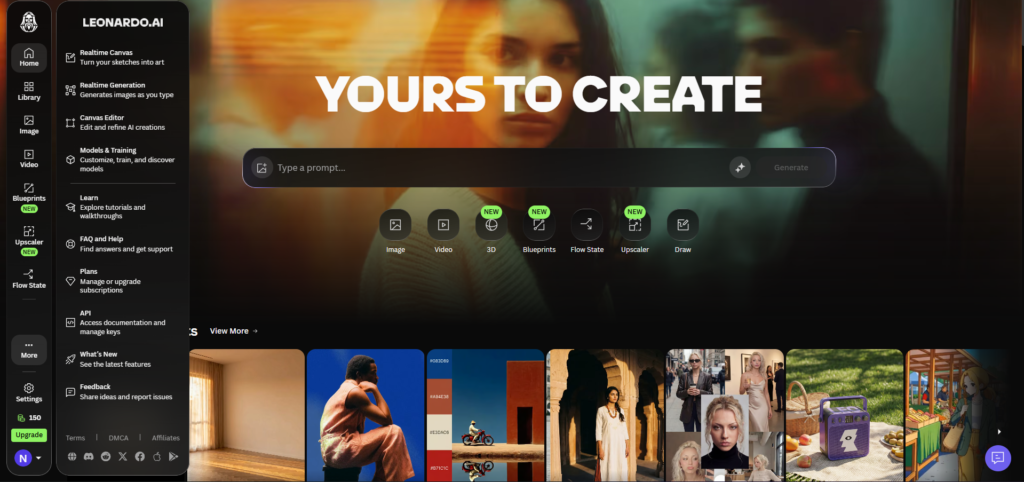
How Leonardo AI Implements LoRA: Elements Explained
On Leonardo AI, LoRA models are called Elements. The name change is intentional. Leonardo’s Elements workflow wraps the technical LoRA training process into a creator-friendly interface where you upload images, set a few options, and click train. The underlying technology is LoRA, but you never need to interact with the technical parameters unless you want to.
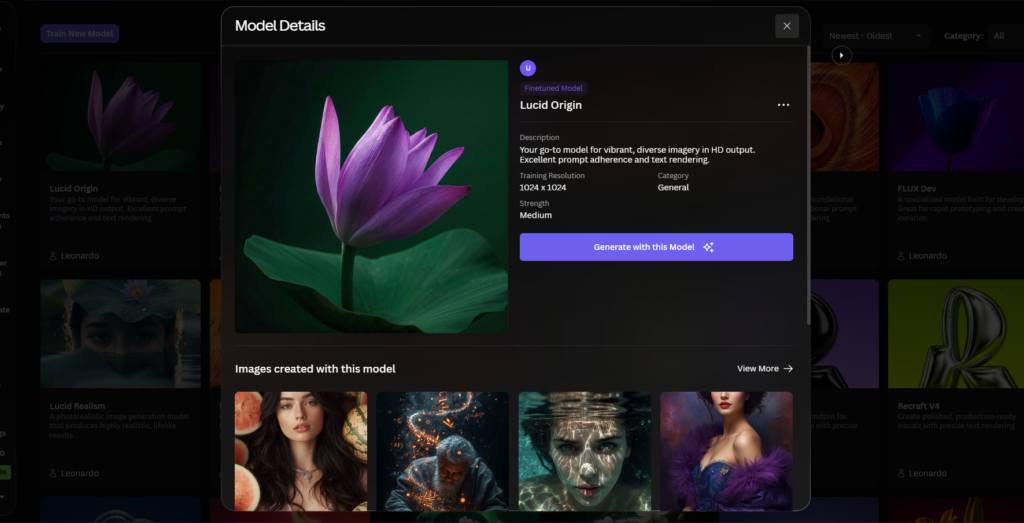
Elements are trained on Flux Dev as the default base model in 2026. This is a deliberate improvement from earlier versions of the platform, which used SDXL or Stable Diffusion 1.5 as the default base. Flux Dev offers better photorealism, stronger prompt adherence, and more reliable character likeness capture than the older base models.
One important compatibility note: Elements trained on Flux Dev are not compatible with Flux Schnell. If you plan to use your trained Element in fast draft generations, you will need to switch to a Flux Dev preset rather than Flux Schnell. Elements trained on SDXL base models are only compatible with SDXL models. Keeping this compatibility structure in mind prevents frustration when applying a trained Element and seeing no effect.
Once trained, your Element lives permanently in your account. You can apply it to any future generation, adjust its influence strength, combine it with other Elements, and share it across team members if you are on a Teams plan. You train it once, refine as needed, and reuse it across every project.
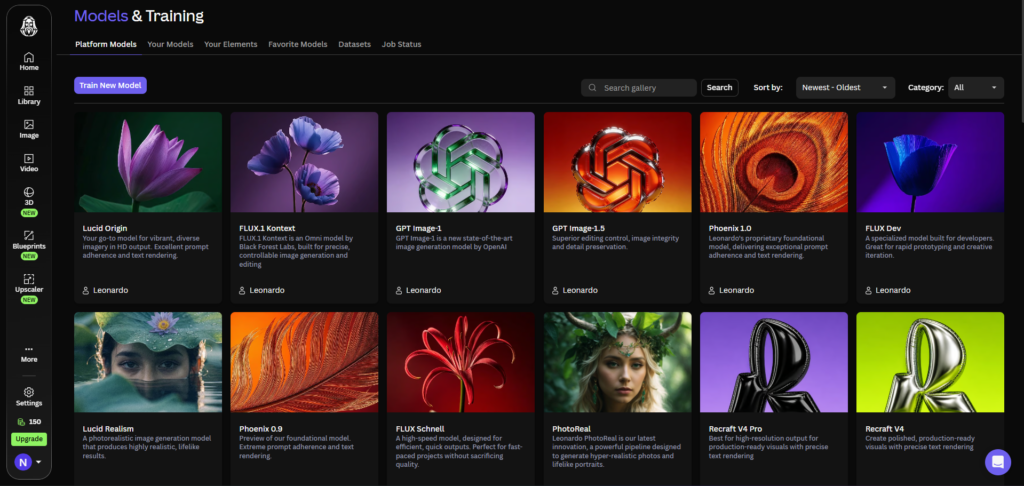
What You Can Train a LoRA On?
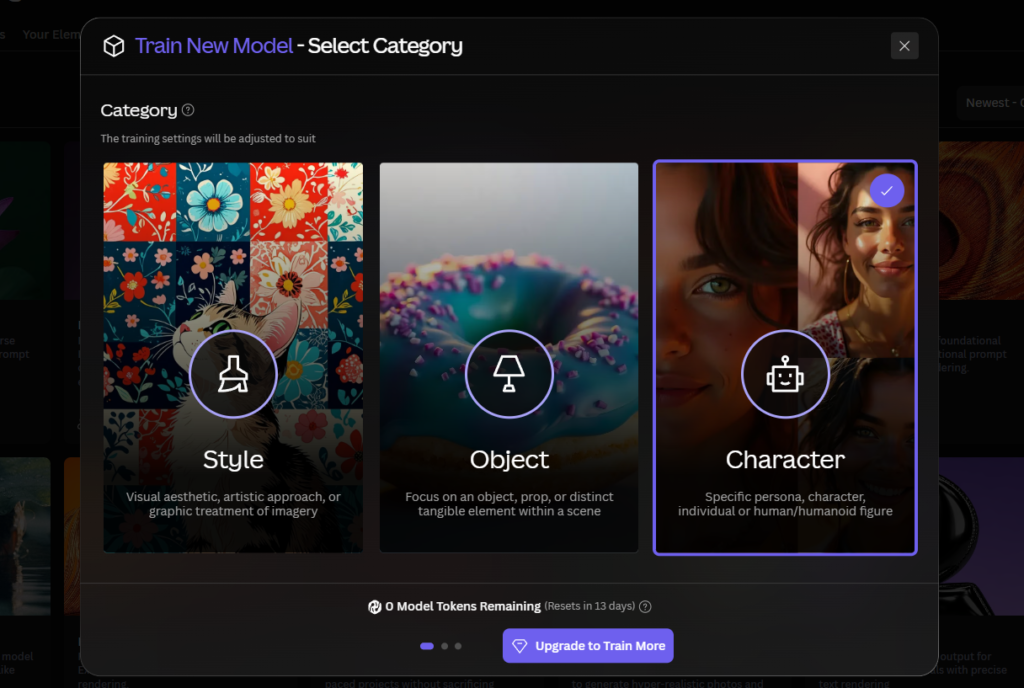
Leonardo AI supports training Elements on four main categories. Understanding which category fits your goal before you start training is important, because each category uses a different training method optimised for that specific use case.
Style Elements are trained on a consistent visual aesthetic. You provide a set of images that share the same art style, whether that is your own illustration work, a specific painting style, a photography treatment, or a brand visual language. The trained Element learns to reproduce that visual character across new subject matter. This is useful for illustrators maintaining a recognisable style, agencies maintaining brand visual consistency, and photographers replicating a specific post-processing look.
Character Elements are trained on a specific person, character design, or face. You provide a set of images showing the same subject from different angles, in different lighting conditions, and in different contexts. The trained Element learns to reproduce that specific face or character design in new poses, settings, and scenarios. This is the use case for comic artists, game developers, and anyone producing content featuring a consistent character.
Object and Product Elements are trained on a specific object, such as a product, logo element, architectural feature, or prop. You provide images of the object from various angles and in various contexts. The trained Element learns to reproduce that specific object in new generated scenes. This is particularly useful for e-commerce brands generating product lifestyle imagery.
Concept Elements cover abstract visual ideas: textures, colour palettes, lighting conditions, and atmospheric qualities that are harder to describe in prompts but easy to demonstrate through images.
How to Prepare Your Dataset: The Most Important Step
Dataset quality is the single biggest factor in whether your trained Element produces good results. A well-prepared dataset produces a reliable, consistent Element. A poorly prepared dataset produces an Element that overfits to specific image features, produces repetitive outputs, or fails to generalise to new prompts.
Image count. Leonardo’s official guidance is that you can train a usable Element with a small set of high-quality images. The exact number depends on the complexity of the subject. For a Style Element, 15 to 30 images covering a range of subjects in the target style gives the model enough variation to generalise. For a Character Element, 15 to 25 images showing the character from different angles, in different lighting, and with different expressions gives the model enough data to capture identity reliably. For a Product Element, 10 to 20 images from different angles and backgrounds is typically sufficient.
The quality and diversity of the images matters more than the raw count. Fifty low-quality images that all show the same pose from the same angle will produce a worse Element than 15 high-quality images that show genuine variation.
Image quality requirements. Use images that are sharp, well-lit, and clearly representative of what you want the Element to learn. Avoid images with heavy compression artefacts, blurriness, or confusing background clutter that the model might incorporate into the trained Element. For Style training, make sure every image clearly demonstrates the target aesthetic without mixing in styles you do not want reproduced.
Consistency within variation. The counterintuitive part of good dataset preparation is that you need both consistency and variation at the same time. Consistency means all images should clearly represent the same core subject, style, or character. Variation means the images should show that subject from different perspectives, in different contexts, and with different supporting elements. Too much consistency causes overfitting, where the model memorises specific images rather than learning the underlying pattern. Too much variation causes underfitting, where the model cannot identify a clear pattern to learn.
What to avoid in your dataset. Remove any images with watermarks, text overlays, or visible logos unless those elements are specifically what you want the Element to learn. Avoid including images that show the subject in a partially obscured or unusual state. Remove duplicate or near-duplicate images. For character training, avoid images where the character is very small in the frame or where the face is not clearly visible.
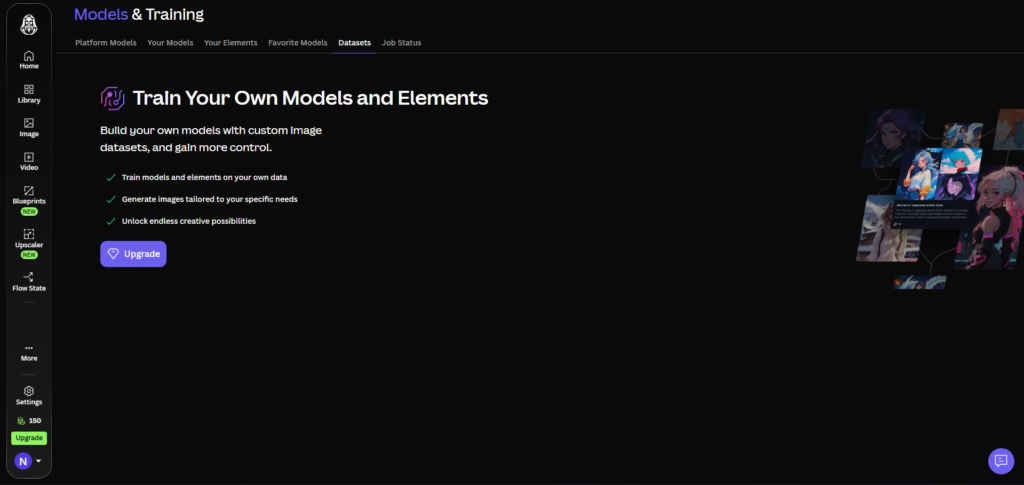
Step-by-Step: Training Your First Element on Leonardo AI
Step 1: Access the Elements Training Section
Log in to your Leonardo AI account at app.leonardo.ai. In the left sidebar, navigate to Models and Training, then click Elements. If you are on a paid plan (Essential or above), you will see a Train New Element button. Click it to begin the training setup.
If you are on the free plan, you can explore the Elements library and apply community-created Elements to your generations, but training your own custom Element requires a paid plan. The Essential plan at $12 per month includes one training slot per month.
Step 2: Create Your Dataset
Click Create New Dataset and give it a clear, descriptive name. Something like “Emma Character Reference” or “Watercolour Brand Style” works better than a generic name because you will likely build multiple datasets over time and need to identify them quickly.
Upload your prepared images by dragging them into the upload area or clicking to browse your files. Check each uploaded image to confirm it loaded correctly without compression issues. You can add images to a dataset over time, so do not worry if you want to add more reference images after the initial upload.
Step 3: Configure Your Training Settings
Once your dataset is ready, click Train New Element. A configuration panel will appear with the following main settings:
Name and description. Give your Element a descriptive name and a short description that explains what it does. These are visible in your Elements library and help you remember which Element was trained on what.
Category. Select the category that matches your training purpose: Style, Character, Object, or Concept. This selection determines which training method Leonardo uses, so choosing the right category matters. Do not select Style for a character training project simply because it seems close enough.
Base model. This defaults to Flux Dev and should stay at Flux Dev for most training jobs. Flux Dev is the best current option for photorealism, character likeness capture, and cinematic image quality. Change this only if you have a specific reason, such as needing SDXL compatibility with an older generation preset.
Step 4: Start Training
Click Start Training. The platform submits your training job to its infrastructure. Training time varies based on your dataset size and current server load. According to Leonardo’s official help documentation, training can take anywhere from 30 minutes to a few hours. You will receive an email notification when training is complete, and you can monitor job status under the Job Status tab.
During this wait, do nothing. The training runs on Leonardo’s servers without requiring your browser to stay open.
Step 5: Evaluate the Trained Element
Once training is complete, navigate back to the Elements section and find your newly trained Element. Run a small set of test generations to evaluate how well the Element is performing. Use prompts that describe scenarios different from your training dataset to test whether the Element generalises correctly rather than just memorising your reference images.
If the results show too much variation from your reference material, the dataset may need more images or better consistency. If the results show too little variation and every output looks nearly identical to your training images, the dataset may have too many duplicates or the Element strength may be set too high.
How to Apply Your Trained Element in Generations?
Applying a trained Element to a new generation is straightforward. Navigate to the AI Image Generation page. Change to a compatible preset: Flux Dev or a non-Phoenix preset (Flux Elements are not compatible with Phoenix presets or Flux Schnell). Click the Elements button on the left side of the prompt bar, find your trained Element in the list, and select it.
The Element strength slider controls how strongly your Element influences the generation. The default strength is 1.0, which can sometimes be too high depending on the Element, causing the output to overly replicate your training images. Start at 0.7 to 0.8 and adjust upward or downward based on results. For character Elements, higher strength (0.8 to 1.0) tends to produce better identity consistency. For style Elements, a lower strength (0.5 to 0.7) often produces more natural results that blend the trained style with the generation model’s own capabilities.
You can combine up to 4 compatible Elements in a single generation. When stacking multiple Elements, keep the total combined strength at or below 1.0 to avoid conflicting influences. A practical approach is to set your primary Element to 0.6 to 0.8 and any secondary Elements to 0.1 to 0.2. This lets a secondary style Element add a texture or atmospheric quality without overpowering the primary character or subject Element.
Advanced Settings: When and How to Use Them?
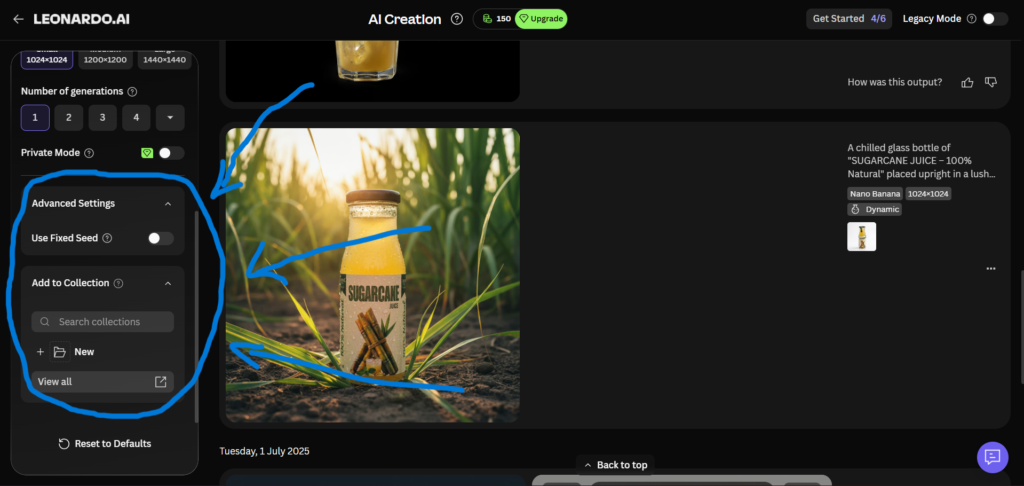
The Advanced Settings panel appears when you click the Advanced Settings option in the training configuration popup. Most users will not need to change these, and Leonardo’s official guidance is to stick with defaults unless you have a specific reason to adjust them.
The settings available include training epochs (default 100, which controls how many passes the training algorithm makes through your dataset), learning rate (which controls how aggressively the model adjusts during training), and text encoder training (which helps the model better interpret text prompts that describe your trained subject). The text encoder option is recommended on for better results, as it improves how accurately the trained Element responds to descriptive prompts.
Changing the learning rate without a clear reason often produces worse results than the default. Similarly, significantly increasing training epochs on a small dataset tends to cause overfitting. Unless you are systematically experimenting with these settings and comparing results, leaving the defaults in place is the practical choice.
Common Mistakes and How to Avoid Them?
Using too few images with no variation. A dataset of 5 images showing the same character in the same pose from the same angle will not train a useful Element. The model memorises those specific images rather than learning the underlying identity. Minimum 15 images with genuine variation across angle, lighting, and context.
Mixing multiple subjects in one training dataset. If you want to train a character Element, your dataset should contain only that character. Including other characters, even in the background, teaches the model conflicting information. Crop or remove images where the background contains other faces or subjects that could confuse the training.
Selecting the wrong category. Training a character using the Style category uses the wrong training method for the goal. The results will be unpredictable. Always match the category to the actual intent of the training.
Applying a Flux Element to a Phoenix or Flux Schnell preset. Flux Dev-trained Elements are only compatible with Flux Dev presets. Applying them to an incompatible model produces no effect or broken outputs. When an Element seems to be doing nothing in a generation, check preset compatibility first.
Setting Element strength above 1.0. Strengths above 1.0 tend to produce visual artefacts, distortion, and outputs that heavily override the generation prompt. Keep strength at or below 1.0. When stacking multiple Elements, keep the total combined strength at or below 1.0.
Which Plans Include LoRA Training?
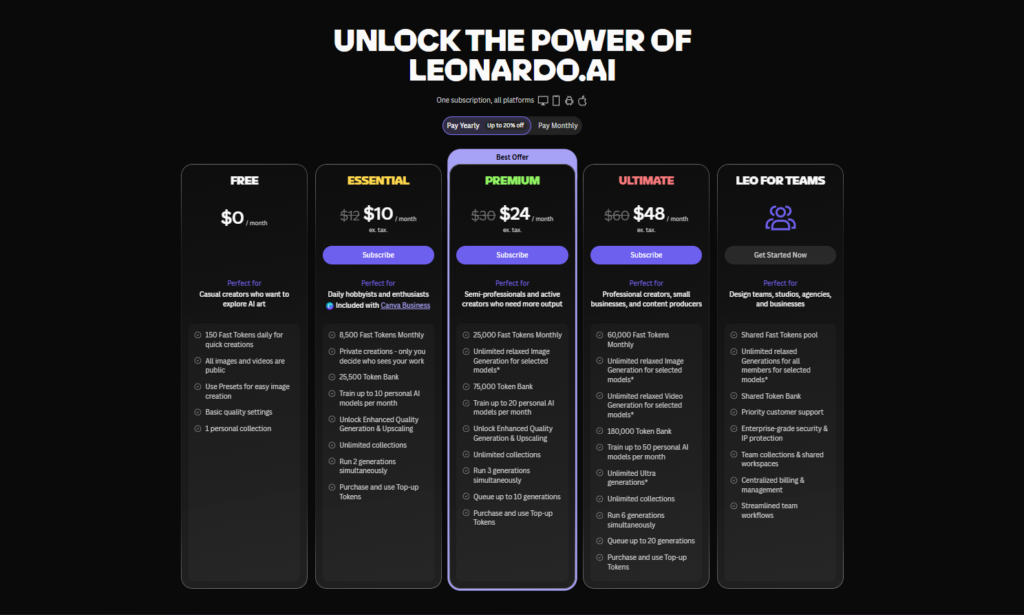
LoRA training through Elements is available on all paid Leonardo AI plans. Free plan users can access the community Elements library and apply existing Elements to generations, but cannot train custom Elements.
| Plan | Monthly Cost | Element Training Slots | Notes |
|---|---|---|---|
| Free | $0 | 0 | Can use community Elements only |
| Essential | $12/mo ($10 annual) | 1 per month | One custom Element trained per billing cycle |
| Premium | $30/mo ($24 annual) | 5 per month | Iterate and refine across multiple projects |
| Ultimate | $60/mo ($48 annual) | 20 per month | Agency and studio-level training volume |
The Essential plan’s single monthly slot is workable if you plan your training carefully, which starts with preparing a strong dataset before submitting a job. The Premium plan’s 5 monthly slots give you room to iterate: train, evaluate, refine your dataset, and retrain within the same billing month without waiting. For a full breakdown of what each plan includes beyond training slots, see our Leonardo AI pricing guide.
Understanding how LoRA training fits into a complete professional workflow is covered across several of our other guides. If you are a freelance designer or marketing professional, our Leonardo AI for marketing guide shows how to apply trained Elements to brand consistency workflows. If you are working on game assets, our Leonardo AI for game developers guide covers how to use character and style Elements for consistent asset generation. And if you want to understand the full platform before diving into training, the complete Leonardo AI guide covers all features in a single reference.
Frequently Asked Questions
How long does Leonardo AI LoRA training take?
According to Leonardo’s official help documentation, training time for a custom Element ranges from 30 minutes to a few hours depending on your dataset size and current server load. Most standard training jobs with 15 to 30 images complete within 30 to 60 minutes on paid plans. You receive an email notification when training is complete and can check progress under the Job Status tab without keeping your browser open. Peak server hours may push training time toward the longer end of this range.
Can I train a LoRA on the free plan?
No. Custom Element training requires a paid plan starting with the Essential tier at $12 per month, which includes one training slot per month. Free plan users can access and apply community-created Elements from Leonardo’s public library, which covers a wide range of styles, aesthetics, and subjects. However, training an Element on your own reference images to capture a specific character, brand style, or proprietary aesthetic requires a paid subscription.
How many images do I need to train a good Element?
Leonardo’s official guidance recommends a small set of high-quality images, with the exact number depending on the complexity of the subject. For practical planning: character Elements typically need 15 to 25 images showing the subject from different angles and in different lighting conditions. Style Elements typically need 15 to 30 images demonstrating the target aesthetic across different subjects. The quality and diversity of the dataset matters more than the total count. A diverse set of 15 sharp, well-composed images consistently outperforms 50 repetitive or low-quality images.
What is the difference between an Element and a fine-tuned model on Leonardo?
Fine-tuned models are an older training method on Leonardo that uses Stable Diffusion 1.5 or 2.1 as the base model. Leonardo now classifies fine-tuned model training as a legacy feature and strongly recommends using Elements instead. Elements use Flux Dev as the default base model, which produces significantly better results for photorealism, character consistency, and prompt adherence. Fine-tuned models are only accessible through Legacy Mode in the image generation tool and are incompatible with newer features like Presets and Edit with AI. For all new training work in 2026, Elements are the correct approach.
Can I use my trained Element on any model in Leonardo?
No. Compatibility depends on which base model your Element was trained on. Elements trained on Flux Dev are compatible with Flux Dev presets only. They are not compatible with Flux Schnell, Phoenix presets, or SDXL models. Elements trained on SDXL are only compatible with SDXL models. When applying an Element, make sure your active preset matches the base model the Element was trained on. If an Element appears to have no effect on your generation, a preset compatibility mismatch is the most common cause.
Can I share my trained Elements with other people?
Yes, within the limits of your plan. You can share Elements with team members on a Teams plan, which allows collaborative use of trained models across a shared workspace. You can also publish an Element to the public community library if you want others to use it. Private Elements stay within your account by default and are not visible to other users. Sharing an Element publicly does not give others the ability to edit or retrain it, only to apply it to their own generations.
Final Thoughts
Leonardo AI LoRA training through Elements is one of the most practically useful features in AI image generation available to non-technical creators in 2026. The ability to train a custom model on your own images, without a GPU, without code, and within the same platform you use for daily generation, removes a barrier that previously required either significant technical investment or a separate cloud training pipeline.
The learning curve is real but manageable. The biggest investment is in dataset preparation, and that investment pays off directly in Element quality. A well-prepared dataset of 15 to 20 strong reference images will produce a more reliable Element than a rushed upload of 50 mixed-quality images every time.
Start with the Essential plan if you want to test the workflow. Prepare your dataset carefully using the guidance in this article, submit one training job, evaluate the results methodically, and you will have a working custom Element within a few hours of starting. From there, the workflow of train once and reuse across every project becomes the foundation of everything else you do on the platform.
Go to app.leonardo.ai and navigate to Models and Training to begin. If you want to see where LoRA training fits inside the broader set of Leonardo AI features, our complete Leonardo AI guide covers the full platform from top to bottom.
| # | Specific Article / Page | URL |
|---|---|---|
| 1 | “How to Train and Use Elements on Leonardo AI” — Leonardo AI Help Center | intercom.help/leonardo-ai/en/articles/10501488-element-lora-training |
| 2 | “LoRA Training Guide for AI Art Beginners” — Stable Diffusion Art | stable-diffusion-art.com/lora |
| 3 | “What Is LoRA in AI Image Generation?” — How-To Geek | howtogeek.com/what-is-lora-ai-image-generation |
| 4 | “Leonardo AI Element Training Official Page” — Leonardo AI | leonardo.ai/element-training |
| 5 | “How to Create Consistent AI Characters” — Creative Bloq | creativebloq.com/features/how-to-create-consistent-ai-characters |
| 6 | “Best AI Tools for Game Developers in 2026” — Game Developer | gamedeveloper.com/design/best-ai-tools-game-developers-2026 |
| 7 | “AI Art Style Consistency: A Practical Guide” — 80.lv | 80.lv/articles/ai-art-style-consistency-guide |
| 8 | “How to Train a Custom AI Model Without Coding” — MakeUseOf | makeuseof.com/train-custom-ai-model-no-code |
| 9 | “Leonardo AI API Training Documentation” — Leonardo AI Docs | docs.leonardo.ai/docs/train-custom-element-and-generate-images |
| 10 | “Best AI Image Generators for Illustrators” — ArtStation Blog | artstation.com/blog/best-ai-image-generators-illustrators |













[…] next month. For users who rely heavily on custom model training, this is a genuine constraint. Our Leonardo AI LoRA training guide covers how to prepare your dataset properly to avoid wasted training […]
[…] Game developers and concept artists use inpainting for detailed asset refinement, changing specific elements of a character or environment concept without disrupting the elements that are already working. The workflow integrates naturally with the custom LoRA training covered in our Leonardo AI LoRA training guide. […]
[…] generations, or you want stronger photorealism than Phoenix with more flexibility than Lucid. Our Leonardo AI LoRA training guide covers why Flux Dev is the correct base model choice for Element training in […]
[…] training process is covered in full detail in our Leonardo AI LoRA training guide. For marketing applications specifically, the key preparation difference is that brand reference […]
[…] Training takes 30 minutes to a few hours depending on dataset size and server load. Dataset preparation is the most impactful variable in training quality. A diverse set of 15 to 25 sharp, well-composed reference images showing genuine variation in angle, lighting, and context consistently outperforms a larger dataset of repetitive or low-quality images. Full dataset preparation guidance is in our Leonardo AI LoRA training guide. […]